

NexiGo | June 9, 2026
Whether you're turning your living room into a 4K gaming arena or creating a cozy bedroom sanctuary, a NexiGo projector is your gateway to a limitless cinematic experience.
At NexiGo, we believe technology should be powerful yet intuitive. This guide goes beyond the manual. We’re sharing professional insights to help you master your environment, optics, and hardware for a truly pixel-perfect setup.
Pre-Planning: Know your projector
You just got your new projector and now it’s time to set it up. Before you can pick the perfect spot to put it, there are a few things you need to know about your projector first.
1. Brightness vs. Ambient Light
Projector performance is a dance between projector brightness and light control. The less control you have over ambient lighting, the brighter you’ll need your projector to be.
In bright rooms, such as a living room with windows, high-brightness models like the 2400-Lumen Aurora Pro MKII are essential to cut through the ambient light. In completely dark rooms, even entry-level models shine, as the lack of light preserves deep black levels.
Have a dimmer projector under ~1000 Lumens? Get more light control by investing in blackout curtains and an ambient light-rejecting screen.
2. Understanding Throw Ratio (The Distance Formula)
The Throw Ratio determines how large your image will be from a specific distance.
To calculate the throw ratio of your projector, take the projector’s distance from the wall and divide it by the width of the projected image.

The smaller your throw ratio, the less room you need to get a large screen size. You can use this information to figure out the minimum and maximum screen size you can realistically get in your space.
| Projector | Throw Type | Throw Ratio | Distance for 100” Image |
|---|---|---|---|
| NexiGo Aurora Pro MKII | Ultra-Short Throw (UST) | 0.21 | 6.84'' |
| NexiGo TriVision Ultra | Standard/Long Throw | 1.27 | 110.64'' |
| NexiGo Nova Mini | Standard/Long Throw | 1.2 | 105.72'' |
| NexiGo PJ40 Ultra | Standard/Long Throw | 1.47 | 126'' |
3. Smart OS vs. External Sources
The next most essential factor for your setup is how you’re going to get content onto your projector. If you want 4K Blu-ray quality or low-latency gaming, plan your cable management for HDMI sources early. If you prefer to stream content, consider whether your projector has an OS.
Does your model have a built-in OS? If so, all you need is Wi-Fi. Google TV projectors like the NexiGo Nova Mini have access to 10,000+ apps with the Google Play Store, so you can download your favorite apps directly onto the projector.
If your projector doesn’t have an OS built-in, you’ll need to look at external streaming sticks like a FireTV Stick or Roku.
Projector Setup: Step-by-step instructions
When setting up your projector, you’ll want to start by calculating your screen size and throw distance (the distance between the projector and the wall). After placing your projector, you’ll want to set up your screen and adjust the focus and keystone correction. The last step is to connect your projector to Wi-Fi and plug in any HDMI devices. After that, you’ll be ready to watch.
Need help getting started? Keep reading for step-by-step instructions to guide you through every step of the process.
Step 1: Placement & Throw Distance
Figure out where to put your projector based on the screen size you want and your projector’s unique throw ratio. When you place your projector, the distance between the projector and the wall is known as the “throw distance”. We recommend using a projector calculator tool to find the right throw distance for your screen size, but you can also find it in your user manual.
Tip: Don’t guess the height
If the projector is placed at an extreme angle, you’ll have to rely heavily on Digital Keystone, which can lead to cropped edges or a slight loss in resolution. For the best image, aim for a "natural" projection angle before adjusting software settings.
Tip: Work with your optical offset
Every projector has a unique "offset", which is the height of the projected image relative to the lens. Because of this, it’s best to find the natural height of the projection before you hang your screen. To do this:
- Power on the projector and point it at a flat wall before mounting your screen.
- Adjust the height of your projector stand or ceiling mount so the image is at your preferred height.
- Hang your projector screen after you’ve found the perfect screen height.
Note that most modern projectors are designed to sit slightly below the screen center (for tabletop) or slightly above (for ceiling mounts).
Tip: Give it room to breathe
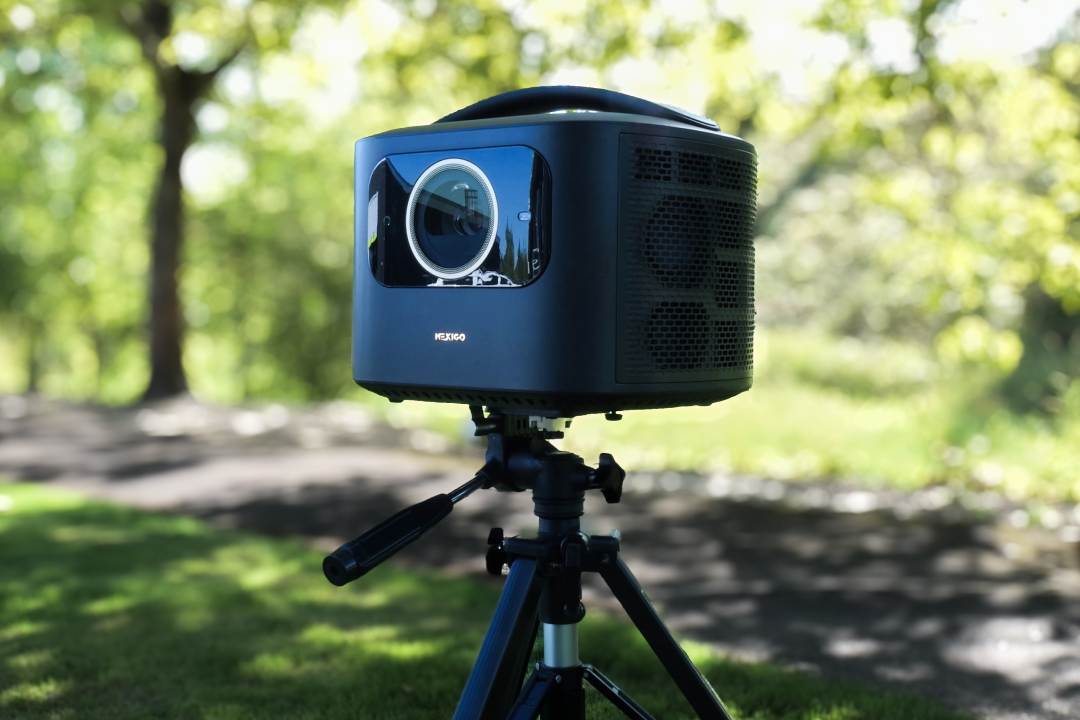
Ensure there is at least 6 inches of clearance around the intake and exhaust fans. Proper airflow is the #1 way to prevent overheating and extend the life of your optical engine.
Step 2: Screen Selection (Optional but Recommended)
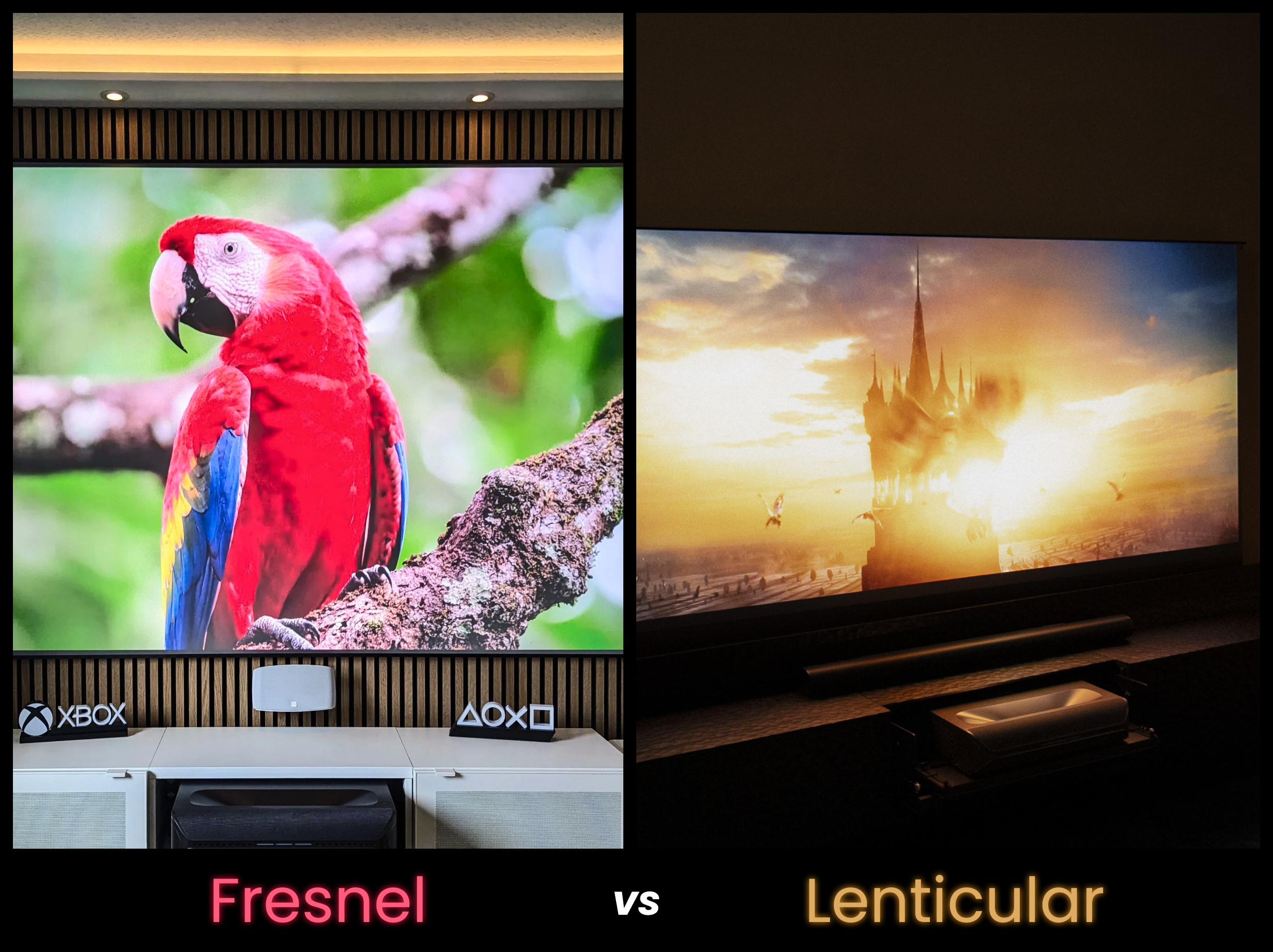
While it’s possible to project right onto a plain white wall, you’ll get a better image by using a projector screen.
Why use a screen? Walls have textures that scatter light. A High-Gain or ALR (Ambient Light Rejecting) screen reflects light directly back to your eyes, boosting contrast by up to 50%.
Step 3: Focus & Keystone Calibration
Once you power on your projector, you’ll need to set the focus and keystone correction.
To set Focus, use the remote or the manual ring. We recommend starting with the center of the screen, then checking the corners.
To set Keystone Correction, choose between Auto Keystone (NexiGo Nova Mini, NexiGo TriVision Ultra) and Manual 4-Point Keystone (most projectors) or Grid Calibration (on Laser models) for more precise pixel alignment.
Step 4: Signal Source & Connectivity
Finally, you’ll want to set up Wi-Fi on your projector, along with any apps or external sources.
With one of our Google TV projectors such as the PJ40 Pro or Nova Mini, you can log into your Netflix or YouTube accounts directly.
Otherwise, you’ll want to plug in an HDMI source, such as a PS5, Xbox, or FireStick. Ensure you use "High-Speed" HDMI cables for 4K content.
Alternatively, Use Miracast or AirPlay for quick wireless casting, though wired is always better for high-bitrate movies.
Tips for Immersive Audio Configuration
Visuals are only half the story; sound is the soul of the movie experience. Although NexiGo projectors come with powerful inbuilt speakers, we recommend using external speakers for premium audio.
For the best experience, connect your NexiGo projector to a soundbar via the HDMI ARC/eARC port. The HDMI eARC port provides the massive bandwidth required to transmit uncompressed, lossless audio. This gives you the full, raw power of studio-mastered soundtracks directly to your soundbar.
Alternatively, you can pair external speakers via Bluetooth. This is perfect for late-night viewing with wireless headphones to avoid waking the family.
Optimizing for the "Cinematic Look"
Unlike TVs that blast blue light directly at your retinas, projectors use diffuse reflection. This mimics natural light, making 4-hour "Lord of the Rings" marathons much easier on your eyes.
For an even better color experience, you can switch to "Cinema" mode for accurate skin tones, or "Game" mode to reduce input lag to the absolute minimum. We also recommend enabling 24p/50p mode, which can help your projector look even smoother while watching movies natively in 24 fps.
Projector Maintenance
A projector is a precision optical instrument. Treat it well, and it will last for years. To keep your projector in pristine condition, follow these essential tips: a frozen pixel.
- Lens Care: Never use liquid cleaners. Use a specialized lens blower or a dry, lint-free microfiber cloth. Learn more about cleaning your projector here.
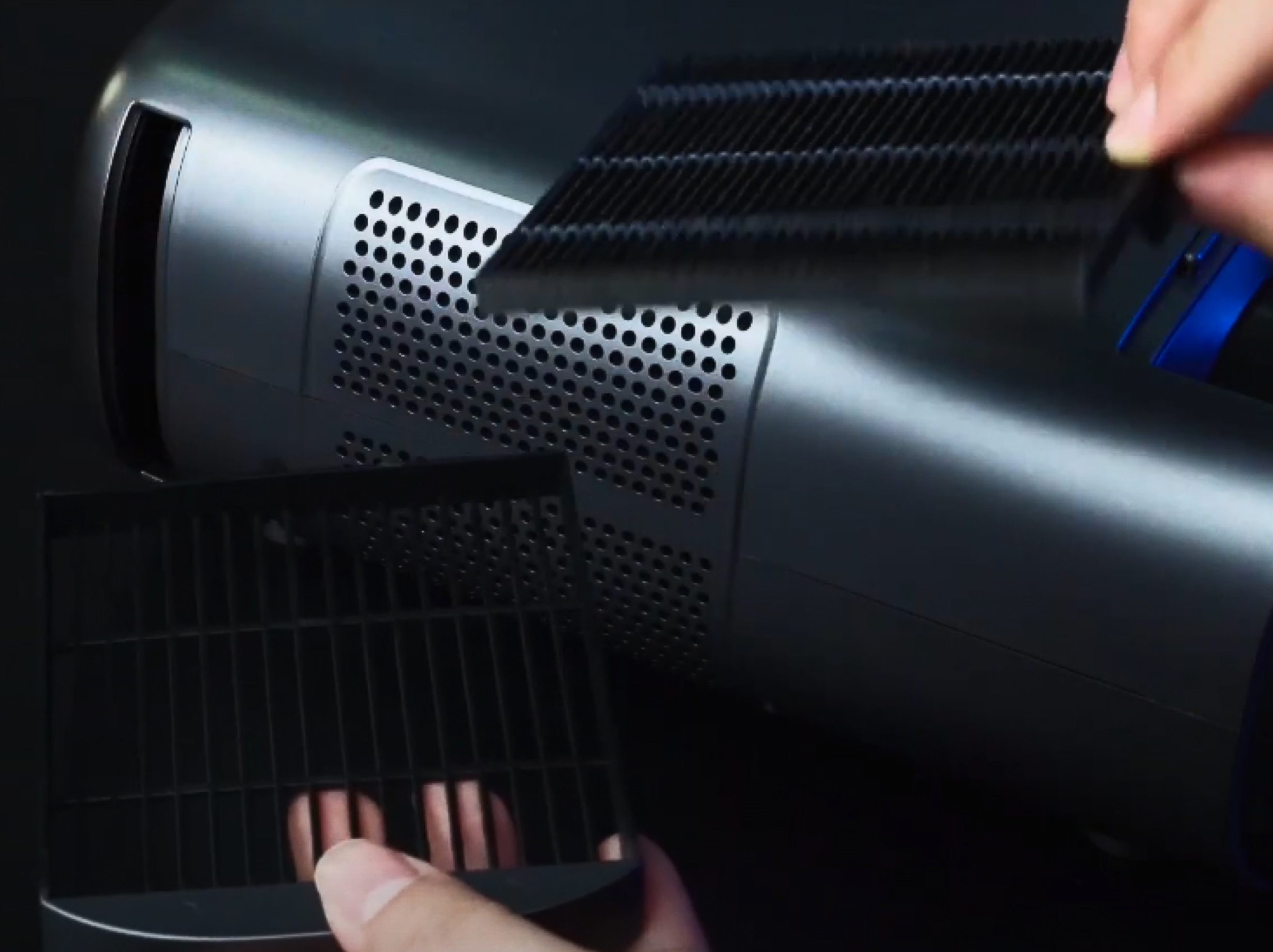
- Ventilation: Periodically check the air intake for dust. A clogged filter is the #1 cause of shortened lamp life and fan noise.
- Cool-Down Cycle: Don't unplug the projector immediately after turning it off. Let the fans run their "cool-down" cycle to protect the internal components.
Conclusion
A good projector setup requires a balance between hardware, placement, and atmosphere. When you optimize for all three, you’ll get an incredible display that can rival any TV with larger-than-life proportions.
Ready to level up? Explore our latest 4K Laser Projectors to complete your ultimate setup.
What is laser speckle on a projector?
FAQs
Whether you work at home or in the office, NexiGo provides a wide range of quality and affordable technology to elevate your daily life. Our products encompass everything from webcams and portable monitors to projectors and gaming accessories.
Articles we think you'll love