




FAQ
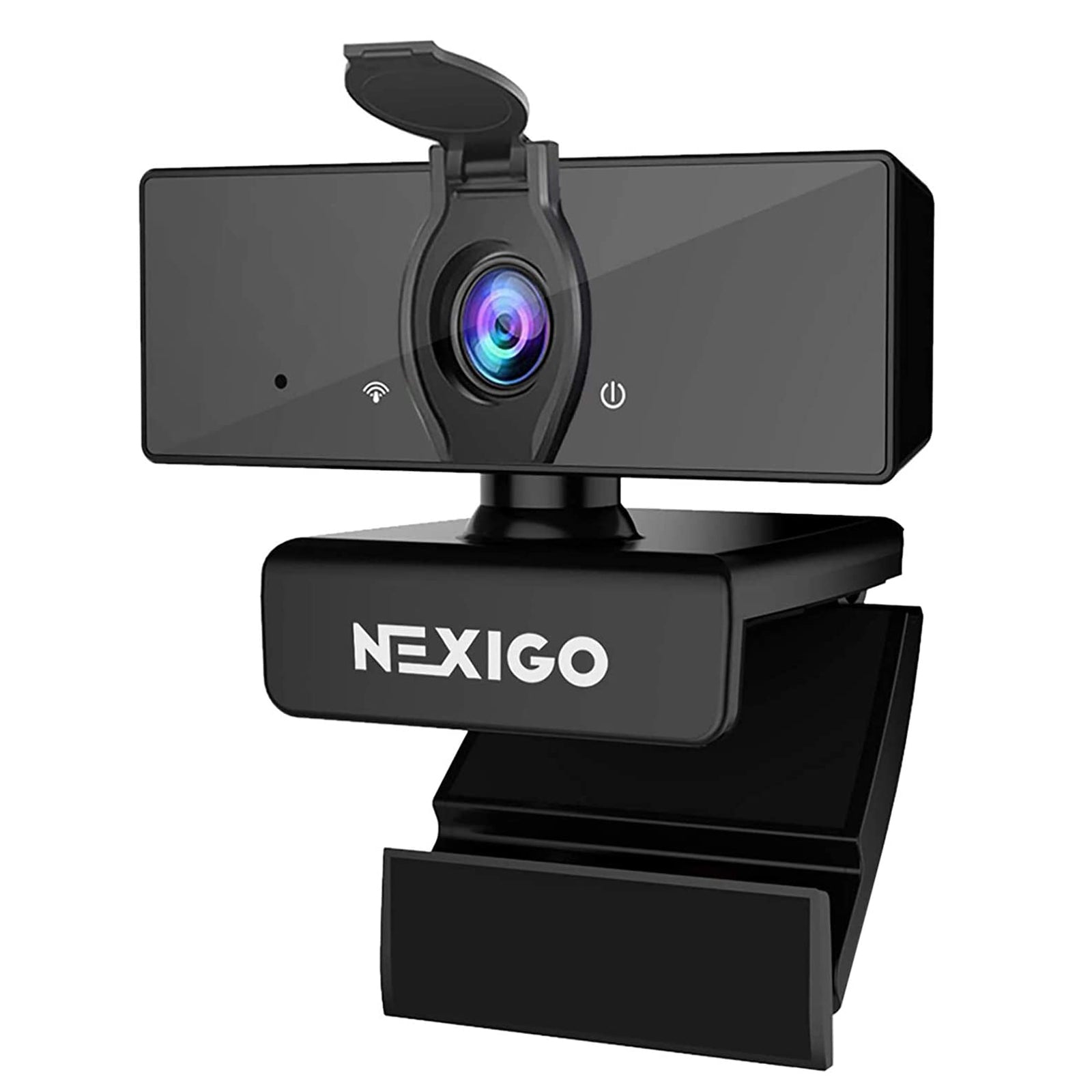
Step 1. Attach the cover to the front of the webcam and press firmly.

Step 2. Open /close the cover as needed.

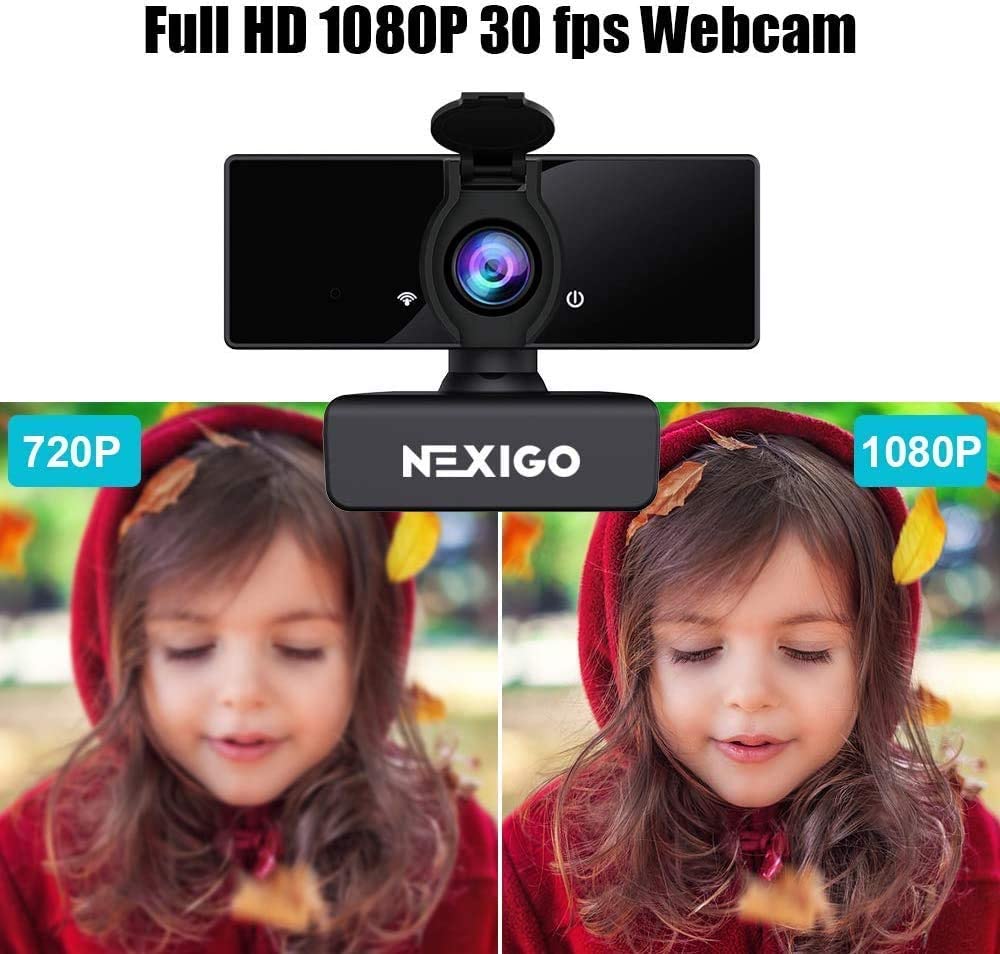
The NexiGo webcam captures clear images and can record video at 1080p / 30fps in a well-lit environment. The quality of the signal can be affected by low bandwidth availability or insufficient lighting. This can cause the frame rate to drop to 1080p / 20fps, or possibly even lower.
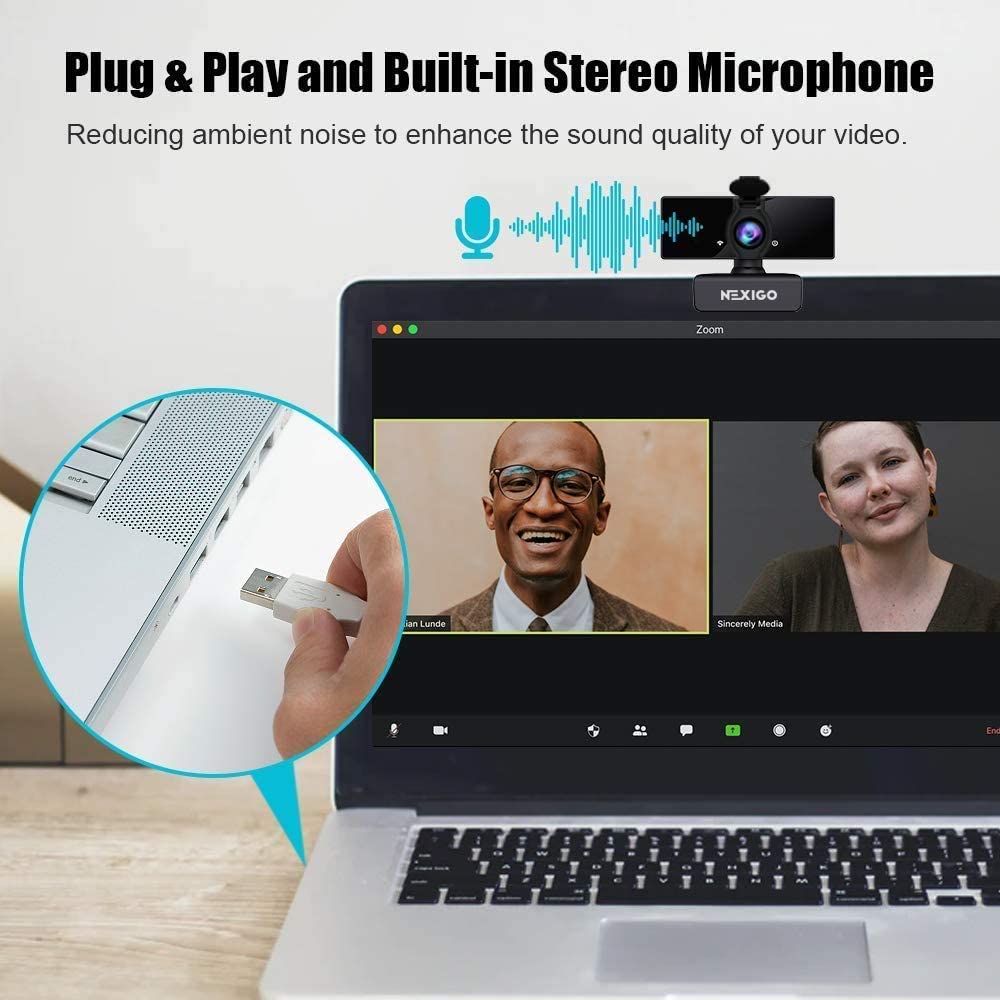
You can mute the webcam's microphone by navigating to the computer's Sound settings or by accessing the microphone settings within the video apps.

Image Sensor
1/1.8" Sony® STARVIS 2 back-illuminated sensor
Resolution
(USB 3.0 Output)
MJPEG/H.264
3840 x 2160@30/25/20/15/10/5fps,
1920 x 1080@60/30/25/20/15/10/5fps,
1280 x 720@60/50/30/25/20/15/10/5fps, etc.
YUY2/NV12
1920 x 1080@60/50/30/25/20/15/10/5fps,
1280 x 720@60/50/30/25/20/15/10/5fps, etc.
Resolution
(HDMI Output)
30fps mode
3840 x 2160fps@30/25fps, 1920 x 1080@30/25fps
60fps mode
1920 x 1080@60/50fps, 1280 x 720@60/50fps
Lens
9-layer glass lens, f/2.2 aperture, 4.2 mm focal length
Field of View
D=90°/H=81°/V=55°
Focus Type
Fixed Focus
Focus Range
10" - 90" (0.25m - 2.28m)
Digital Zoom
Up to 10x digital zoom at 4K@30fps
Facial Enhancement
Support
Microphone
Dual noise reduction mics
Mic Pickup Range
Within 32.8ft (10m)
Video Output Port
1 x USB-B, 1 x HDMI
Software
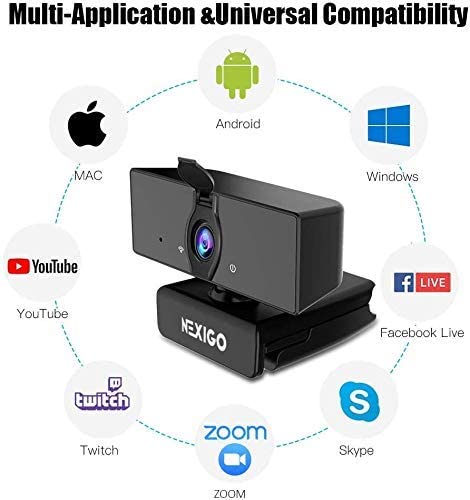
Works with Zoom, Microsoft Teams, Skype for Business, Slack, Webex, and many more
Operating System
Windows 7 (Supports 1080p or lower),
Windows 8.1/10/11 or above
macOS 10.10 or above
Hardware
CPU: 2.4 GHz Intel Core 2 Duo processor or better
RAM: 2 GB or more
USB: USB 2.0, USB 3.0(Recommended)
Overview

Specification
Video resolution
1920 x 1080@30fps, 1280 x 720@30fps, 640 x 480@30fps
Image Sensor
1/2.9-inch CMOS digital image sensor
Object distance
19.7 to 118.1 inches
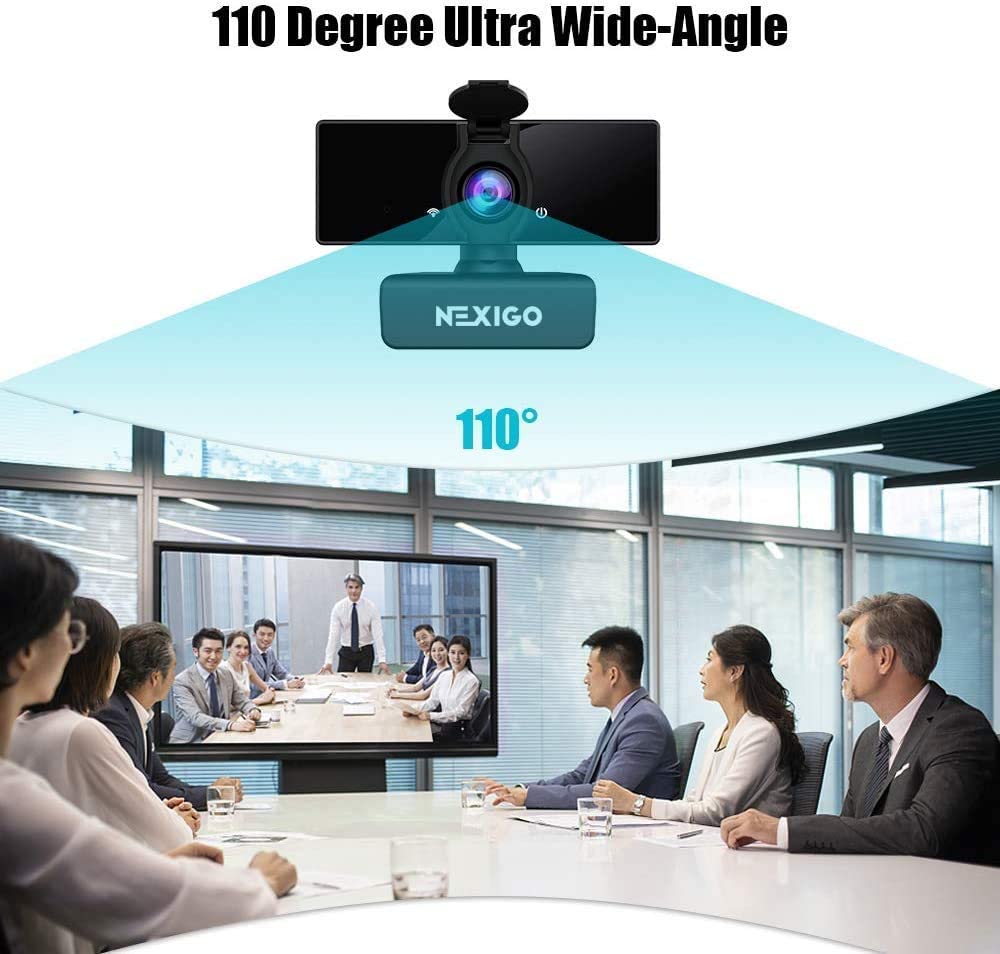
Field of view
D=110° / H=89° / V=48°
Application support
Chat software: Skype, FaceTime, Zoom, Microsoft Teams, Hangouts, etc.
Streaming software: Open Broadcaster Software and Xsplit
Photo or video: Using system Camera App (Camera for Windows, Photo Booth for macOS)
System requirements
Windows 7 / 8 / 10 / 11 or above
macOS 10.6 or above
Chrome OS V29.01547 or above
How to set up Windows Hello face login?
Set up VideoNote:
- To use face recognition, you may need to first update to the newest version of Windows 10/11 using Windows Update.
- If Windows Hello will not work after performing all other steps, please double-check to make sure that all current updates have been downloaded.
- To set up Windows Hello facial recognition, you must first set a PIN.
Step 1. On your computer, Select Start > Settings > Accounts > Sign-in options.

Step 2. Under Manage how you sign in to your device, click on Windows Hello Face and click on Set up.
"Windows Hello setup" will be displayed.

Step 3. Click on Get Started to start the facial recognition setup.

Step 4: Enter your PIN.

Step 5: Look straight into the camera while it scans your face.
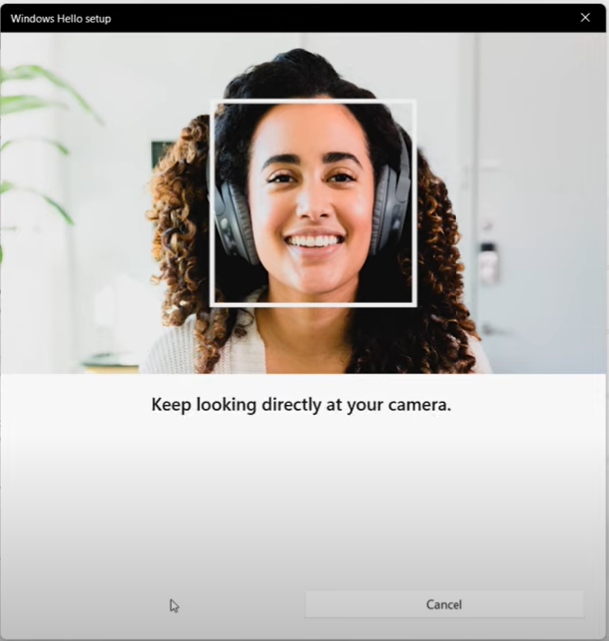
Step 6: Click Improve recognition to allow for additional scans, or Close to finish the setup process.
If you wear glasses, hats, or other accessories that may change your appearance, we recommend that you scan your face with and without them on.

Step 7: The next time you log in to Windows, the system will attempt to use the Windows Hello feature and the webcam to unlock the system. If this does not happen, please change the Sign-in options to Window Hello Face.


