

The NexiCo webcam captures clear images and can record video at 4K@30fps, or 1080p@60fps in a well-lit environment. The quality of the signal can be affected by low bandwidth availability or insufficient lighting. This can cause the frame rate to drop to 4K@20fps, or 1080p@50fps, or possibly even lower.
Please ensure that the light in your environment is free of unique tones or intense light sources. Things such as walls / floors / other large-area non-standard light sources, including areas with colored or intense light. In such environments photographed pictures are subjected to color cast due to the lighting impact of these light sources.
For Windows & Mac:
Using the NexiGo Webcam Settings Software, you can adjust the image parameter you want according to your needs.
Note: Download the NexiGo Webcam Settings Software from nexigo.com/software.
Check the video output settings in your video capture software, these may be set to a lower capture format. There are various constraints on the system that could impede the ability to attain a 4K video calling session. They center around processing power (i.e., CPU speed) and available network bandwidth. In all cases, review the requirements from the video calling application. They will guide as to the system performance required as well as the necessary bandwidth.
The webcam cannot support 4K resolution, 60fps, and digital zoom simultaneously.
· When set to 4K resolution, the frame rate is limited to 30 fps, and digital zoom is disabled.
· 60fps is only available at 1080p resolution without digital zoom.
· The digital zoom function is only available at 1080p and 30fps.
Step 1. Adjust the camera view to fit your needs. You can zoom in / out using the Zoom buttons, then pan and tilt the camera's view using the Arrow buttons.
Step 2. Press the Preset button. This will cause the camera to enter Preset Setting Mode.
Step 3. Press either the 1 or 2 button to save your preset. It will be saved to this slot and will override any previously saved preset.
Unless you have issues with the camera, we don't recommend any firmware updates. If you are not sure about if updates are needed, please contact our customer support cs@nexigo.com.

Image Sensor
1/1.8" Sony® STARVIS 2 back-illuminated sensor
Resolution
(USB 3.0 Output)
MJPEG/H.264
3840 x 2160@30/25/20/15/10/5fps,
1920 x 1080@60/30/25/20/15/10/5fps,
1280 x 720@60/50/30/25/20/15/10/5fps, etc.
YUY2/NV12
1920 x 1080@60/50/30/25/20/15/10/5fps,
1280 x 720@60/50/30/25/20/15/10/5fps, etc.
Resolution
(HDMI Output)
30fps mode
3840 x 2160fps@30/25fps, 1920 x 1080@30/25fps
60fps mode
1920 x 1080@60/50fps, 1280 x 720@60/50fps
Lens
9-layer glass lens, f/2.2 aperture, 4.2 mm focal length
Field of View
D=90°/H=81°/V=55°
Focus Type
Fixed Focus
Focus Range
10" - 90" (0.25m - 2.28m)
Digital Zoom
Up to 10x digital zoom at 4K@30fps
Facial Enhancement
Support
Microphone
Dual noise reduction mics
Mic Pickup Range
Within 32.8ft (10m)
Video Output Port
1 x USB-B, 1 x HDMI
Software
Works with Zoom, Microsoft Teams, Skype for Business, Slack, Webex, and many more
Operating System
Windows 7 (Supports 1080p or lower),
Windows 8.1/10/11 or above
macOS 10.10 or above
Hardware
CPU: 2.4 GHz Intel Core 2 Duo processor or better
RAM: 2 GB or more
USB: USB 2.0, USB 3.0(Recommended)
Overview


Image Sensor
1/1.8" Sony® STARVIS 2 back-illuminated sensor
Resolution
(USB 3.0 Output)
MJPEG/H.264
3840 x 2160@30/25/20/15/10/5fps,
1920 x 1080@60/30/25/20/15/10/5fps,
1280 x 720@60/50/30/25/20/15/10/5fps, etc.
YUY2/NV12
1920 x 1080@60/50/30/25/20/15/10/5fps,
1280 x 720@60/50/30/25/20/15/10/5fps, etc.
Resolution
(HDMI Output)
30fps mode
3840 x 2160fps@30/25fps, 1920 x 1080@30/25fps
60fps mode
1920 x 1080@60/50fps, 1280 x 720@60/50fps
Lens
9-layer glass lens, f/2.2 aperture, 4.2 mm focal length
Field of View
D=90°/H=81°/V=55°
Focus Type
Fixed Focus
Focus Range
10" - 90" (0.25m - 2.28m)
Digital Zoom
Up to 10x digital zoom at 4K@30fps
Facial Enhancement
Support
Microphone
Dual noise reduction mics
Mic Pickup Range
Within 32.8ft (10m)
Video Output Port
1 x USB-B, 1 x HDMI
Software
Works with Zoom, Microsoft Teams, Skype for Business, Slack, Webex, and many more
Operating System
Windows 7 (Supports 1080p or lower),
Windows 8.1/10/11 or above
macOS 10.10 or above
Hardware
CPU: 2.4 GHz Intel Core 2 Duo processor or better
RAM: 2 GB or more
USB: USB 2.0, USB 3.0(Recommended)
Overview


1. Lens
2. Power Indicator
3. Light Adjustment Touch Control Area
4. Flexible Clip / Base
5. Noise Reduction Microphones
6. 1/4" Tripod Screw Hole
7. Privacy Shutter
Specification
Video resolution
3840 x 2160, 1920 x 1080, 1280 x 720, etc
Video resolution
4K@30fps, 1080@60fps
Sensor
1/2.5-inch CMOS digital image sensor
Focus type
Autofocus
Field of view
80°
Application support
Chat software: Skype, FaceTime, Zoom, Microsoft Teams, Hangouts, etc.
Streaming software: Open Broadcaster Software and Xsplit
Photo or video: Using system Camera App (Camera for Windows, PhotoBooth for macOS)
System requirements
Windows 7 / 8 / 10 / 11 or above
macOS 10.6 or above
Chrome OS V29.01547 or above
How to set up Windows Hello face login?
Set up VideoNote:
- To use face recognition, you may need to first update to the newest version of Windows 10/11 using Windows Update.
- If Windows Hello will not work after performing all other steps, please double-check to make sure that all current updates have been downloaded.
- To set up Windows Hello facial recognition, you must first set a PIN.
Step 1. On your computer, Select Start > Settings > Accounts > Sign-in options.

Step 2. Under Manage how you sign in to your device, click on Windows Hello Face and click on Set up.
"Windows Hello setup" will be displayed.

Step 3. Click on Get Started to start the facial recognition setup.

Step 4: Enter your PIN.

Step 5: Look straight into the camera while it scans your face.
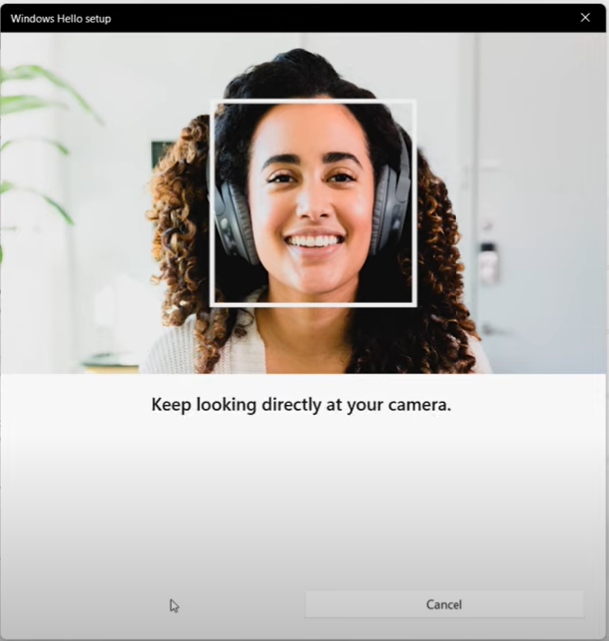
Step 6: Click Improve recognition to allow for additional scans, or Close to finish the setup process.
If you wear glasses, hats, or other accessories that may change your appearance, we recommend that you scan your face with and without them on.

Step 7: The next time you log in to Windows, the system will attempt to use the Windows Hello feature and the webcam to unlock the system. If this does not happen, please change the Sign-in options to Window Hello Face.
