
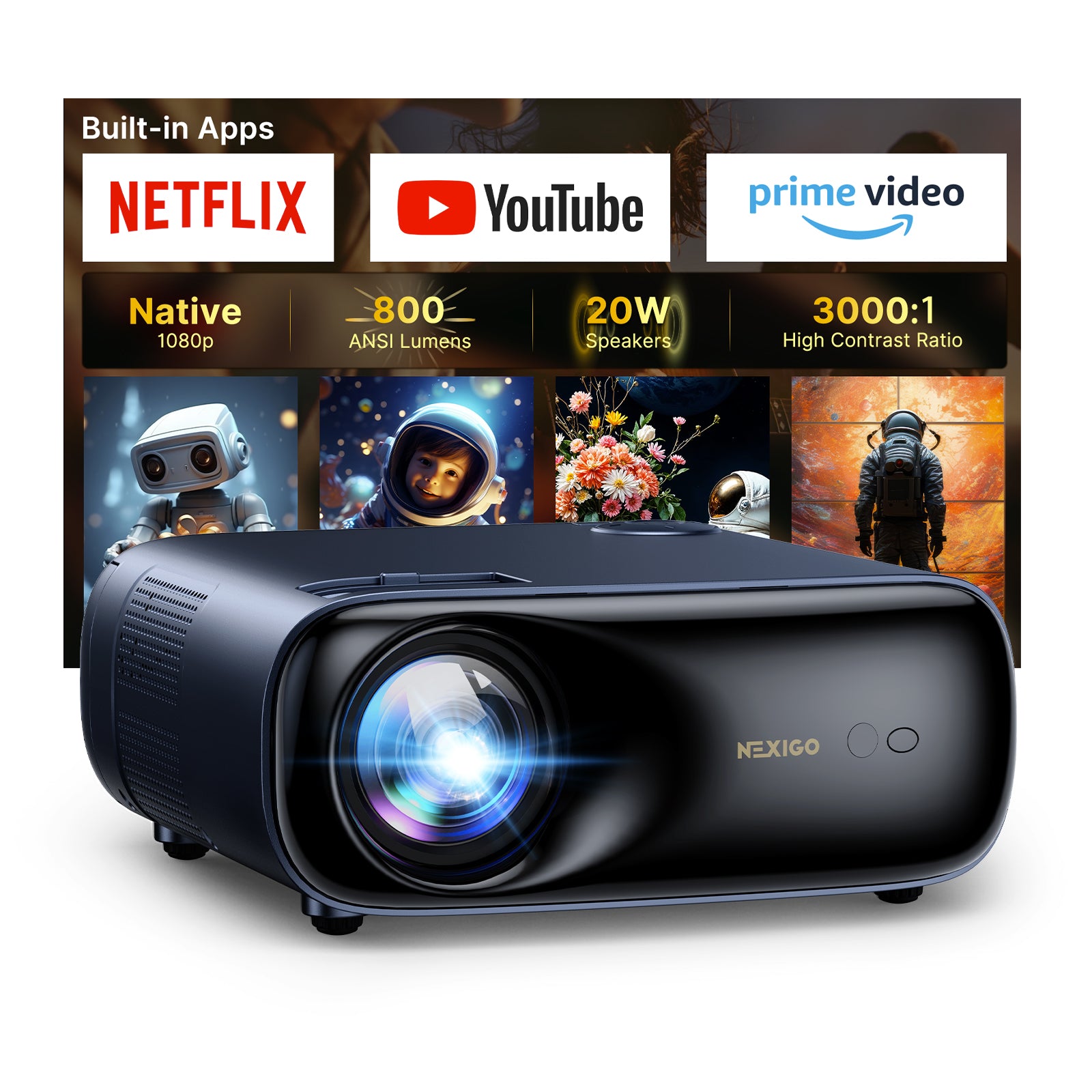
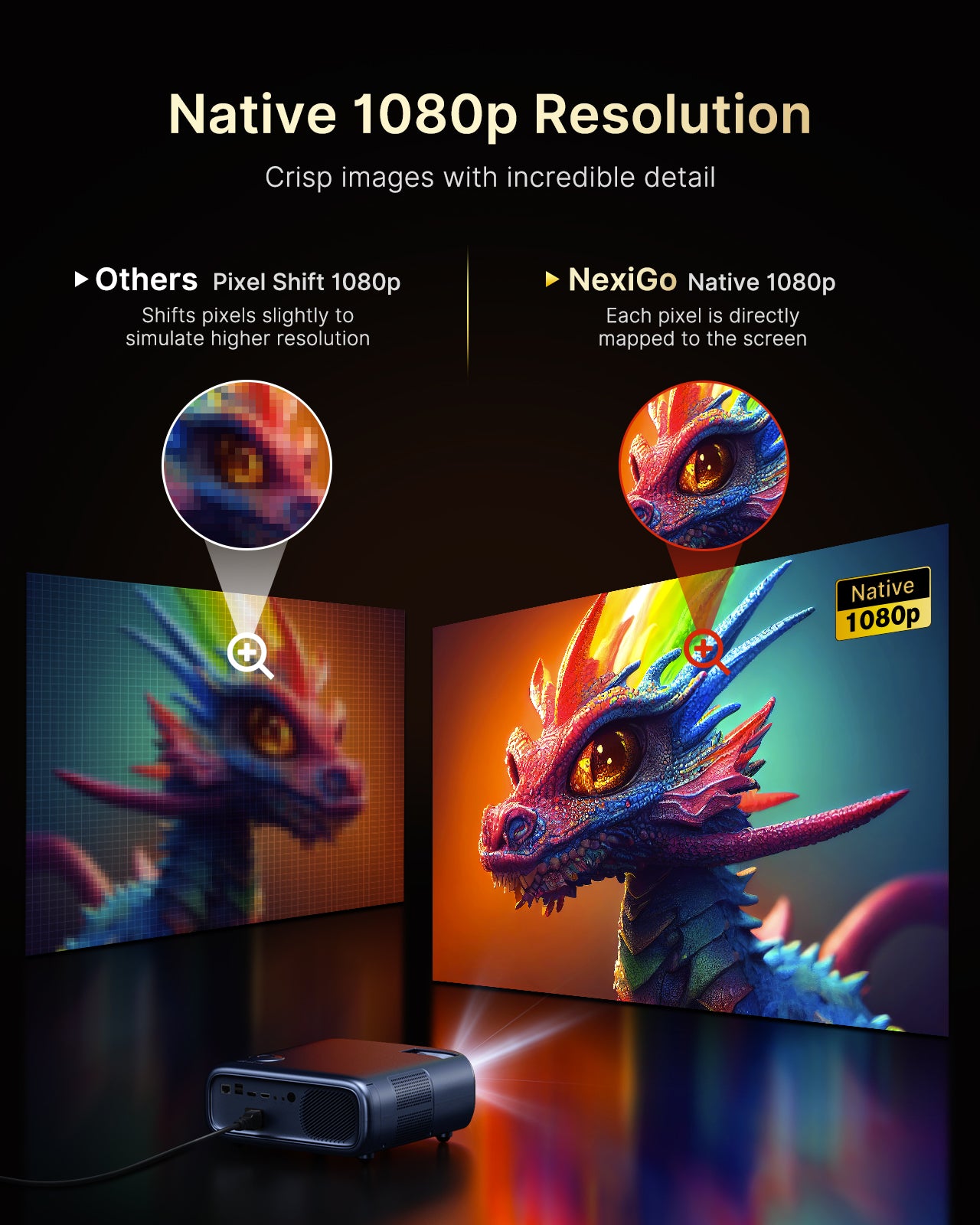
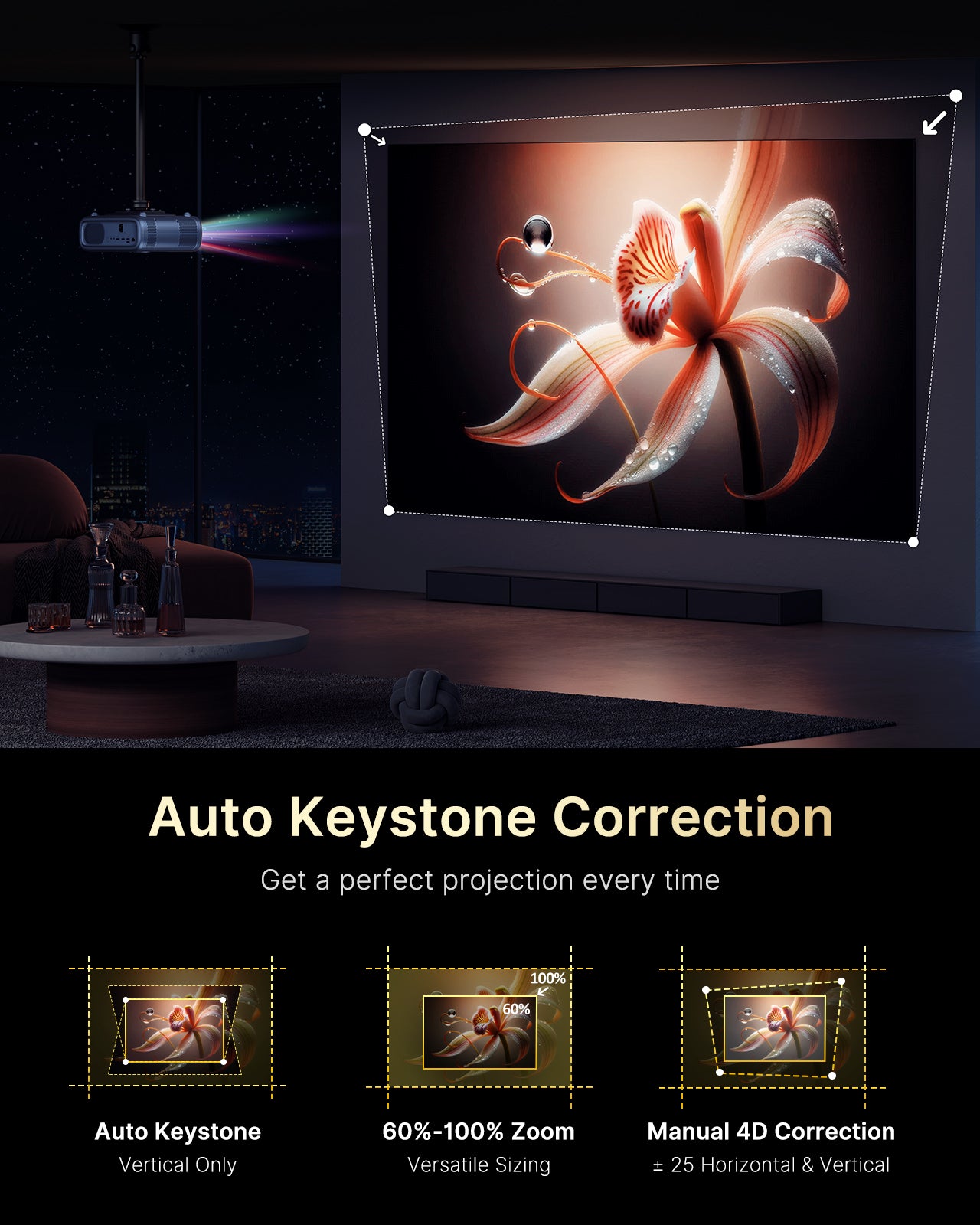


Discover previously-unseen detail with enhanced visual clarity


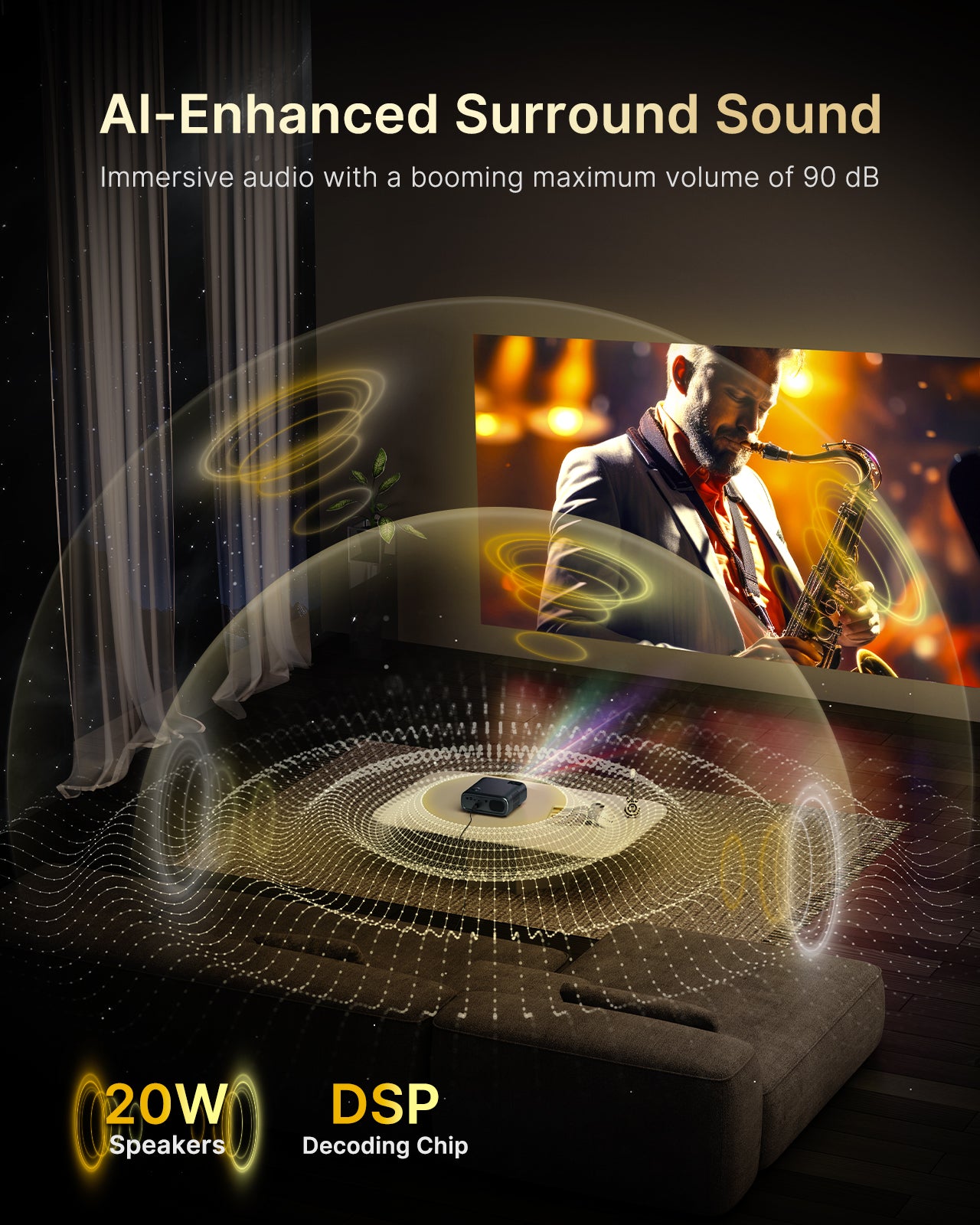
Immersive audio with a booming maximum volume of 90 dB

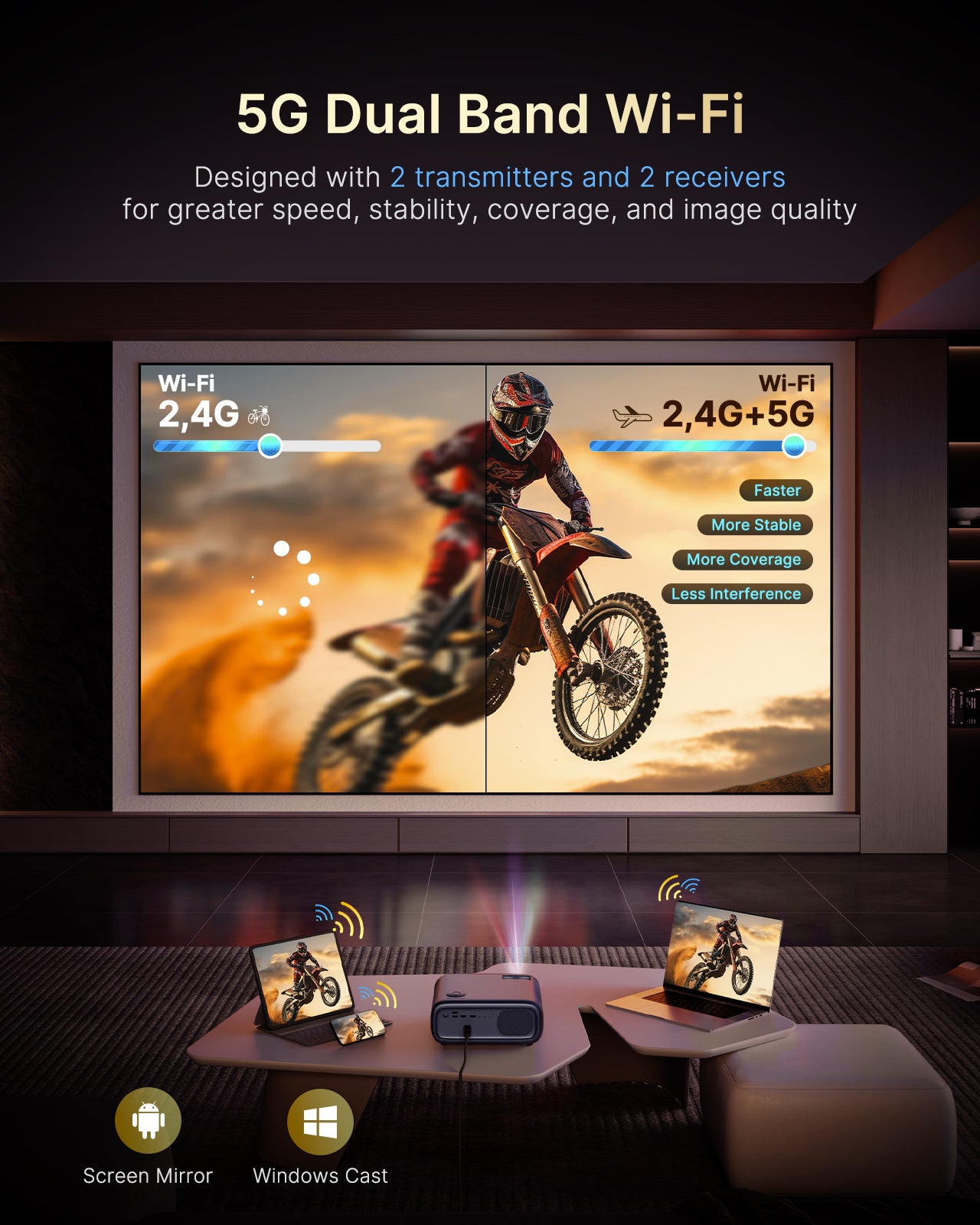
Share your screen in seconds, perfect for work and play

Thanks to speedy Bluetooth 5.0, there are many ways to use your PJ40 Ultra. Connect some wireless speakers for a more immersive auditory experience. Alternatively, put your PJ40 Ultra into Bluetooth speaker mode and play audio from your phone directly through the projector.

Boast Bluetooth 5.0 connection mode for quick and stable pairing with various devices, enabling seamless screen sharing. It also supports Bluetooth speaker mode, allowing you to play audio directly through the projector. Together, these features provide a stunning visual experience and an immersive auditory delight.

You can also effortlessly share your smartphone, tablet, or laptop screen without the hassle of cables. Enjoy the freedom of wireless connectivity for smooth and convenient presentations, movie nights, or gaming sessions, all while maintaining stunning visual quality.

Equipped with wireless screen mirroring, this projector lets you effortlessly share your smartphone, tablet, or laptop screen without the hassle of cables. Enjoy the freedom of wireless connectivity for smooth and convenient presentations, movie nights, or gaming sessions, all while maintaining stunning visual quality.
Discover the versatility of PJ40 Ultra


With an impressive 30,000 hours of usage time, you can enjoy peace of mind knowing your projector is built to last!
Incredibly versatile for any setup, PJ40 Ultra features a variety of ports, including HDMI, USB, AV input, and a 3.5 mm audio jack.


Equipped with adjustable fan speed settings, this projector enables you to find the perfect balance between good airflow and quiet, uninterrupted watching.


00:00 Introduction
0:09 What’s in the box?
0:24 How do I set up the PJ40 Ultra for the first time?
1:16 How do I focus the image?
1:23 How do I adjust the keystone?
1:46 How do I adjust the projection size?
2:02 How do I connect the PJ40 Ultra to the Internet?
2:21 Does the PJ40 Ultra have Netflix built-in?
2:35 How do I wirelessly cast onto the PJ40 Ultra?
3:25 How do I pair audio devices?
3:39 How do I use the projector as a Bluetooth speaker?
4:11 How do I mount the PJ40 Ultra to the ceiling?
4:39 Does the PJ40 Ultra support 4K HDR?
5:20 Does the HDMI port support ARC for connecting to a sound bar?
5:33 How do I adjust the fan speed?
5:46 How do I set the auto sleep timer?
5:58 How do I control the PJ40 Ultra with a Fire TV Remote?
6:37 How do I control the Fire TV with the PJ40 Ultra remote?
6:55 How do I adjust the Image Parameters?
7:26 How do I adjust the Audio Equalizer?
7:49 How do I clean the air filter?
8:03 How loud are the fans?

Settings: Open the settings menu
Power: Power the device on and off; Open Bluetooth speaker mode
Home: Return to the home page; Wake the projector during standby mode
Left / Right / Up / Down: Navigate through the on-screen display
OK: Select the current option
Back: Return to the previous screen
Input: Switch between input sources
Information: Press to display information about the current content
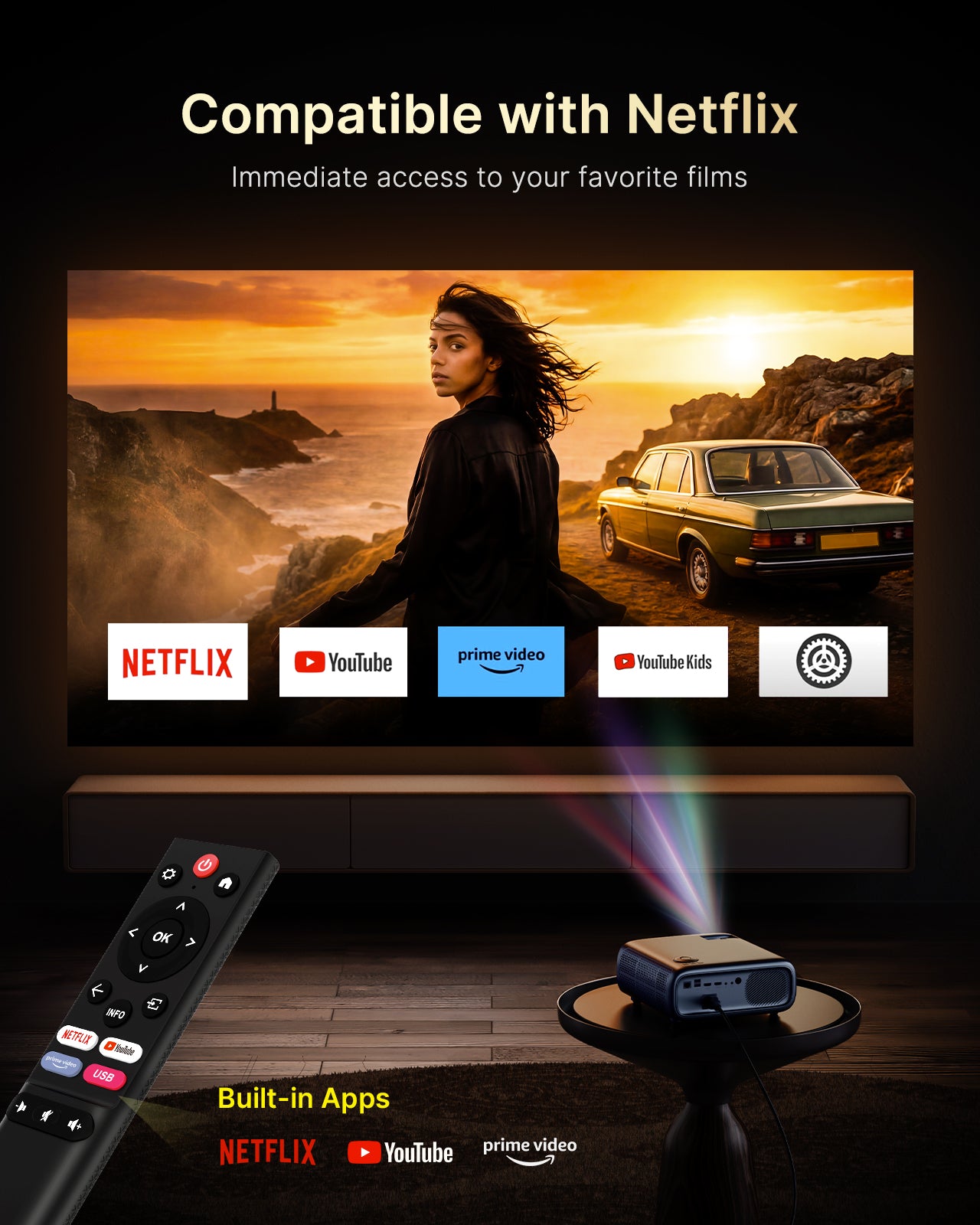
Netflix: Open Netflix
YouTube: Open Youtube
Prime Video: Open Prime Video
USB Drive: Open USB drive
Mute: Toggle audio on and off
Vol (+ / -): Increase or decrease the volume
Press Settings button on your remote, navigate to System > Auto Sleep to set the desired auto-shutdown time from the available options: 15 minutes, 30 minutes, 60 minutes, 90 minutes, or 120 minutes.
Press the Settings button on your remote, go to System > Time Setup, and configure your desired auto-on time.
Go to Settings > Picture > Image Zoom to adjust the zoom while playing a video.
To keep air circulating and prolong the projector's life, please clean the projector's air filter regularly using the following steps.
1. Turn off the projector and unplug the power adapter.
2. Push down on the air filter cover to pop up the air filter. Take the filter out of the projector

3. Gently remove the dust using a soft brush (such as a paintbrush).
Do not rinse the air filter in water, or use any detergent or solvent to clean it.
4. Place the air filter back in the projector as shown. Push it down and hold until it clicks into place.
0. Unless you encounter network issues with the projector, we advise against using local updates. If necessary, contact our customer support at cs@nexigo.com for assistance with local updates.
1. Do not power off or attempt to use the projector during the update process.
2. The projector will be reset after the software update is complete, and all saved settings will be erased.
In the on-screen menu, navigate to Setting and choose the Network & Internet option.

Choose your wireless network from the list displayed below to connect your projector to Wi-Fi.

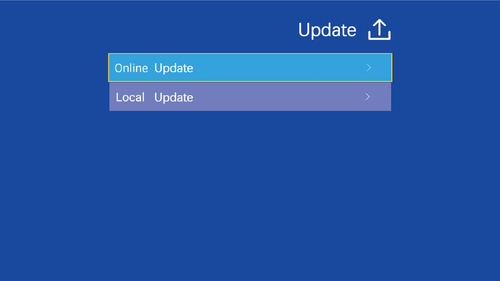
Navigate to Settings from Setting > Upgrade > Online Update.

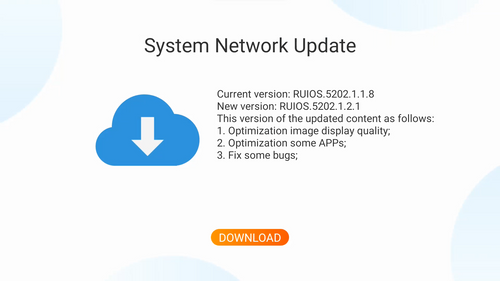
Please check online for available updates to download the latest firmware.

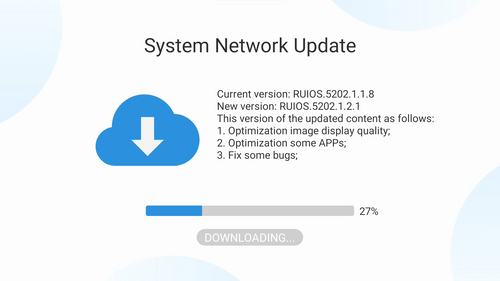
The projector is now initiating the download of the latest firmware and updates.

Note: Please make sure not to power off or try to use the projector during the updating. The projector will be reset after the software updates, all saved settings will be erased.
Unless you have issues with the camera, we don't recommend any firmware updates. If you are not sure about if updates are needed, please contact our customer support cs@nexigo.com.
lmaging Technology
Light Source
Native Resolution
Focus Type
Keystone Correction
Projection Distance
Projection Size
Aspect Ratio
Projection Ratio
Power Input
Integrated Watt Use
Input Ports
Output Port
LAN Port
Speakers
LCD
LED
1920 x 1080p
Manual
Automatic
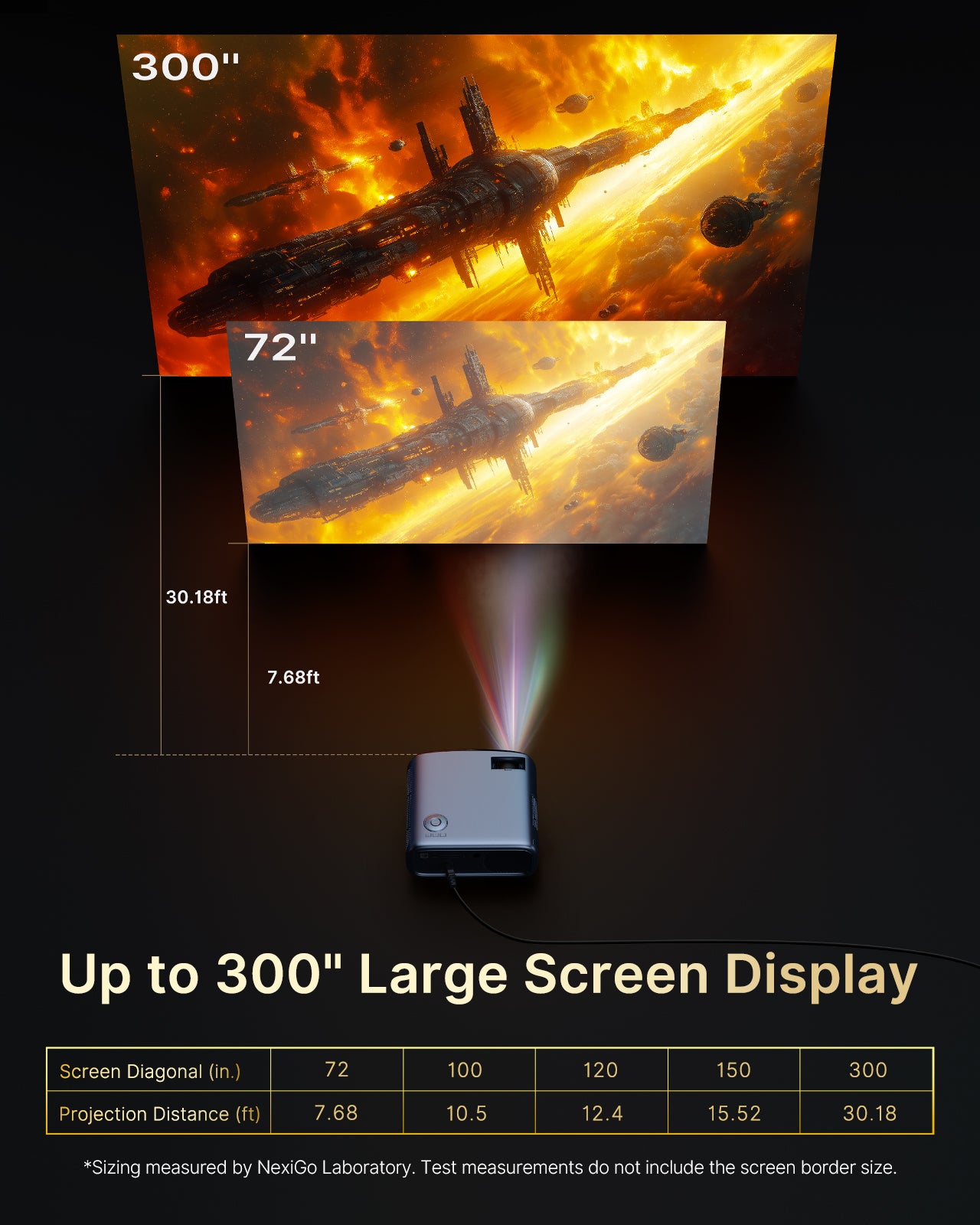
4.72 - 30.18ft
50" - 300"
16:9 / 4:3
1.47:1
AC 90-260V ~ 50 / 60 Hz
160W
HDMI 1.4 (ARC) x 1, HDMI 1.4 x 1, USB 2.0 x 2, AV x1
3.5mm audio jack x 1
RJ45 x 1
10W x 2
lmaging Technology: LCD
Light Source: LED
Native Resolution: 1920 x 1080p
Focus Type: Manual
Keystone Correction: Automatic
Projection Distance: 4.72 - 30.18ft
Projection Size: 42 - 300"
Aspect Ratio: 16:9 / 4:3
Projection Ratio: 1.47:1
Power Input: AC 90-260V ~ 50 / 60 Hz
Integrated Watt Use: 160W
Input Ports: HDMI 1.4 (ARC) x 1, HDMI 1.4 x 1, USB 2.0 x 2, AV x1
Output Port: 3.5mm audio jack x 1
LAN Port: RJ45 x 1
Speakers: 10W x 2