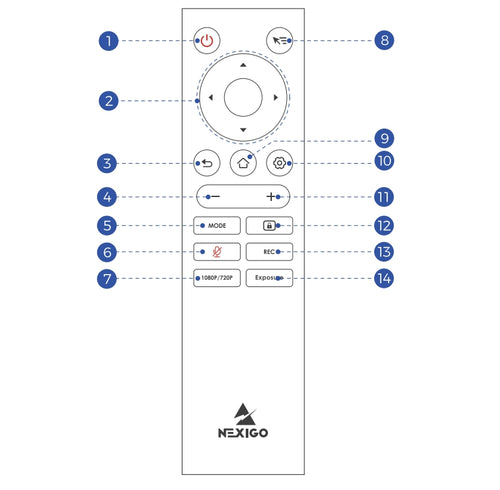



NexiGo Meeting 360
The NexiGo Meeting 360 provides an authentic face-to-face meeting experience for remote meetings of any size. It captures a 360° panoramic view at 8K resolution and outputs crisp video at 1080p with its dual 195° lenses. Its eight omnidirectional microphones pick up clear audio, and it transmits clear voices via dual full-duplex speakers. The integrated AI will identify the active speaker and highlight them so everyone can get the full attention they deserve.
Watch Video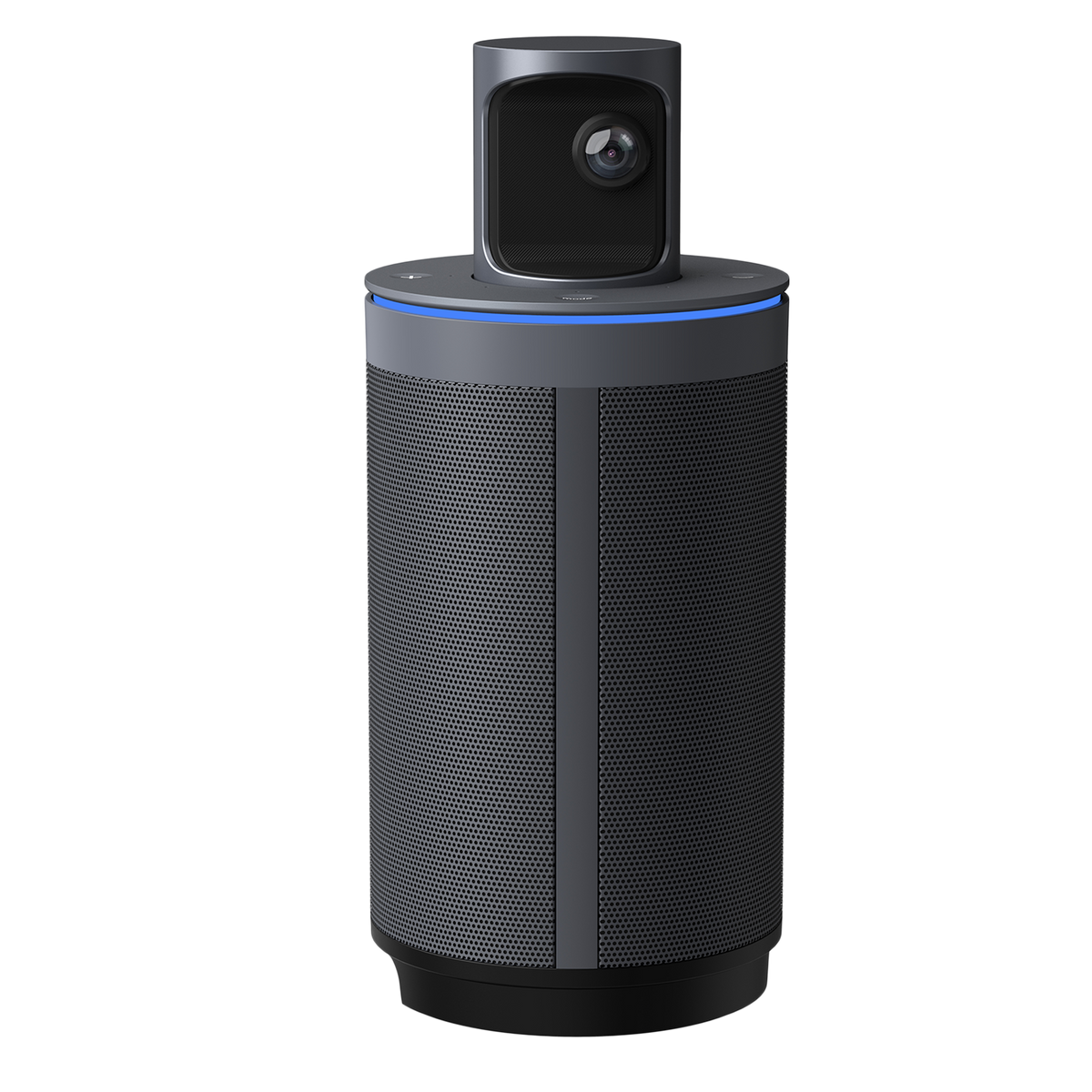

Sophisticated AI Tracking
Focus on What Matters

Five Display Modes
For Different Presentation Scenarios
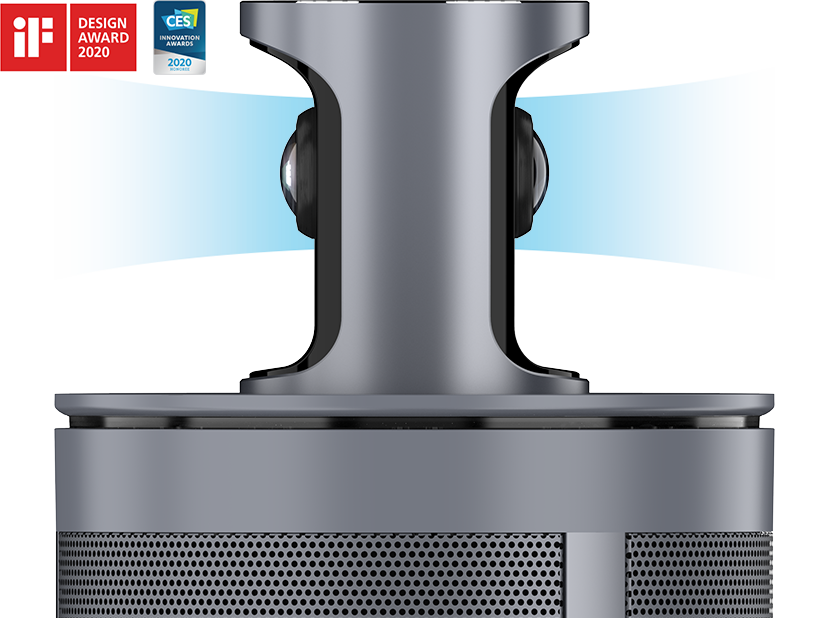

Dual 195° Lenses
360° Panoramic Video Capture

Eight Omnidirectional Mics
Pick up Crisp Audio within 18ft

Dual 10W Speakers
Deliver Clear Omnidirectional Sound
8K Capture & 360° Panoramic View
Gives you a true face-to-face meeting experience.
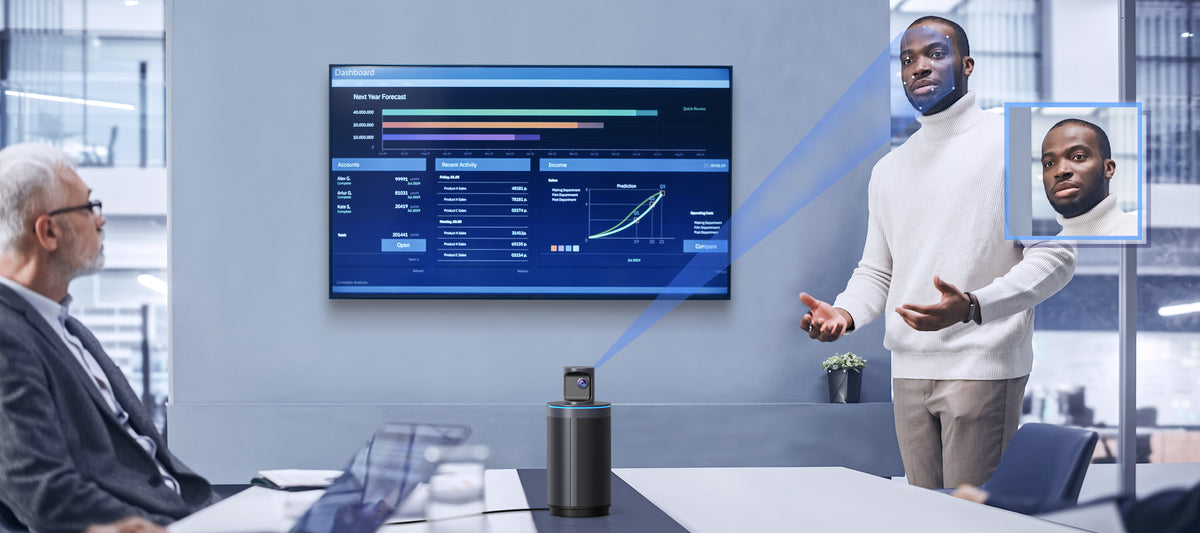
Five Varied Display Modes
Meeting attendees can be at the front and center of the screen no matter where they are in the room, making direct and natural communication easier.
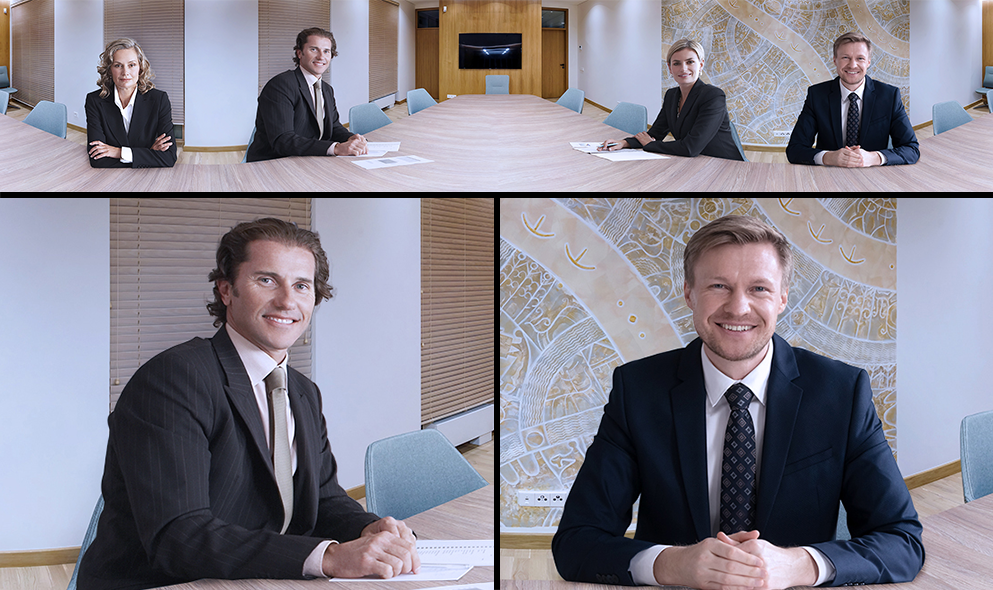
Discussion Mode
Display a 360° view at the top to show the whole room. Below this, the camera auto-reframes on two active speakers.

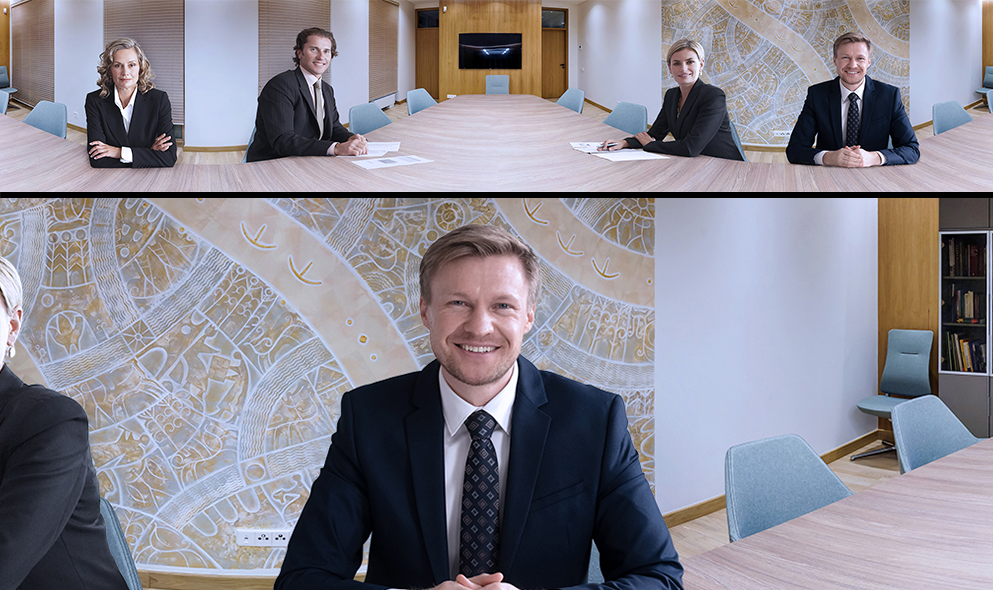



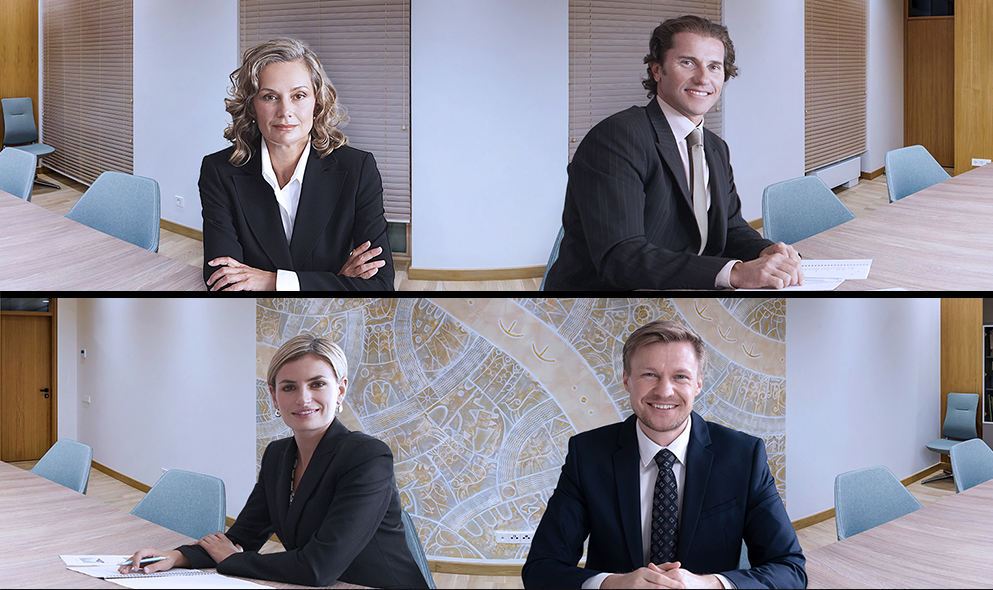

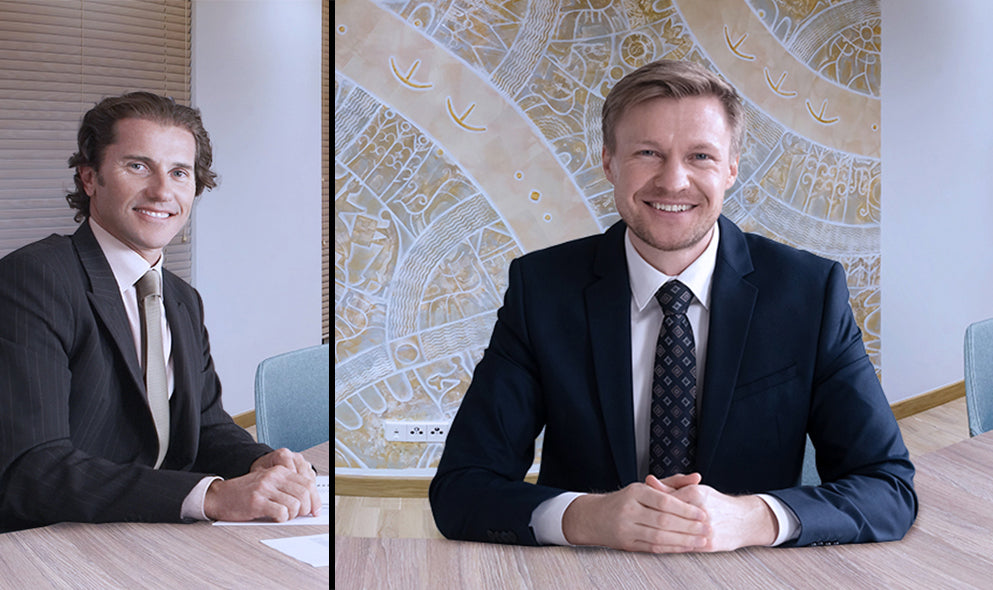

Room Solutions
The Meeting 360 is ideal for room setups such as huddle rooms, hybrid workspaces, conference rooms, training areas, classrooms, and board rooms. This high quality conferencing solution makes it easy to initiate meetings anytime, anywhere.
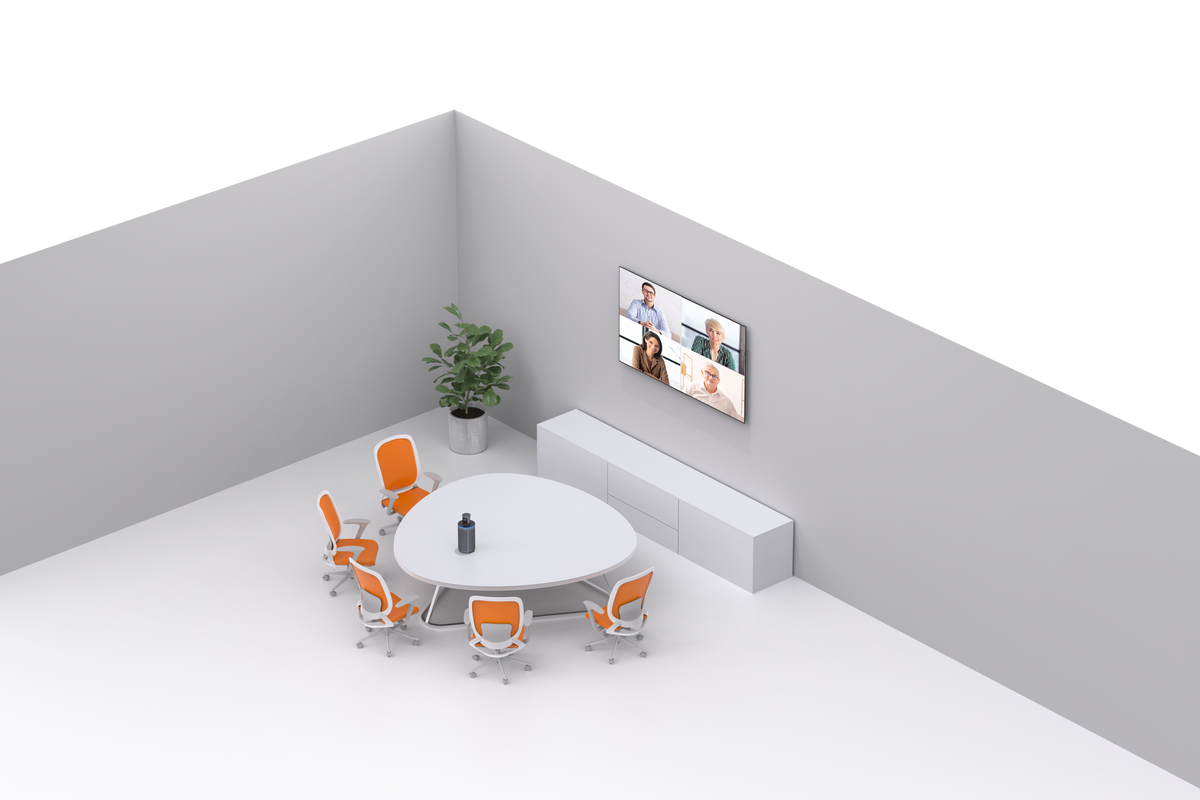
Small Room Solutions
Capacity: 1-4 people
Small rooms or huddle rooms are gathering places in the workplace where a few team members can brainstorm with one another and with their remote colleagues.

Medium Room Solutions
Capacity: 5-15 people
This 360 conference camera ensures everyone gets their turn in the spotlight. Conduct immersive hybrid meeting experiences that offer equal opportunities to remote and in-room participants to be seen, to hear, and be heard.
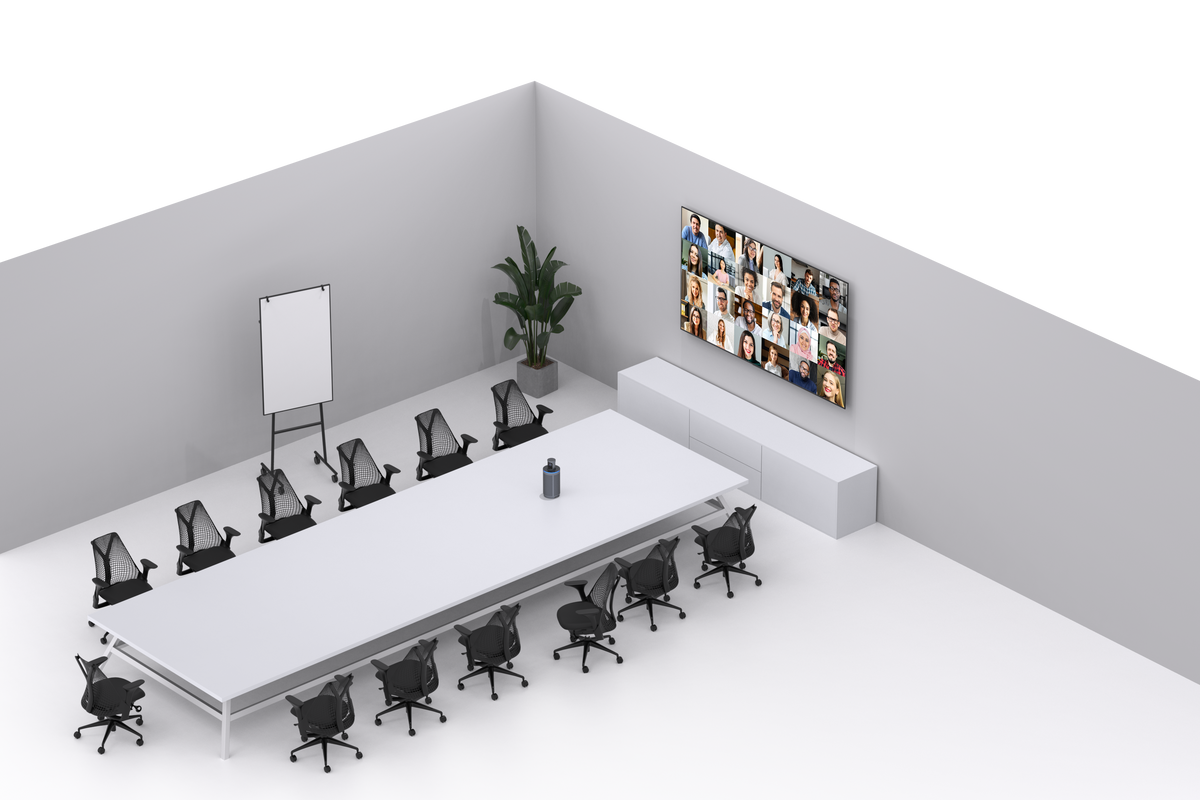
Large Room Solutions
Capacity: 16-30 people
A better view of the conference room will allow everyone at the table to feel included, making hybrid meetings much more collaborative for the whole team.
360° Panoramic Capture
Dual 195° lenses capture the entire room, clearly showing everyone in the meeting.
Eight Omnidirectional Mics
Pick up crisp audio at up to 18ft from the camera, ensuring all attendees are heard clearly.
Dual 10W Full-Duplex Speakers
Intelligent software helps filter out background noise and echo, delivering clear omnidirectional sound.
Pop-up Design
Featuring a hidden pop-up camera, the Meeting 360 protects your privacy when it’s not in use.
Review by Top Influencers
FAQ
Chapters
0:00 Introduction
0:10 Set up
0:49 Switch between different viewing modes
1:10 Mute the microphones
1:18 FAQ