
Is it bad to use keystone correction? We tested it.
Amber Stefanson | September 30, 2026
Keystone correction is a quick and easy way to get a perfect projection, but a common piece of wisdom is to never use keystone correction when setting up your projector. To avoid it, discerning projector owners may hire professional calibrators or spend their own time painstakingly measuring, re-measuring, mounting, and tweaking their projectors.
Some claim that keystone correction is way better now than it was 15 years ago when it earned its bad reputation, while others say it should only be used on any projector as a last resort when it’s not possible to align your projector without it. Experts on AVS Forum say you should never use it, but acknowledge keystone correction is unavoidable for some spaces. Even still, some Reddit users claim that it doesn’t make a big difference either way.
So what is the truth… and what is the problem with keystone correction, anyway?
In this article, I’ll be going over everything you need to know about keystone correction: what it is, what the drawbacks are, and whether it might be worth it for you to use it anyway.
Key Points
- Keystone correction comes in two types: mechanical (physical lens adjustment, 2D only, no resolution loss) and digital (software-based, sculpts the image in 4 or 8 points, but crops resolution).
- Keystone correction genuinely does reduce resolution and can leave a faint gray "halo" around the cropped edge of the image, but both effects are often minor with moderate correction and can be mitigated.
- Digital keystone correction adds a small amount of latency; mechanical correction does not. The real-world impact depends on your projector and how much correction you apply. We tested it ourselves below.
- The common advice to "never use keystone correction" is outdated. It's best treated as a last resort, but for many setups, it's a reasonable tradeoff for skipping painstaking manual alignment.
- If you'd rather avoid it entirely, manual setup is possible with the right measurements, and we walk through it step by step later in this article.
What is keystone correction?
Keystone correction is a method of correcting distortion in a projector. Named after the wedge-shaped keystone at the top of an archway, keystone correction seeks to correct a wedge-shaped projection into a rectangular one.

The keystone in an archway has a distinct wedged or trapezoidal shape.
Image by Otto Lueger (Public Domain)
Keystone correction can either be mechanical or digital.
Mechanical vs Digital Keystone Correction
| Consideration | Mechanical | Digital |
|---|---|---|
| Type of adjustment | 2D | 4-point, 8-point |
| Resolution | Unaffected | Lowered |
| Latency | Unaffected | Increased |
| Warping | Unlikely | Will cause warping unless you keep to the same aspect ratio |
| Fine control | Physical dials can be less precise | Extremely precise tuning |
| Advanced correction | Not supported (simple corrections only) | Supported |
Mechanical Keystone Correction
Mechanical keystone correction works by adjusting physical components within the lens to warp the projection, bending the light into a perfect rectangle without reducing resolution.
Mechanical keystone typically uses 2D keystone correction. This means that you can adjust the projection in two directions: vertical, or up/down along the y axis, and horizontal, or left/right along the x axis.

With this method, you can fix any simple distortion caused by the position and angle of your projector. However, you won’t be able to fix more severe distortion (such as that caused by an uneven wall or floor).
Digital Keystone Correction
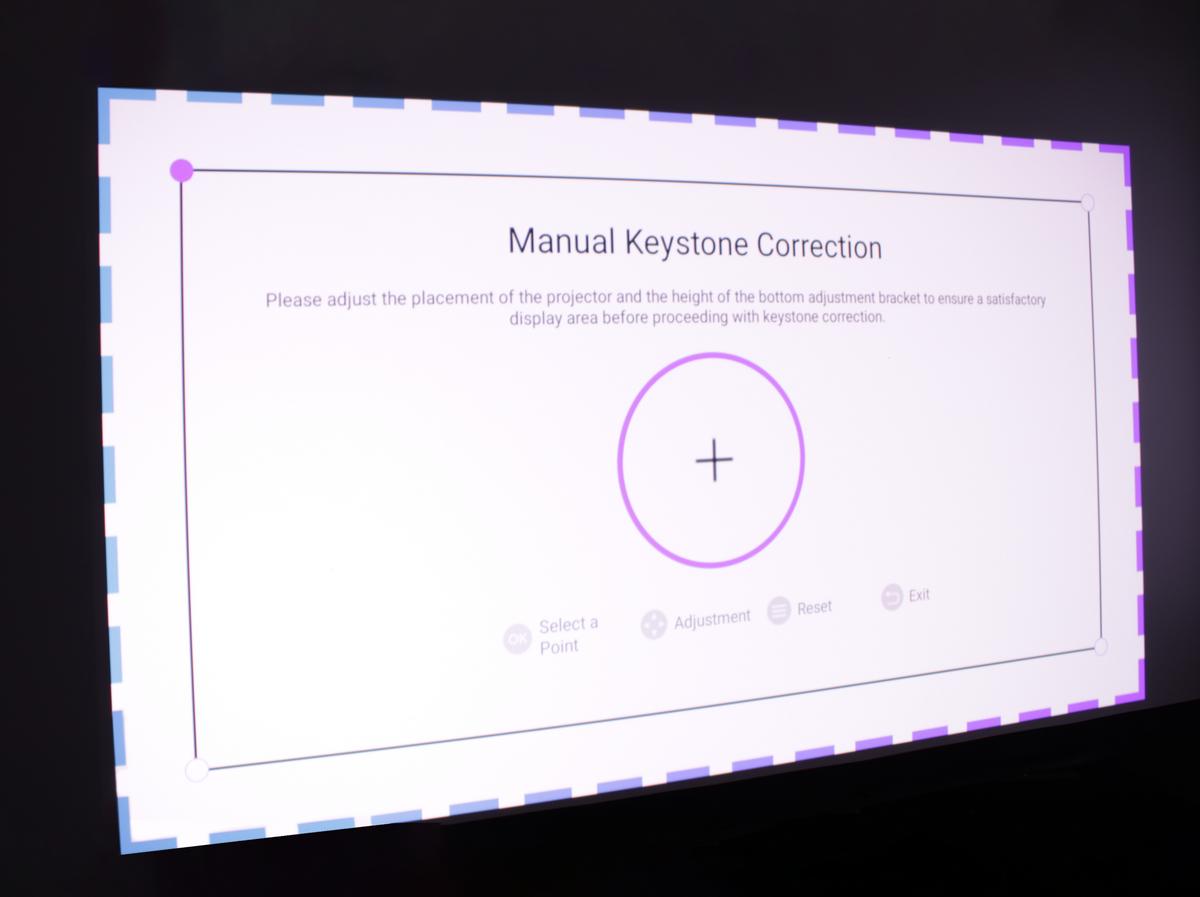
That’s where digital keystone correction comes in. Unlike mechanical keystone correction, it’s not limited to 2 directions. Instead, you can sculpt the projection into the perfect rectangle, moving each point by different amounts. There are two variants of digital keystone correction: 4 point (corner adjustment only) and 8 point (corner and edge adjustment).

This method works wonders for any setup, easily correcting for bad angles, uneven walls, and even mild lens warping. However, there is a tradeoff.
Digital keystone correction effectively crops the image. As you bring in the corners, you resize the whole image to fit inside a smaller section of the screen and lose all the pixels in the unused portion of the screen.
Even worse, this unused space generally remains visible, as a gray halo around the rest of your projection. This is because the projector can’t physically turn those pixels off; instead, it dims them to the minimum value. The higher the black level of your projector, the more visible this area will be.

The Problem with Keystone Correction
There are several problems with keystone correction:
- Reduces resolution
- Causes gray halo effect
- Increases latency
- Distorts the image
However, the severity of these issues can be overblown. While gamers need as little latency as possible, a slight increase in latency won’t be noticeable at all while watching movies.
And while keystone correction can distort the image, it won’t as long as you keep the aspect ratio the same (the easiest way to do this is to match it up to a projector screen).
How much will these drawbacks affect you, and might it be worth it to use keystone correction anyway? In order to answer that question, let’s first go over some of the most common myths and misconceptions surrounding keystone correction.
True: Keystone correction reduces resolution
Yes, keystone correction reduces your resolution. This is because digital keystone correction effectively crops your image, reducing the same image to a percentage of the original screen size. As a result, it’s not using a percentage of the total pixels on the display.
It Depends: Keystone correction makes the projector noticeably lower-resolution
If you’re using a 4K projector, the drop in resolution from keystone correction might matter less than you think. Moderate correction crops roughly 90% of the frame, dropping effective resolution to approximately 3.5K. Depending on your screen size and viewing distance, the difference might not be that noticeable at all.

True: Keystone correction leaves a gray “halo” effect
Yes, the unused portion of the screen which is cropped out during keystone correction remains visible. Since the projector can’t fully turn those pixels off, it dims them instead, leaving behind a faint gray halo. However, there are ways that you can mitigate this effect and make the halo invisible:
- Only use mild keystone correction
- Use a screen with a black border or frame
- Use a projector with high contrast and low black levels
- Enable dynamic contrast features like Dynamic Iris
True: Keystone correction can distort the image
Keystone correction can severely distort the image when you use heavy keystone correction without sticking to the original aspect ratio.
To help mitigate this, use a fixed frame projector screen, which can act as a 16:9 aspect ratio reference point to make sure you keep to the right shape.
It Depends: Keystone correction causes higher latency
Digital keystone correction increases latency, while mechanical keystone correction does not. This is due to the additional processing power digital keystone correction requires in order to shift a moving image into the correct shape. And the more heavily you keystone an image, the more latency will increase.
Through our own testing, we found that light keystone correction (10 small steps spread between 4 corners) increased latency by 25.7% on average, while heavy keystone correction (10 steps per corner point, plus 5 steps per edge point when available) increased latency by an average of 46.7%.
Latency by amount of keystone correction
| Amount of Keystone Correction | Aurora Pro MKII | TriVision Ultra | Nova Mini |
|---|---|---|---|
| None | 11 ms | 14 ms | 7 ms |
| Light | 14 ms | 15 ms | 10 ms |
| Heavy | 17 ms | 16 ms | 12 ms |
* These are median measurements recorded in our studio. Actual performance may vary between units.
While a 46.7% difference sounds staggering on paper, in reality the actual difference in latency is negligible. Any latency under 30 ms is considered to be ultra-responsive and suitable for competitive gaming — and all projectors fell well below 30 ms, even with significant keystone correction.
But if you’re looking for a gaming projector that won’t budge on latency, the NexiGo TriVision Ultra was a standout during our testing. With an increase of only 1 ms (7.1%) for light keystone correction and 2 ms (14.2%) for heavy keystone correction, the TriVision Ultra proved to be incredibly resilient, handling any amount of image processing without batting an eye.
False: Keystone correction should never be used
While keystone correction is best used as a last resort, it can be undeniably helpful. It’s a failsafe that doesn’t require your projector to be set up at the exact right angle. For many, it’s a reasonable tradeoff: a few less pixels and an extra 1 ms of latency in exchange for not having to spend more time setting up your projector.
Keystone correction can save you from drilling more holes when you didn’t get the ceiling mount in the perfect spot the first time. It enables you to keep your projector at an angle to help prevent cast shadows while watching with a projector behind you.
Ultimately, it all comes down to your needs and your unique space.
How to Set up without Keystone Correction
Decide keystone correction isn’t for you? To set up without keystone correction, you’ll need to manually adjust the angle of your projector. Check out this video tutorial or keep reading for a full explanation.
1. Set up a screen, or tape a reference point on your wall
It’s helpful to use a projector screen, which can act as a reference as you aim to get your projection perfectly rectangular.
If you don’t have a projector screen, you can use masking tape to temporarily mark the wall where you want the projector to go. With a measuring tape and a level, measure out the following dimensions and tape a rectangle on your wall.
Dimensions for 16:9 Displays
| Screen Size | Screen Width | Screen Height |
|---|---|---|
| 80" | 69.7" (177 cm) | 39.2" (99.6 cm) |
| 100" | 87.2" (221.5 cm) | 49.0" (124.5 cm) |
| 120" | 104.6" (265.7 cm) | 58.8" (149.4 cm) |
| 150" | 130.7" (332.0 cm) | 73.5" (186.69 cm) |
2. Reset and/or turn off Keystone Correction
Before you start to adjust your projector, make sure keystone correction is fully reset or disabled.
3. Tilt your projector left/right
Tilt your projector to the left or right the sides of the projection are parallel to the sides of the screen.
4. Scoot your projector forward/back
Scoot your projector forward/back to adjust the overall screen size. The further the projector is from the screen, the larger the projection will be.
For some projectors, this can also have an impact on the overall height of the projection, with the projection shifting up slightly when the projector is farther from the screen.
5. Adjust the feet to shift the projection up/down
Raise or lower the adjustable feet on the bottom of the projector.
For UST projectors, this may look like rotating dials on the sides near the bottom of the projector. For standard throw projectors, this may look like unscrewing a central rubber foot or propping up a kickstand.
6. Use an adjustable stand
For projectors that are at a significantly wrong height, you can use a motorized tray that moves the projector further up/away from the wall. Gimbals, adjusting ceiling mounts, and projector tripods can all also help to raise/lower the projector and help you key in the perfect angle.
Final Words
At the end of the day, keystone correction isn't good or bad; it's a tool. Know its tradeoffs, and use it when your space calls for it.
Like what we do? Stay tuned for more.
Whether you work at home or in the office, NexiGo provides a wide range of quality and affordable technology to elevate your daily life. Our products encompass everything from webcams and portable monitors to projectors and gaming accessories.
Articles we think you'll love