

Chapters:
00:06 How do I use the NexiGo PJ20 Projector
00:55 Connect the projector to Wi-Fi
01:15 Mirror your screen from Windows to the projector
01:45 Mirror your screen from an iOS device to the projector
02:08 Mirror your screen from an Android device to the projector
02:46 Screen cast your phone to the projector
03:02 Screen mirror your device using a wired connection (For iPhone/iPad only)
03:26 Switch off the projector
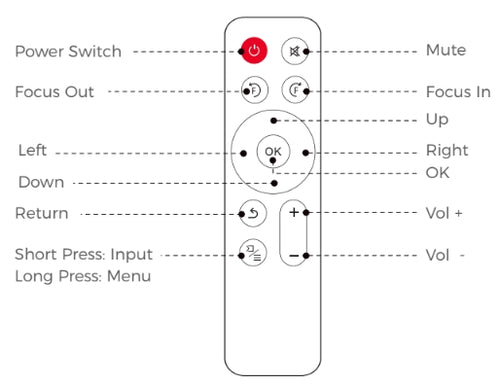
Power Switch: Toggles power on and off.
Mute: Toggles audio on and off.
Focus Out: Adjust the focal point to be further away.
Focus In: Adjust the focal point to be closer.
Left / Right / Up / Down: Navigates through the on-screen display.
OK: Selects the opion your cursor is currently on.
Back: Return to the previous screen.
Input (Short Press): Displays the source selection bar.
Menu (Long Press): Displays the menu.
Vol +: Increases the volume.
Vol -: Decreases the volume.
The volume is relative to your distance from the projector. For example, when you're 3 feet away from the projector, the volume is 40 decibels.
Yes, it is compatible with external Bluetooth devices. When using an external Bluetooth device, switch the Wi-Fi from 2.4G to 5G so that the device syncs properly with the video.
Go into "Video Menu Settings" while playing the video. Scroll down to find the "Zoom In" or "Zoom Out" icon to zoom in / zoom out, respectively. Note: The maximum zoom is 8X and the minimum zoom is 0.5X.
1. Please remove the 4 feet at corners on the bottom of the projector for mounting on the ceiling.
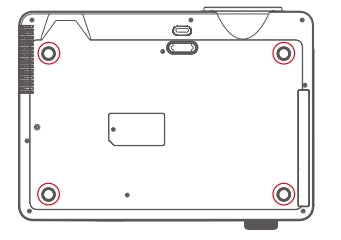
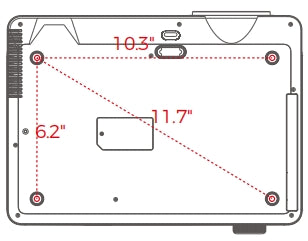
2. The projector's mounting holes are M4 x 9.7mm in size. The distance between these mounting holes on the back of the projector measures 11.7" diagonally, 10.3" horizontally, and 6.2" vertically. You could find a suitable ceiling mount based on these specifications.
1. Turn the projector over.
2. Press down on the dust cover; it will pop right out. Remove the dust cover.
3. Clean the dust cover holder with a clean, dry cloth and then put it back in place.
We suggest cleaning it monthly.
Firmware Upgrade Instructions :
IMPORTANT:
0. Unless you encounter network issues with the projector, we advise against using local updates. If necessary, contact our customer support at cs@nexigo.com for assistance with local updates.
1. Do not power off or attempt to use the projector during the update process.
2. The projector will be reset after the software update is complete, and all saved settings will be erased.
Step 1
In the on-screen menu, navigate to Setting and choose the Network option.

Step 2
Choose your wireless network from the list displayed below to connect your projector to Wi-Fi.

Step 3
Navigate to Settings from Setting > Upgrade > Online Update.
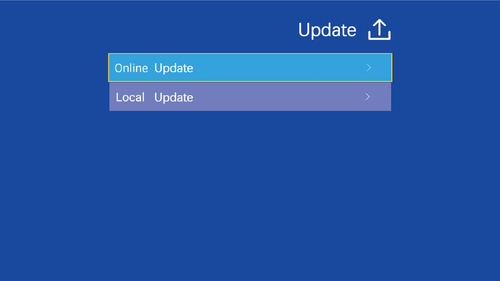
Please check online for available updates to download the latest firmware.
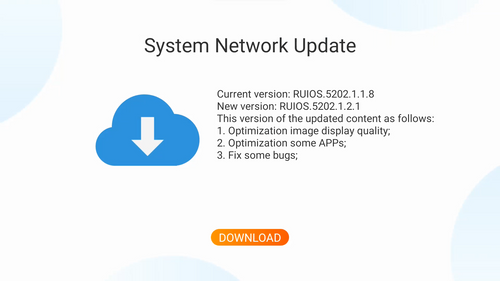
Step 4
The projector is now initiating the download of the latest firmware and updates.
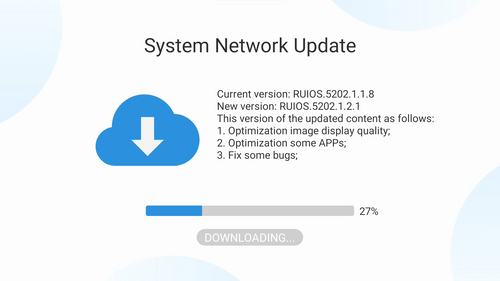
Note: Please make sure not to power off or try to use the projector during the updating. The projector will be reset after the software updates, all saved settings will be erased.
Firmware Upgrade Instructions :
IMPORTANT:
0. Unless you encounter network issues with the projector, we advise against using local updates. If necessary, contact our customer support at cs@nexigo.com for assistance with local updates.
1. DO NOT power off or try to use the projector during the updating.
2. The projector will be reset after the software update is complete, and all saved settings will be erased.
Step 1
Navigate to Cast Settings from Home > Input Source> MultiScreen > Cast Settings.

Step 2
Move the on-screen cursor to WiFi Setting and press OK.

Select your wireless network from the list as shown below and input the password to connect your projector to the WiFi network.

Step 3
Move the on-screen cursor to Online Update and press OK.
A firmware upgrade confirmation window will pop up, click confirm to start the update.
Step 4
The projector starting to download the latest firmware.

After downloading the firmware, the projector starts updating automatically.

The projector will be reset after the software updates, all saved settings will be erased.
Note: Please make sure not to power off or try to use the projector during the updating. The projector will be reset after the software updates, all saved settings will be erased.

Image Sensor
1/1.8" Sony® STARVIS 2 back-illuminated sensor
Resolution
(USB 3.0 Output)
MJPEG/H.264
3840 x 2160@30/25/20/15/10/5fps,
1920 x 1080@60/30/25/20/15/10/5fps,
1280 x 720@60/50/30/25/20/15/10/5fps, etc.
YUY2/NV12
1920 x 1080@60/50/30/25/20/15/10/5fps,
1280 x 720@60/50/30/25/20/15/10/5fps, etc.
Resolution
(HDMI Output)
30fps mode
3840 x 2160fps@30/25fps, 1920 x 1080@30/25fps
60fps mode
1920 x 1080@60/50fps, 1280 x 720@60/50fps
Lens
9-layer glass lens, f/2.2 aperture, 4.2 mm focal length
Field of View
D=90°/H=81°/V=55°
Focus Type
Fixed Focus
Focus Range
10" - 90" (0.25m - 2.28m)
Digital Zoom
Up to 10x digital zoom at 4K@30fps
Facial Enhancement
Support
Microphone
Dual noise reduction mics
Mic Pickup Range
Within 32.8ft (10m)
Video Output Port
1 x USB-B, 1 x HDMI
Software
Works with Zoom, Microsoft Teams, Skype for Business, Slack, Webex, and many more
Operating System
Windows 7 (Supports 1080p or lower),
Windows 8.1/10/11 or above
macOS 10.10 or above
Hardware
CPU: 2.4 GHz Intel Core 2 Duo processor or better
RAM: 2 GB or more
USB: USB 2.0, USB 3.0(Recommended)
Display
Imaging Technology
TFT LCD
Native Resolution
1920 x 1080
Light Source
LED
Max Supported Resolution
1920 x 1080
Projection
Projection Ratio
1.56:1
Focusing Mode
Manual operation
Projection Distance
4.8-21.8 ft
Projection Size
42" to 200"
Keystone Correction
Manual correction
Keystone Correction Angle
±15°
Wireless
Wi-Fi
2.4GHz + 5GHz Wi-Fi
Bluetooth
5.1
Audio
Speaker
5W Speaker
Dolby Audio
Yes
Interfaces
HDMI
2 x HDMI 2.0
USB
2 x USB
AV
1 x AV
Audio Out
1 x 3.5mm Audio Jack
Power
Power Consumption
140W
Power Input
100V-240V
About
Dimensions
11.3 x 10.79 x 4.8 inches (287 x 274 x 122mm)
Weight
6.24 LBS (2.83 KG)
Storage Temperature
-4°F-131°F (-20°C-55°C)
Working Temperature
32°F-104°F (0°C-40°C)
Operating Humidity
30%~85%