Chapters
0:16 What's in the box? 0:40 How do I pair it with my Nintendo Switch 2?
1:03 What is the average margin of error for this controller?
1:12 How do I replace the thumbstick caps?
1:30 How do I connect it to my TV?
1:54 How do I program the mappable buttons?
2:24 How do I reset a programmed button?
2:50 How do I change the color of the RGB lights?
3:03 How do I make the RGB lights change dynamically?
3:26 How do I adjust the brightness of the RGB lights?
3:40 How do I use the Turbo Function?
4:08 How do I adjust the speed of the Turbo Function?
4:31 How do I adjust the vibration level?
4:56 Does this controller have motion controls?
5:05 How many game cartridges can it store?
5:11 What is the USB port for?
5:25 How do I fix stick drift?
5:53 Can I charge while I play?
Updating the firmware will help resolve some audio stability issues. If you experience any issues after the update, please contact us at cs@nexigo.com. If the controller is operating normally, there is no need to update the controller firmware.
Step 1. Download and Extract the Firmware
Download the NS46 Firmware Package to an easily accessible location on your Windows computer. Extract the firmware package, then double-click the extracted folder to open it.
Prepare a USB-A to USB-C cable that supports USB 2.0. Connect the USB-A end to your computer. Connect the USB-C end to theUSB-C Power Input Port ( No. 18 in the diagram below) on the NS46 controller.
Please use a good-quality cable, as the cable quality may affect the upgrade process.
Step 3. Run the Upgrade Tool
Open the extracted NS46 Firmware Package folder, then double-click "ASL_auto_upgrade_tool_V1.40.exe" to run the upgrade tool.
Step 4. Wait for Completion
The tool will automatically detect the connected controller and start the upgrade. Wait until the progress bar turns green and the status bar at the bottom displays "Upgrade Successful." The upgrade is complete when this message appears.
Do not disconnect the cable during the upgrade.
Quick Troubleshooting Tips
If the controller is not detected, try a different USB 2.0-compatible cable.
Connect directly to the computer instead of using a USB hub.
Run the upgrade tool as Administrator if detection fails.
Do not unplug the controller until the "Upgrade Successful." message appears.
Step 1
Please enable the Pro Controller Wired Communication setting in the Switch 2 console itself. You can do this by going to System Settings > Controller & Accessories > Pro Controller Wired Communication. Set the Pro Controller Wired Communication to On.
Step 2
Plug the Switch 2 console into the gripcon
Step 3
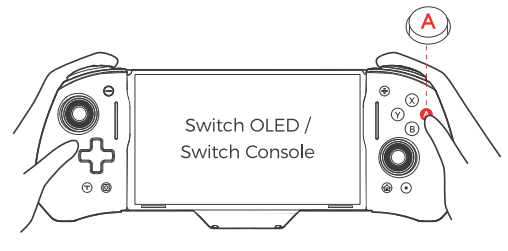
After you have plugged the console into the gripcon, press the A button on the gripcon to connect it to the console.
Step 4
Finally, please calibrate the Sticks before first use.
Do not touch the sticks or other keys when installing and plugging in the console. This prevents automatic calibration. If the sticks are deviating during use, please unplug the console from the gripcon and reinsert it, or go to the System Settings on the console and attempt stick calibration again.
The Gripcon for Switch 2 is specifically engineered for the updated dimensions and USB-C placement of the next-generation console. It is not backward compatible with the original Switch or OLED models due to size differences.
1. After connecting the Switch 2 console to the gripcon, plug in the original Switch power or a standard Type-C power source. Then, insert your TV's HDMI cable into the HDMI input port at the top of this product. The product will automatically detect the HDMI display device and switch the video output to the TV in about 8 seconds. The Video Switch button on the back of the product will have a constant green light.
2. Press the Video Switch button on the back of the product to switch between the Switch console and the TV display. Switching from the Switch console to the TV will take about 8 seconds.
3. When using the video output function, you can use the
Kickstand at the back of the product to place the gripcon and the console on the desktop.
System Control
Toggle vibration globally via System Settings > Controllers and Sensors > Controller Vibration.
Intensity Levels
Press and hold the Vibration Settings Button for 1 second to cycle through five levels: 100% / 75% / 50% / 30% / Off.
Memory Function
Your chosen setting is automatically saved. There is no need to readjust the intensity even after unplugging or restarting the console.
Yes, but ONLY use the original Switch 2 power adapter to charge the gripcon.
Yes, it’s equipped with a six-axis gyroscope, allowing it to capture your movements quickly and accurately.