

Chapters:
0:00 Introduction
0:14 Connect the computer to the portable monitor
0:50 Connect the phone to the portable monitor
1:13 Connect the Switch console to the portable monitor
1:47 Use the magnetic cover as a stand
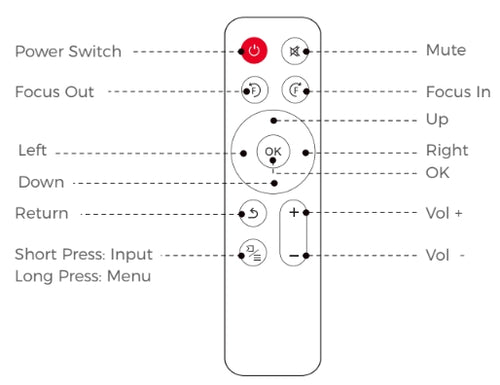
Power Switch: Toggles power on and off.
Mute: Toggles audio on and off.
Focus Out: Adjust the focal point to be further away.
Focus In: Adjust the focal point to be closer.
Left / Right / Up / Down: Navigates through the on-screen display.
OK: Selects the opion your cursor is currently on.
Back: Return to the previous screen.
Input (Short Press): Displays the source selection bar.
Menu (Long Press): Displays the menu.
Vol +: Increases the volume.
Vol -: Decreases the volume.
The NexiGo Portable Monitor does not require any additional software or drivers to use on any modern system. Just plug your device into the monitor using the USB Type-C or HDMI cable, and plug the monitor into the power if needed (some USB-C ports will provide power, power is not provided over HDMI), and you are ready to go!
The NexiGo Portable Monitor has a wide range of devices it is compatible with, so many in fact that we simply cannot name them all. As such, to determine if your item would work with this monitor first determine if the item has a USB 3.0 port, a full featured USB Type-C port (not a USB Type-C port that is only for charging), or an HDMI port. If it has one of these three ports it definitely will work with the monitor, though you may need to provide external power.
The NexiGo portable display does not require any additional software or drivers to use. Simply plug your device into the display using the USB Type-C or HDMI cable, ensure that the display is properly powered (HDMI connections do not supply power, and USB Type-A connection do not either), and you are good to go!
Yes, this display is compatible with any game console that has a HDMI or USB Type-C output. For all of these systems you will need to connect the monitor to the HDMI output port on the console, in addition to powering the display with one of the USB Type-C ports.
Please inspect any cables that are plugged in to make sure that the pins are straight and not bent. If they are bent, this may cause issues with the display.
The monitor only draws a small amount of power from its signal source. This is a normal result and nothing to worry about.
Please ensure that the signal cable is properly connected between the monitor and the output device. If there is no issue with the cable and the display is still having issues, please contact NexiGo support for assistance.
Firmware Upgrade Instructions :
IMPORTANT:
0. Unless you encounter network issues with the projector, we advise against using local updates. If necessary, contact our customer support at cs@nexigo.com for assistance with local updates.
1. Do not power off or attempt to use the projector during the update process.
2. The projector will be reset after the software update is complete, and all saved settings will be erased.
Step 1
In the on-screen menu, navigate to Setting and choose the Network option.

Step 2
Choose your wireless network from the list displayed below to connect your projector to Wi-Fi.

Step 3
Navigate to Settings from Setting > Upgrade > Online Update.
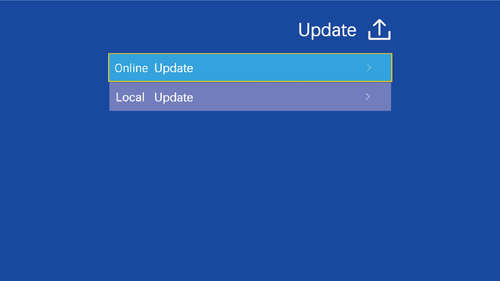
Please check online for available updates to download the latest firmware.
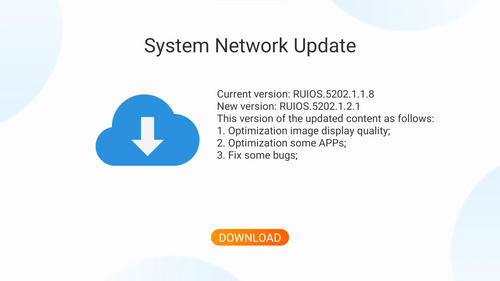
Step 4
The projector is now initiating the download of the latest firmware and updates.
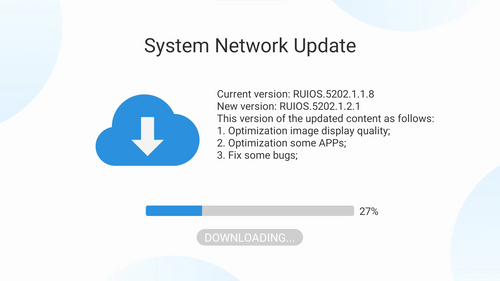
Note: Please make sure not to power off or try to use the projector during the updating. The projector will be reset after the software updates, all saved settings will be erased.
Unless you have issues with the camera, we don't recommend any firmware updates. If you are not sure about if updates are needed, please contact our customer support cs@nexigo.com.

Image Sensor
1/1.8" Sony® STARVIS 2 back-illuminated sensor
Resolution
(USB 3.0 Output)
MJPEG/H.264
3840 x 2160@30/25/20/15/10/5fps,
1920 x 1080@60/30/25/20/15/10/5fps,
1280 x 720@60/50/30/25/20/15/10/5fps, etc.
YUY2/NV12
1920 x 1080@60/50/30/25/20/15/10/5fps,
1280 x 720@60/50/30/25/20/15/10/5fps, etc.
Resolution
(HDMI Output)
30fps mode
3840 x 2160fps@30/25fps, 1920 x 1080@30/25fps
60fps mode
1920 x 1080@60/50fps, 1280 x 720@60/50fps
Lens
9-layer glass lens, f/2.2 aperture, 4.2 mm focal length
Field of View
D=90°/H=81°/V=55°
Focus Type
Fixed Focus
Focus Range
10" - 90" (0.25m - 2.28m)
Digital Zoom
Up to 10x digital zoom at 4K@30fps
Facial Enhancement
Support
Microphone
Dual noise reduction mics
Mic Pickup Range
Within 32.8ft (10m)
Video Output Port
1 x USB-B, 1 x HDMI
Software
Works with Zoom, Microsoft Teams, Skype for Business, Slack, Webex, and many more
Operating System
Windows 7 (Supports 1080p or lower),
Windows 8.1/10/11 or above
macOS 10.10 or above
Hardware
CPU: 2.4 GHz Intel Core 2 Duo processor or better
RAM: 2 GB or more
USB: USB 2.0, USB 3.0(Recommended)
Display
Panel Size (inch)
17.3
Aspect Ratio
16:9
Color Space (sRGB)
100%
Panel Type
IPS Panel
True Resolution
1920 x 1080
Refresh Rate (max)
300Hz
Brightness
350 Nits
Contrast Ratio
1000:1
Viewing Angle
178°
Display Colors
16.7M
Low Blue Light
Yes
FreeSync
Yes
G-SYNC Compatible
Yes
Audio
Speaker
Yes
Interfaces
HDMI
1 x HDMI
USB
2 x Full Function USB-C, 1 x USB-A 2.0
Audio Out
1 x 3.5mm Audio Jack
About
Dimensions
11.3 x 10.79 x 4.8 inches (287 x 274 x 122mm)
Weight
6.24 LBS (2.83 KG)
Storage Temperature
-4°F-131°F (-20°C-55°C)
Working Temperature
32°F-104°F (0°C-40°C)
Operating Humidity
30%~85%