NexiGo Gripcon Controller with HDMI & RGB Indicators for Switch 2

$59.99

Shipping calculated at checkout.

  • Hall Effect thumbsticks & 16 programmable buttons
  • Ergonomic Gripcon controller for Switch 2
  • Customizable RGB ringlight with adjustable brightness
  • Turbo function, adjustable vibration & motion controls
  • HDMI output, kickstand

Color: Cosmic Nebula

  • Cosmic Nebula
  • Black

Style: Gripcon Only

  • Gripcon Only
  • Gripcon + Case
$59.99
Out of stock
A Gripcon placed on a flat surface with hills in the background.This is an image showcasing the product’s key selling points.
A muscular man playing the Switch 2 Gripcon.
The controller joystick features RGB lighting with adjustable colors, brightness, and modes.
This is an image showcasing auto turbo, vibration, and six-axis motion control.
Exploded view of the Hall-effect joystick showing the internal magnets.
The Gripcon features Hall-effect triggers for more precise feedback.
The Gripcon’s joystick caps can be replaced as needed.
The Gripcon with an HDMI port supports video output functionality.
The Gripcon features a USB-C port for connecting to more devices.
Detailed Instructions for Enabling Wired Connection on the Switch 2
Showcasing the two modes of the Gripcon.
A woman sitting on a sofa playing Switch 2 games.

Hall Effect Gripcon Kit for Switch 2

This bag is opened and displayed on the desk, showing compatible Switch accessories it can hold.
Three-section image showing bag dustproof, waterproof & smooth zipper.
A man carrying the bag by hand
A Gripcon placed on a flat surface with hills in the background.This is an image showcasing the product’s key selling points.
A muscular man playing the Switch 2 Gripcon.
The controller joystick features RGB lighting with adjustable colors, brightness, and modes.
This is an image showcasing auto turbo, vibration, and six-axis motion control.
Exploded view of the Hall-effect joystick showing the internal magnets.
The Gripcon features Hall-effect triggers for more precise feedback.
The Gripcon’s joystick caps can be replaced as needed.
The Gripcon with an HDMI port supports video output functionality.
The Gripcon features a USB-C port for connecting to more devices.
Detailed Instructions for Enabling Wired Connection on the Switch 2
Showcasing the two modes of the Gripcon.
A woman sitting on a sofa playing Switch 2 games.

Hall Effect Gripcon Kit for Switch 2

This bag is opened and displayed on the desk, showing compatible Switch accessories it can hold.
Three-section image showing bag dustproof, waterproof & smooth zipper.
A man carrying the bag by hand
A Gripcon placed on a flat surface with hills in the background.2.jpg__PID:63cbd940-aaa6-4c34-81f2-798b9312598f
This is an image showcasing the product’s key selling points.
A muscular man playing the Switch 2 Gripcon.
This is an image showcasing auto turbo, vibration, and six-axis motion control.
Exploded view of the Hall-effect joystick showing the internal magnets.
The Gripcon features Hall-effect triggers for more precise feedback.
The Gripcon’s joystick caps can be replaced as needed.
The Gripcon features a USB-C port for connecting to more devices.
Detailed Instructions for Enabling Wired Connection on the Switch 2
Showcasing the two modes of the Gripcon.
A woman sitting on a sofa playing Switch 2 games.

Hall Effect Gripcon Kit for Switch 2

This bag is opened and displayed on the desk, showing compatible Switch accessories it can hold.
Three-section image showing bag dustproof, waterproof & smooth zipper.
A man carrying the bag by hand
A Gripcon placed on a flat surface with hills in the background.This is an image showcasing the product’s key selling points.
A muscular man playing the Switch 2 Gripcon.
The controller joystick features RGB lighting with adjustable colors, brightness, and modes.
This is an image showcasing auto turbo, vibration, and six-axis motion control.
Exploded view of the Hall-effect joystick showing the internal magnets.
The Gripcon features Hall-effect triggers for more precise feedback.
The Gripcon’s joystick caps can be replaced as needed.
The Gripcon with an HDMI port supports video output functionality.
The Gripcon features a USB-C port for connecting to more devices.
Detailed Instructions for Enabling Wired Connection on the Switch 2
Showcasing the two modes of the Gripcon.
A woman sitting on a sofa playing Switch 2 games.

Hall Effect Gripcon Kit for Switch 2

This bag is opened and displayed on the desk, showing compatible Switch accessories it can hold.
Three-section image showing bag dustproof, waterproof & smooth zipper.
A man carrying the bag by hand
Chapters

0:16 What's in the box?
0:40 How do I pair it with my Nintendo Switch 2?
1:03 What is the average margin of error for this controller?
1:12 How do I replace the thumbstick caps?
1:30 How do I connect it to my TV?
1:54 How do I program the mappable buttons?
2:24 How do I reset a programmed button?
2:50 How do I change the color of the RGB lights?
3:03 How do I make the RGB lights change dynamically?
3:26 How do I adjust the brightness of the RGB lights?
3:40 How do I use the Turbo Function?
4:08 How do I adjust the speed of the Turbo Function?
4:31 How do I adjust the vibration level?
4:56 Does this controller have motion controls?
5:05 How many game cartridges can it store?
5:11 What is the USB port for?
5:25 How do I fix stick drift?
5:53 Can I charge while I play?

Step 1

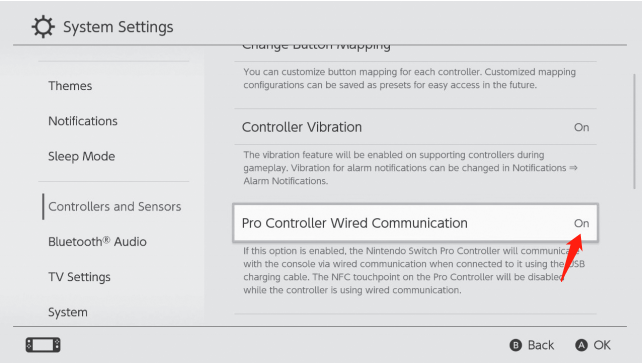
Please enable the Pro Controller Wired Communication setting in the Switch 2 console itself. You can do this by going to System Settings > Controller & Accessories > Pro Controller Wired Communication. Set the Pro Controller Wired Communication to On.

白色内屏-home页面.jpg__PID:51186ae6-ec44-457a-bd18-87dd130d14ad白色内屏-有线链接.jpg__PID:c851186a-e6ec-4495-bafd-1887dd130d14

Step 2

Plug the Switch 2 console into the gripcon

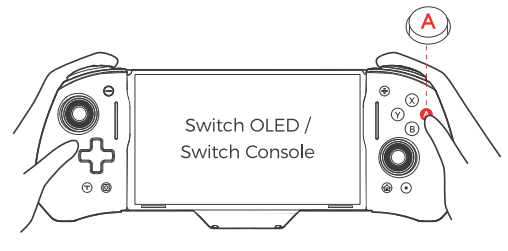
3-A.png__PID:6ae6ec44-957a-4d18-87dd-130d14ad93c2

Step 3

After you have plugged the console into the gripcon, press the A button on the gripcon to connect it to the console.

Step 4

Finally, please calibrate the Sticks before first use.

Do not touch the sticks or other keys when installing and plugging in the console. This prevents automatic calibration. If the sticks are deviating during use, please unplug the console from the gripcon and reinsert it, or go to the System Settings on the console and attempt stick calibration again.

Sunday,Monday,Tuesday,Wednesday,Thursday,Friday,Saturday
January,February,March,April,May,June,July,August,September,October,November,December
Not enough items available. Only [max] left.
Add to WishlistBrowse WishlistRemove Wishlist
Shopping cart

Your cart is empty.

Return To Shop

Add Order Note Edit Order Note
Estimate Shipping
Add A Coupon

Estimate Shipping

Add A Coupon

Coupon code will work on checkout page


My Wishlist

Loding your saved items

Don't lose your wishlist!

My Wishlist

Loding your saved items

Don't lose your wishlist!