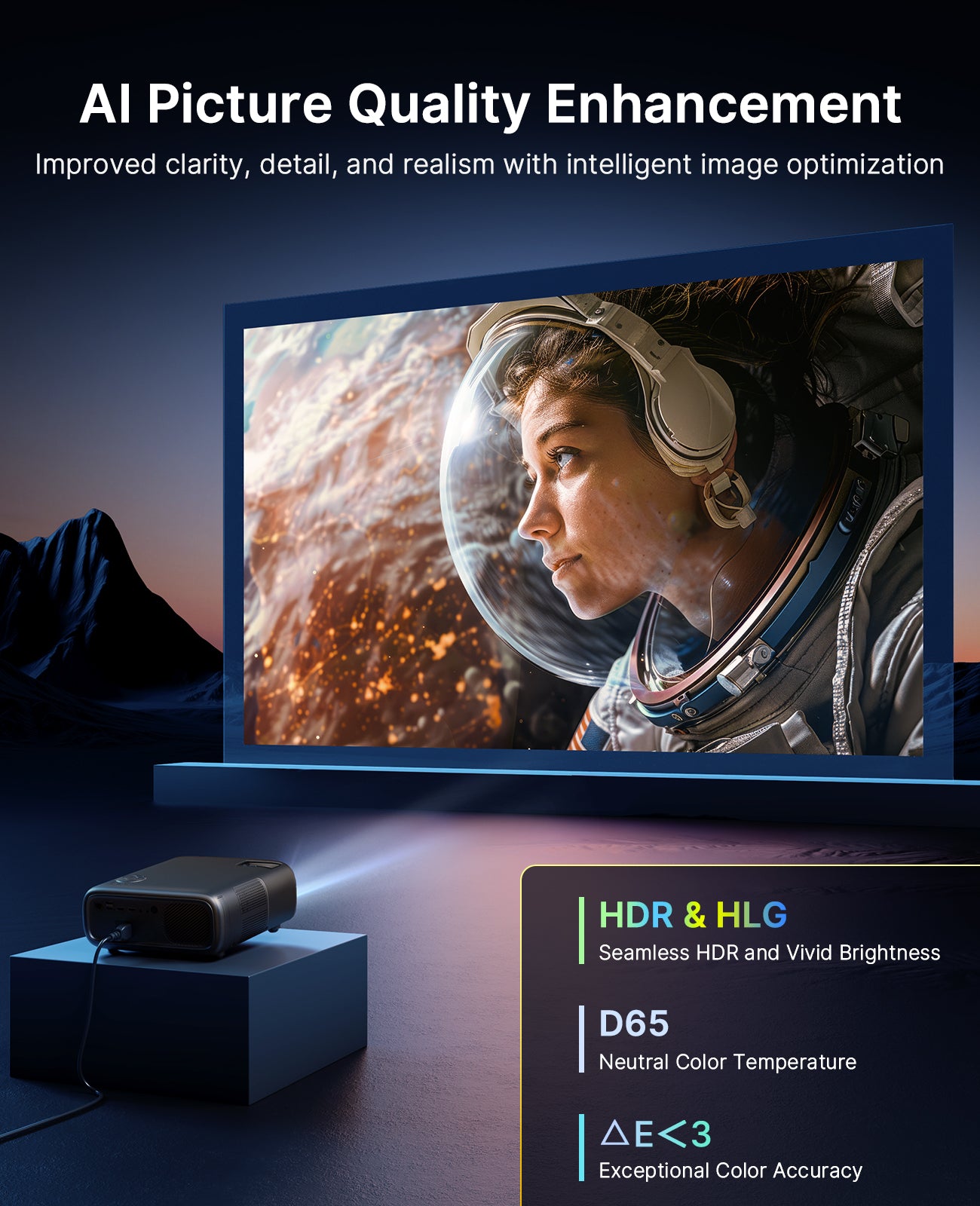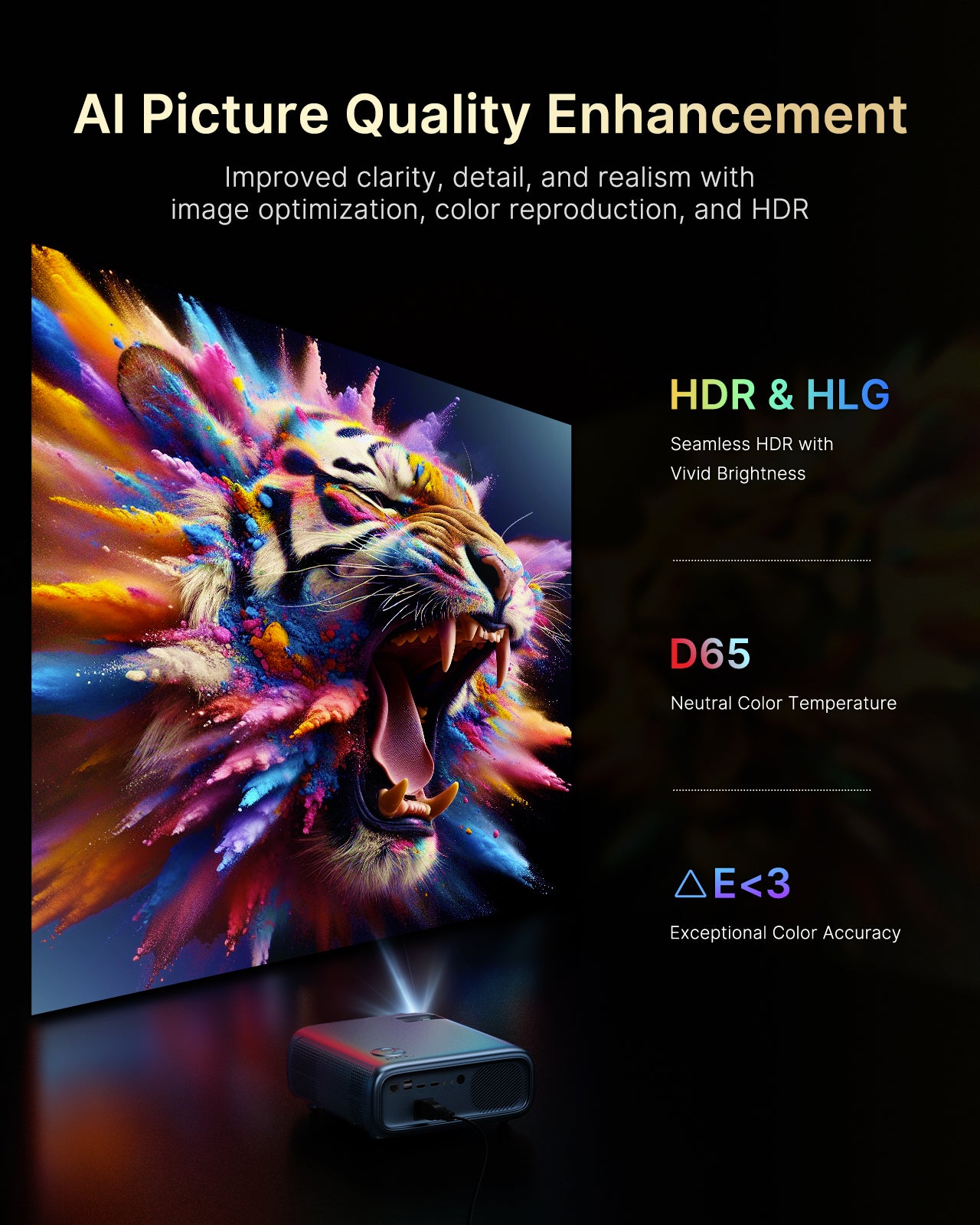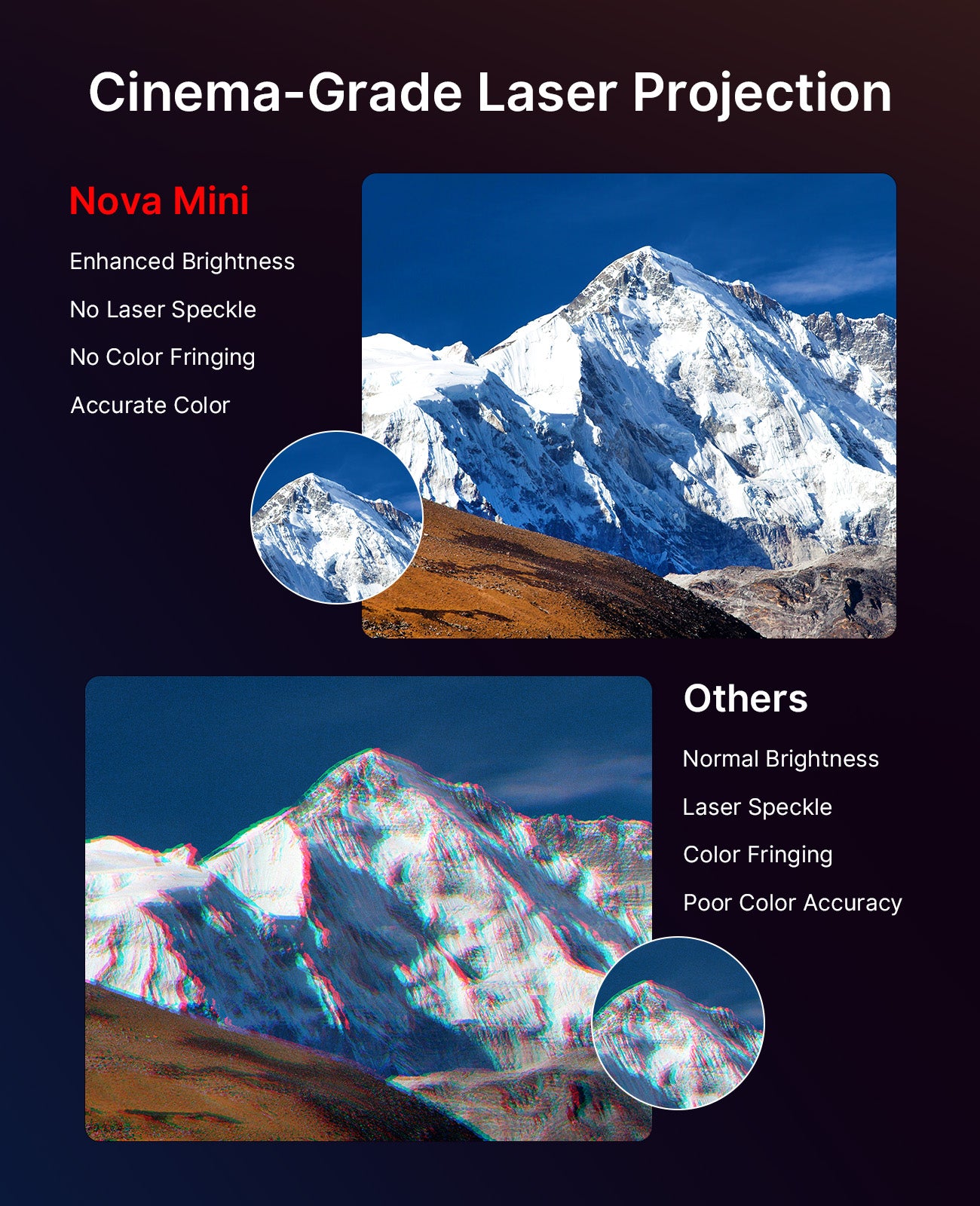


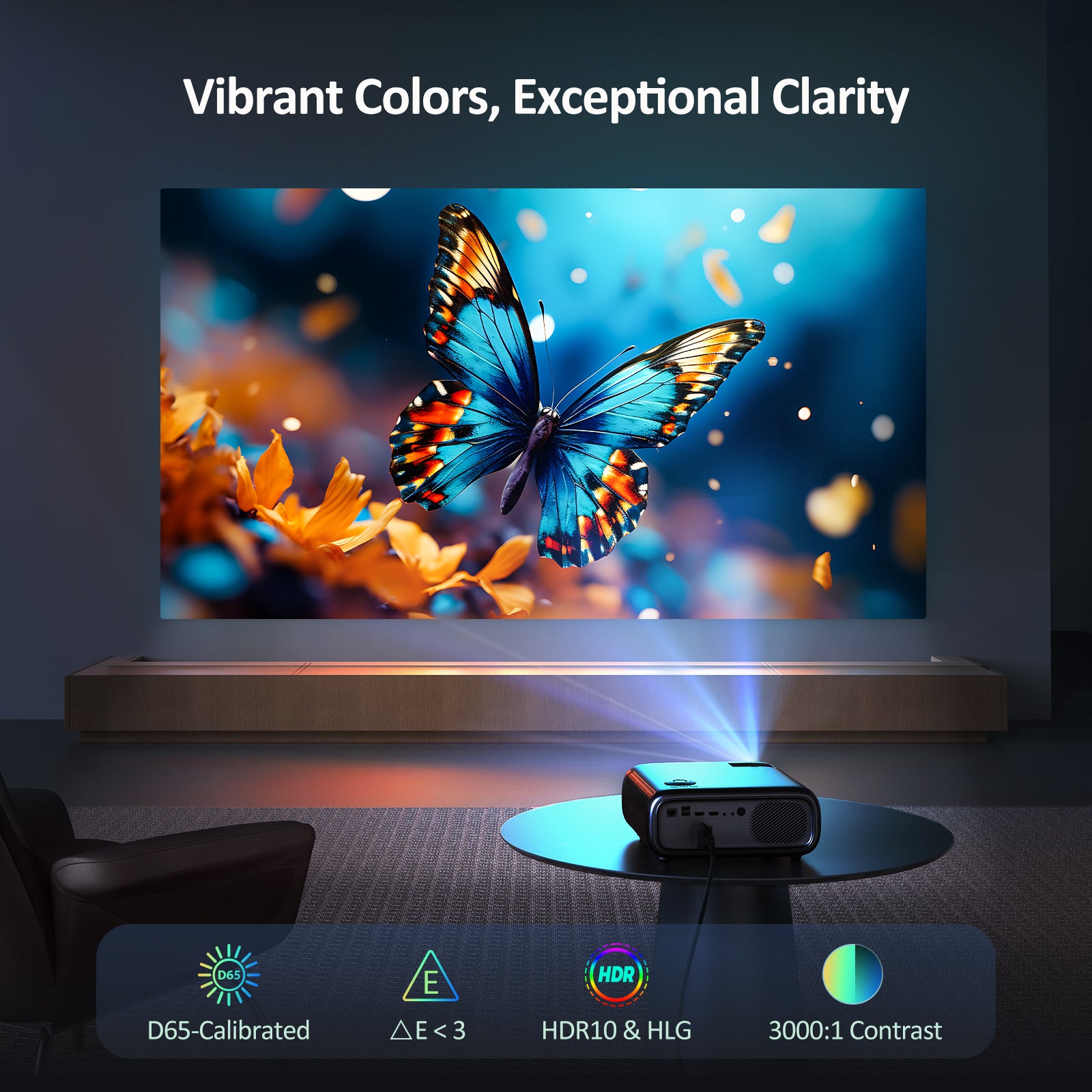



Professional-Grade Color Accuracy
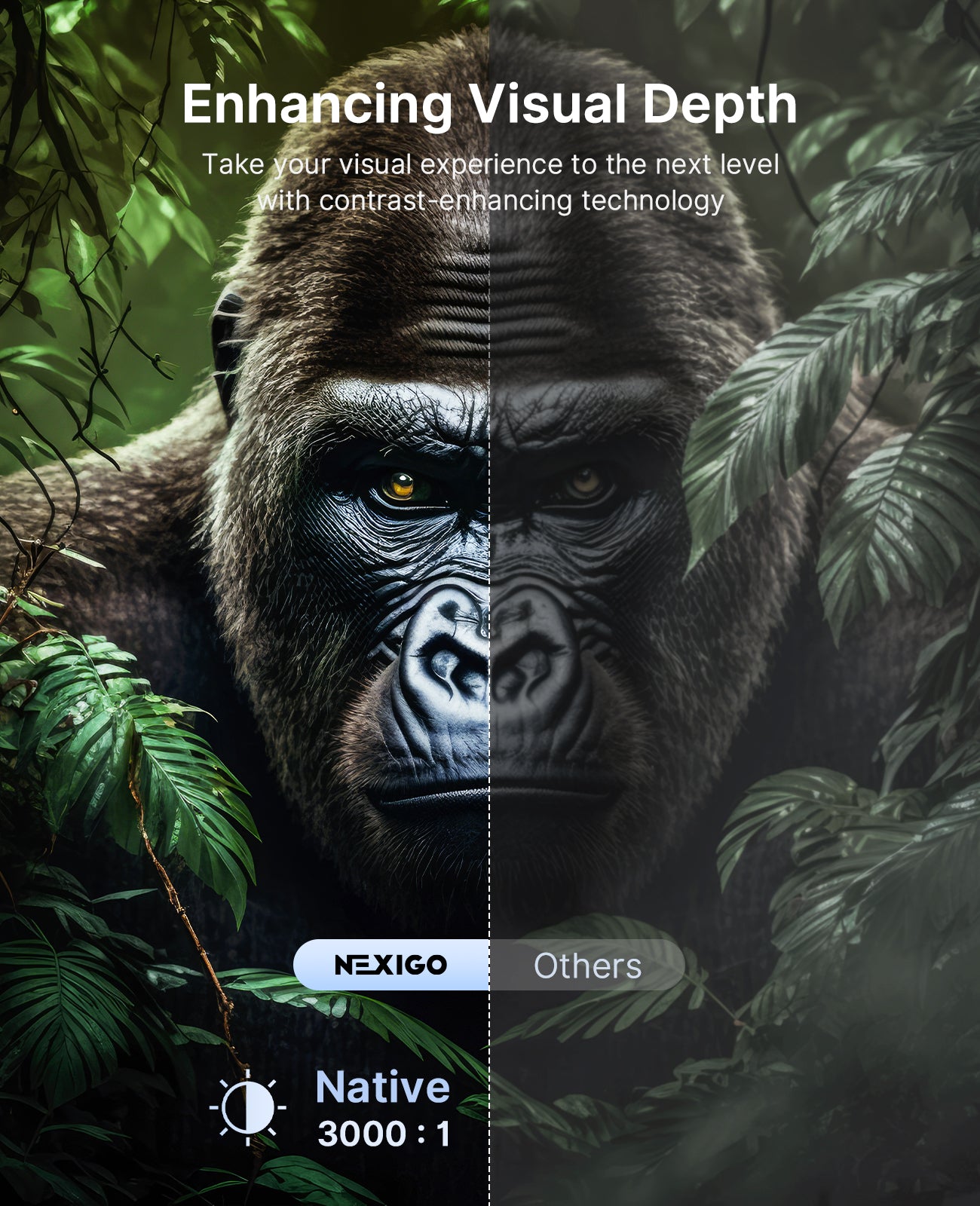
Calibrated to D65/D75 temperature with ΔE<3 color accuracy


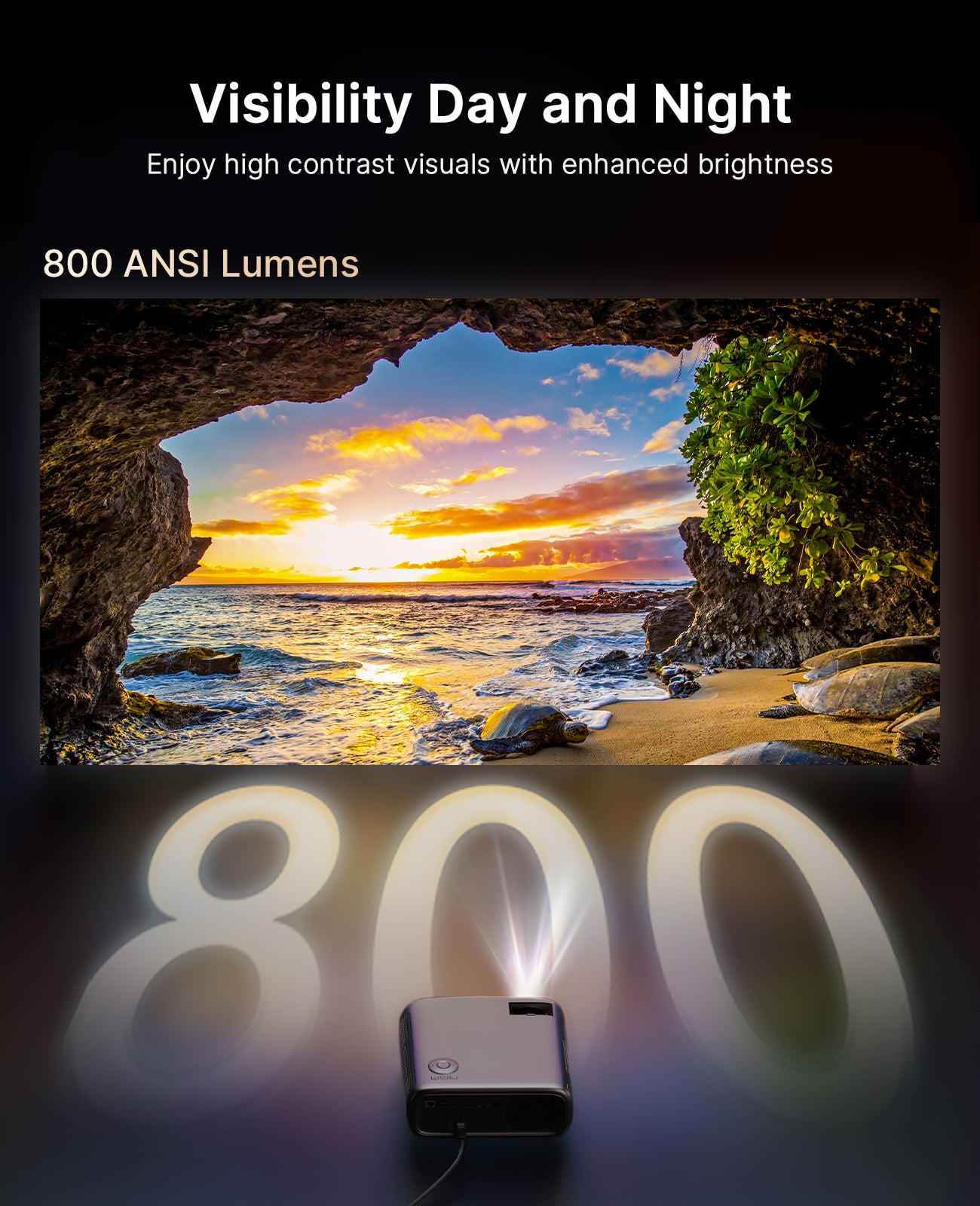
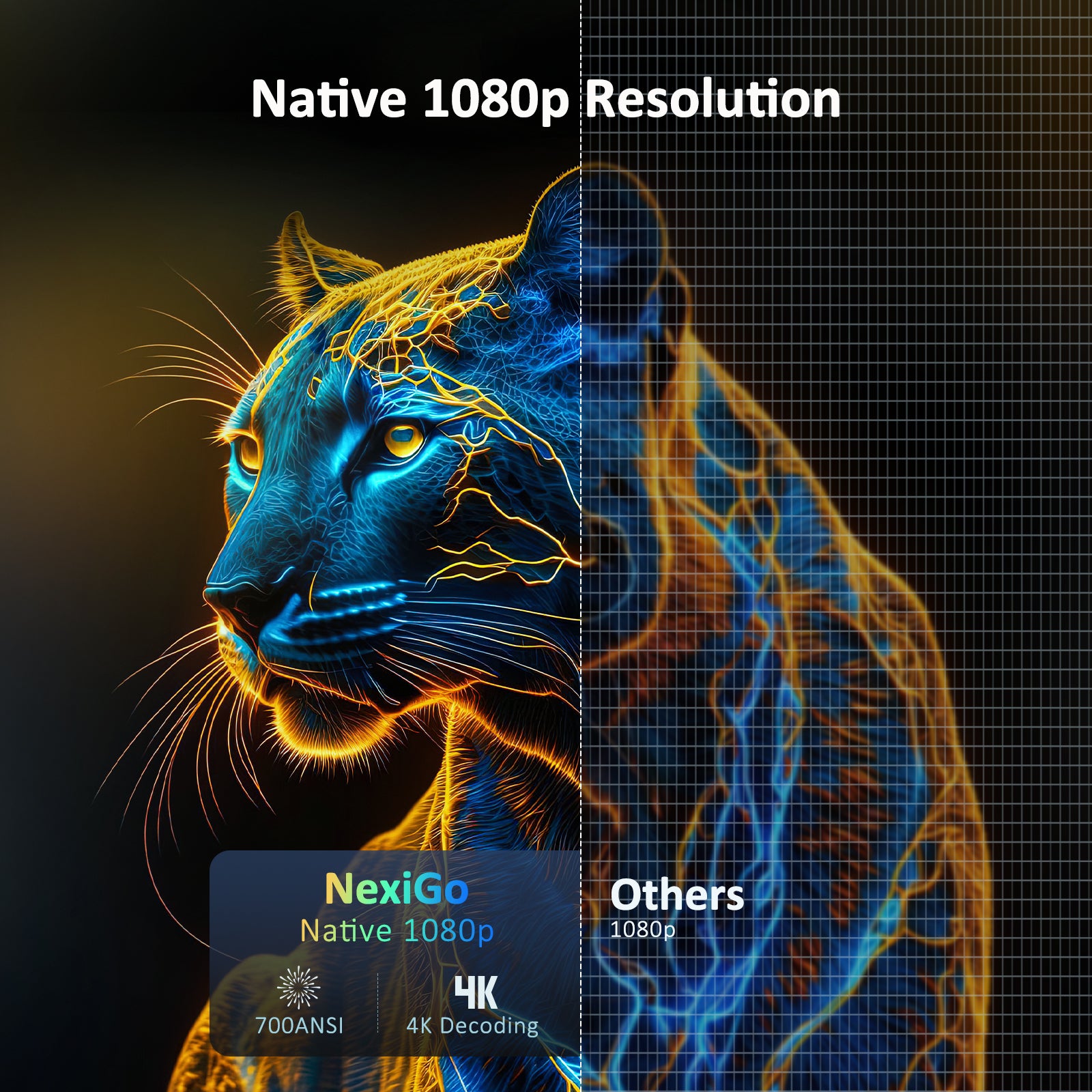
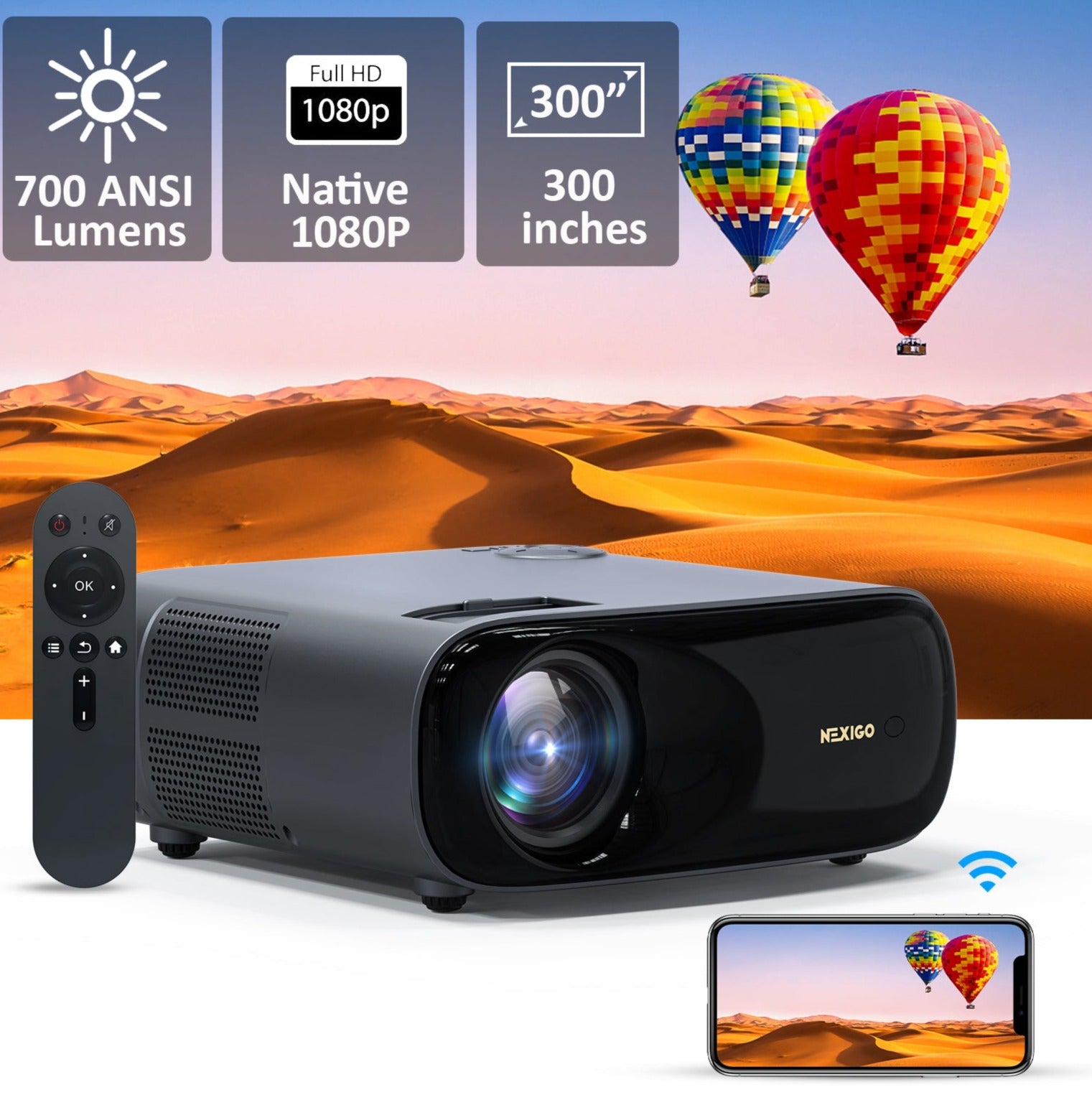
With 700 ANSI Lumens, you get the best of both worlds—ultra-high brightness plus realistic color both night and day. Sit back and prepare to be amazed.
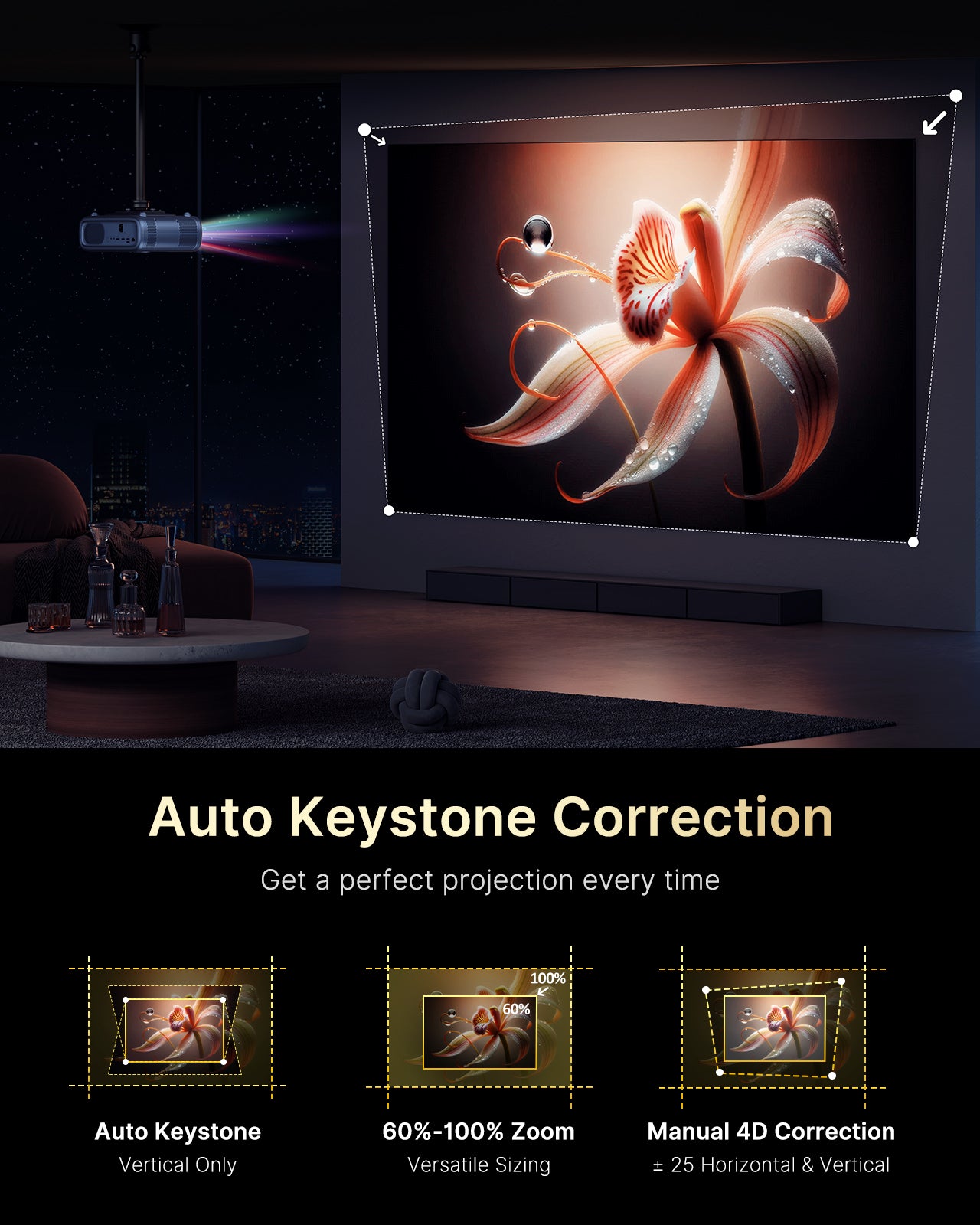
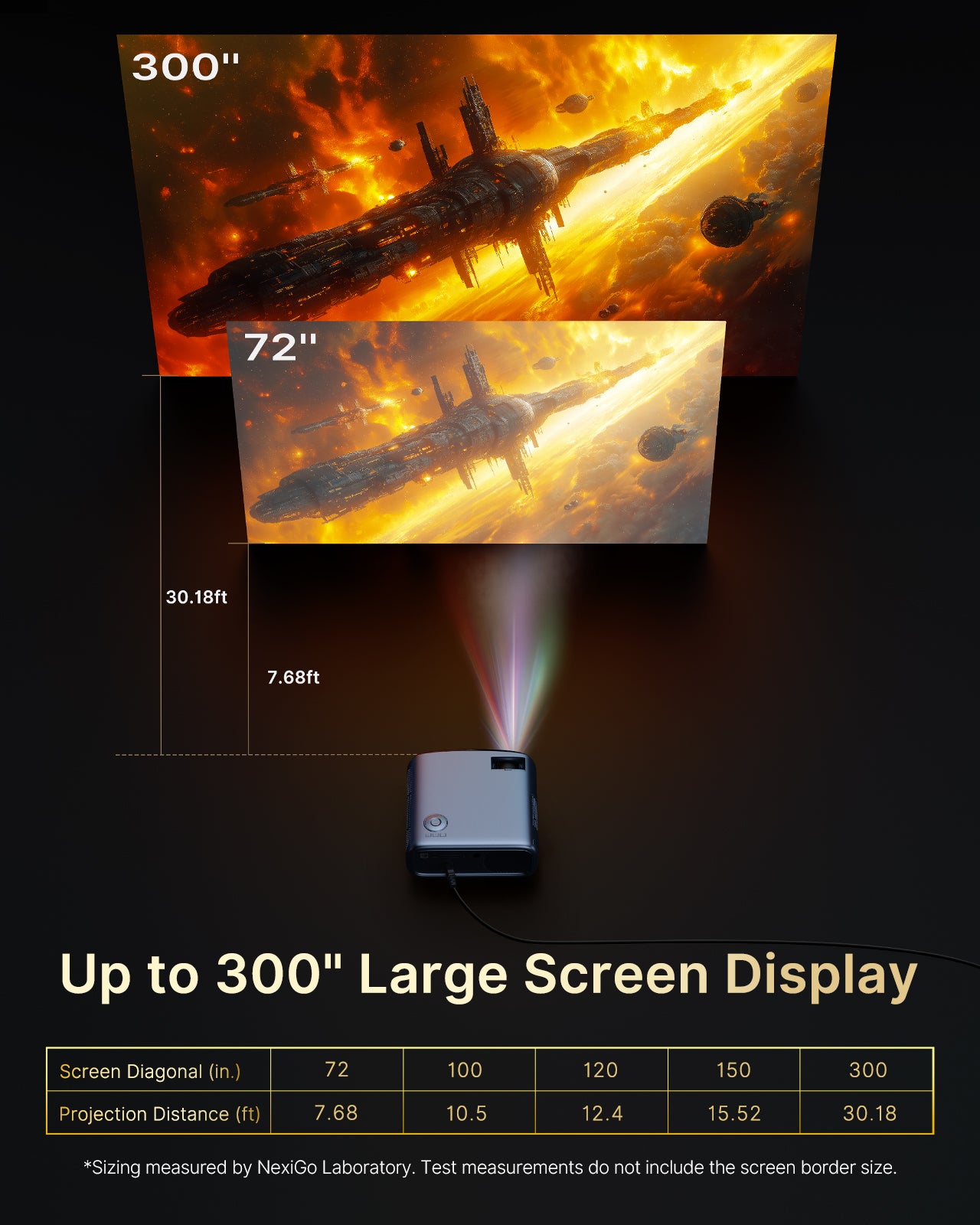
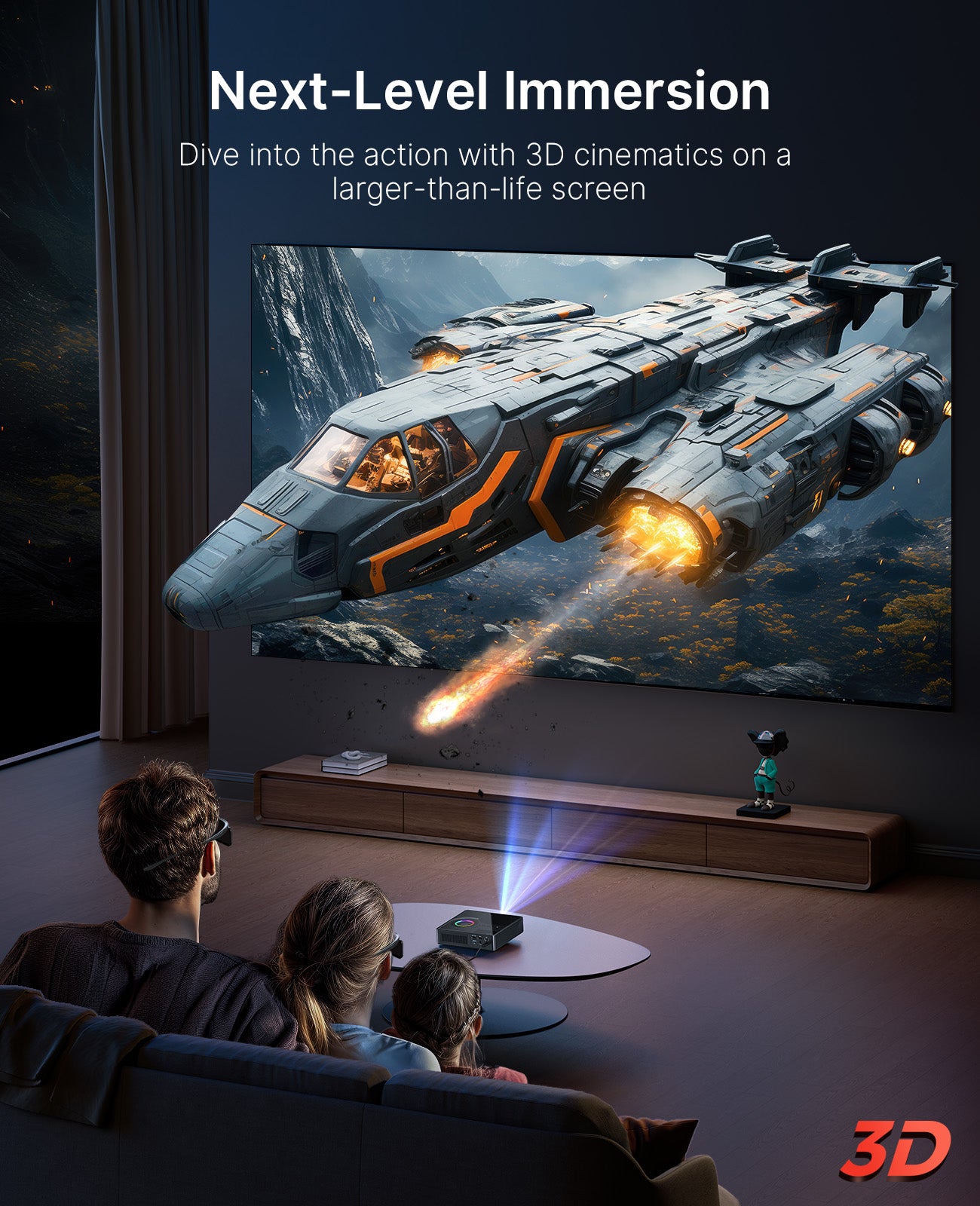
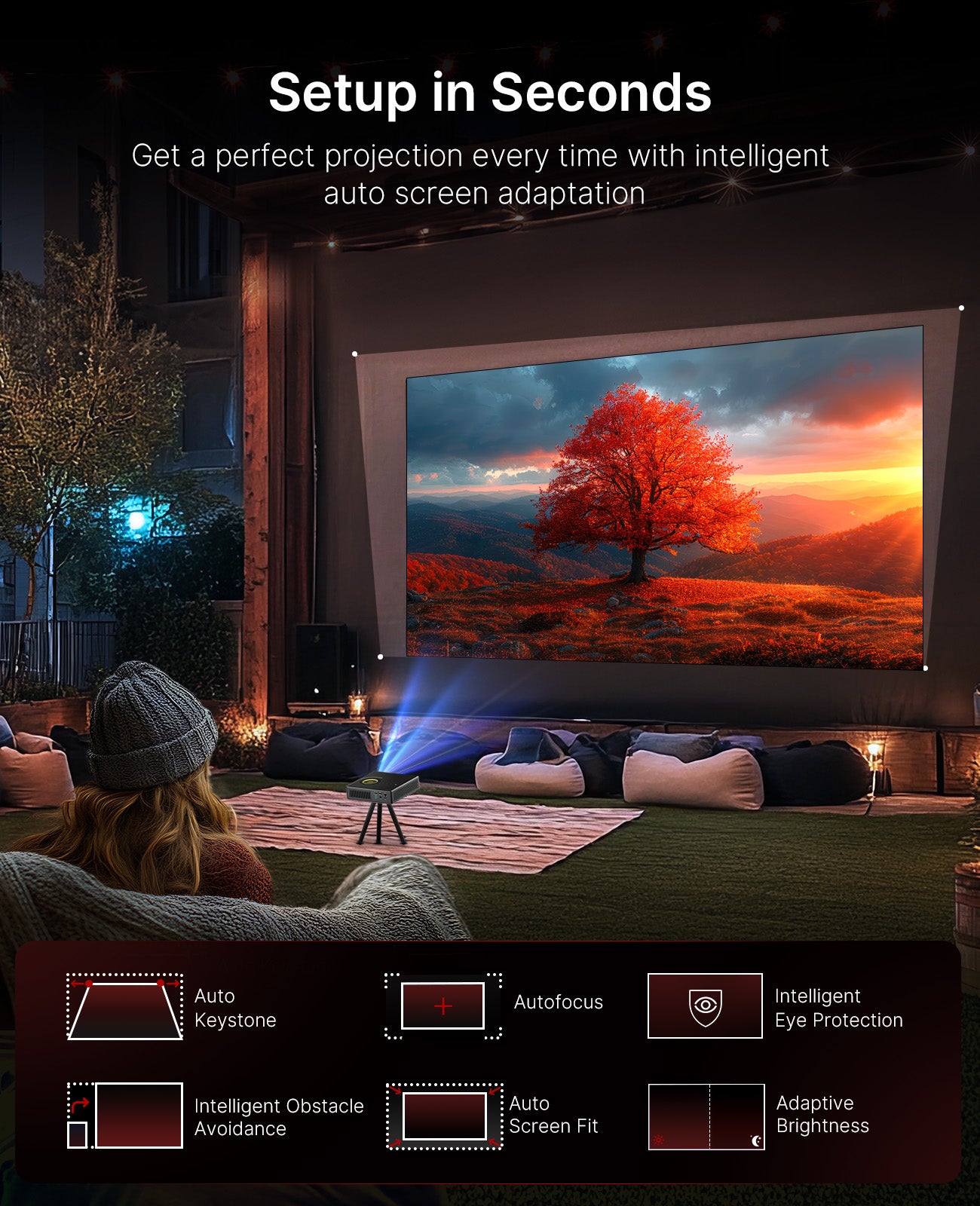
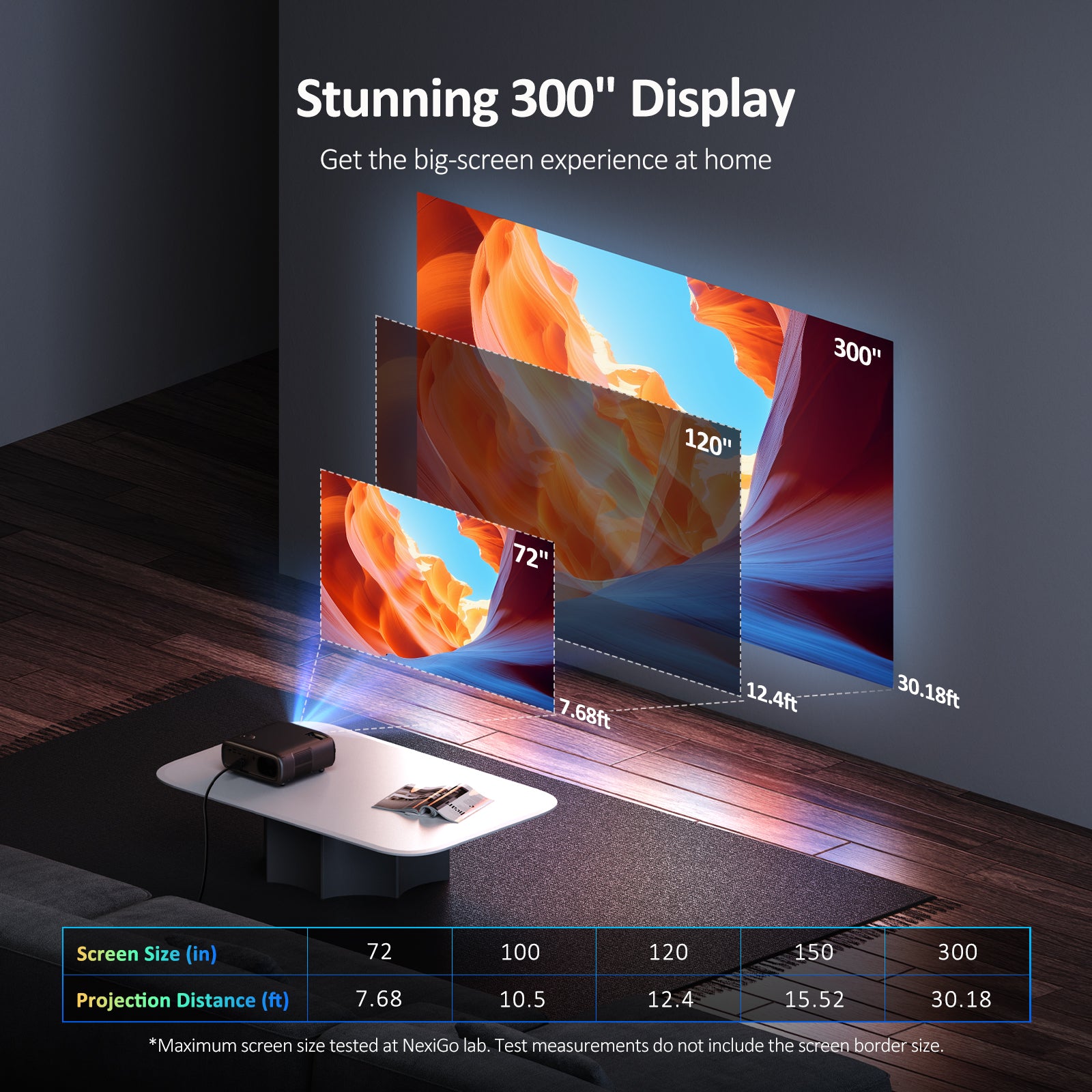
Enjoy projections up to 300 inches across for a theater-like experience at home. Once your PJ40 is set up, use the settings to adjust the screen size without relocating the projector.

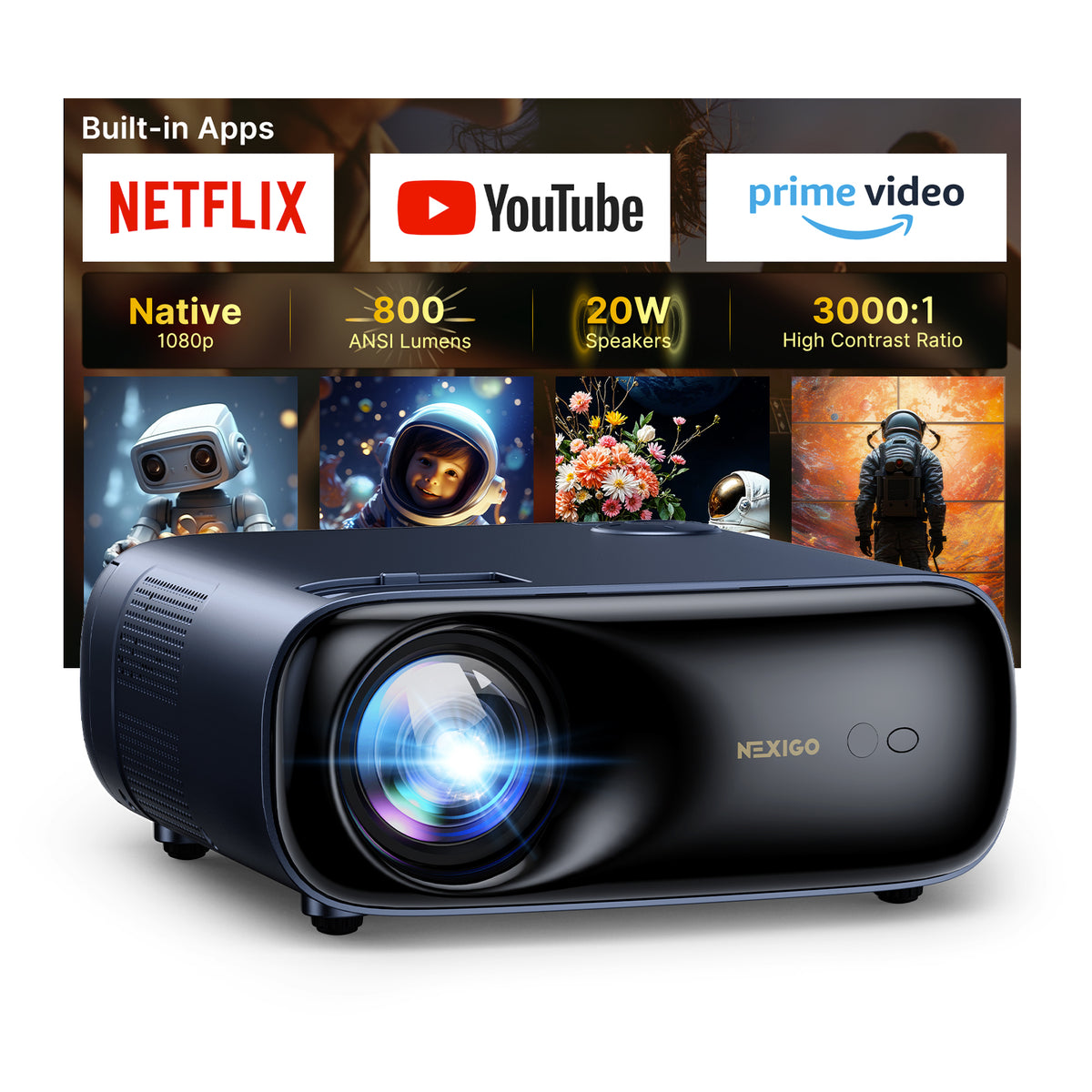
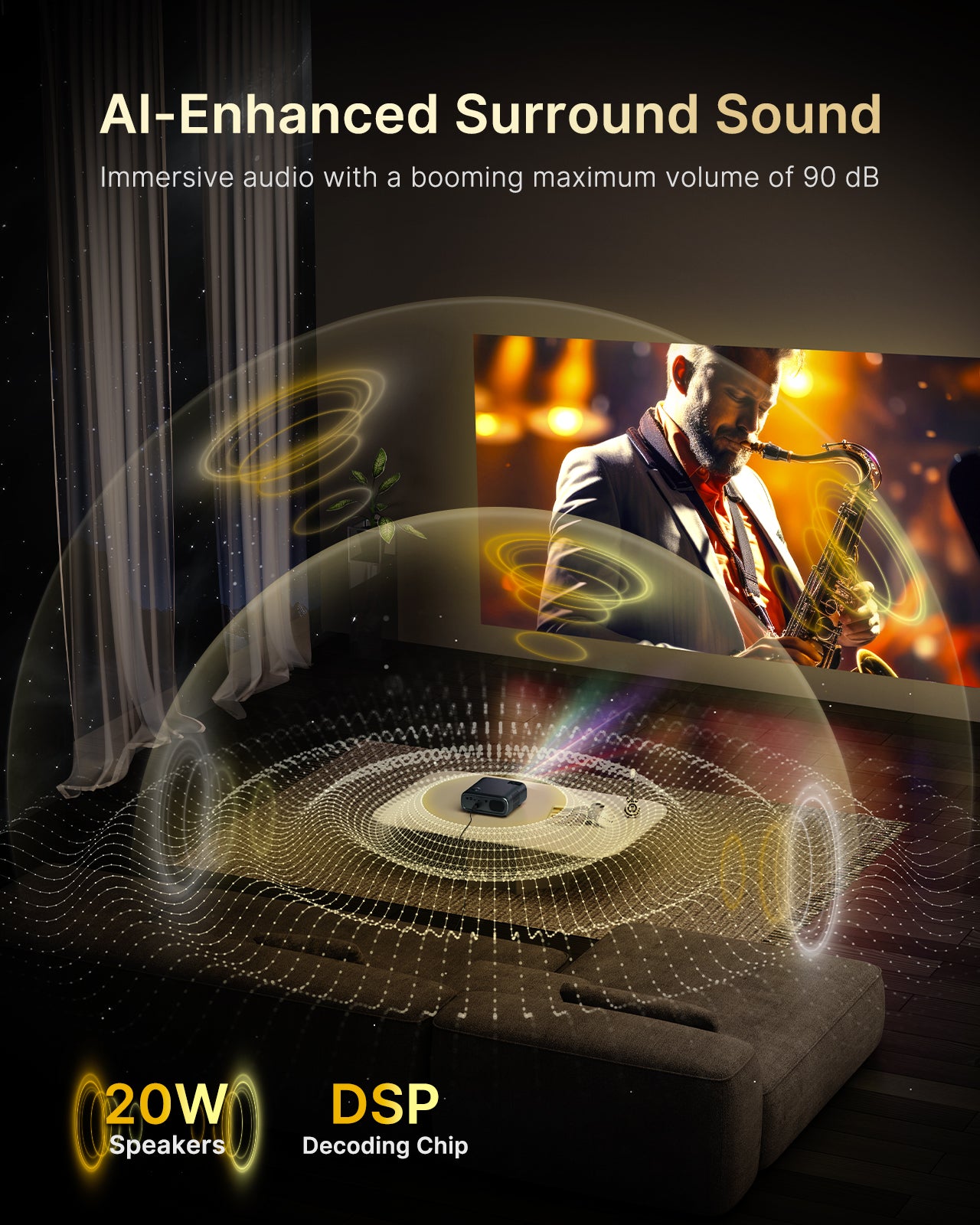
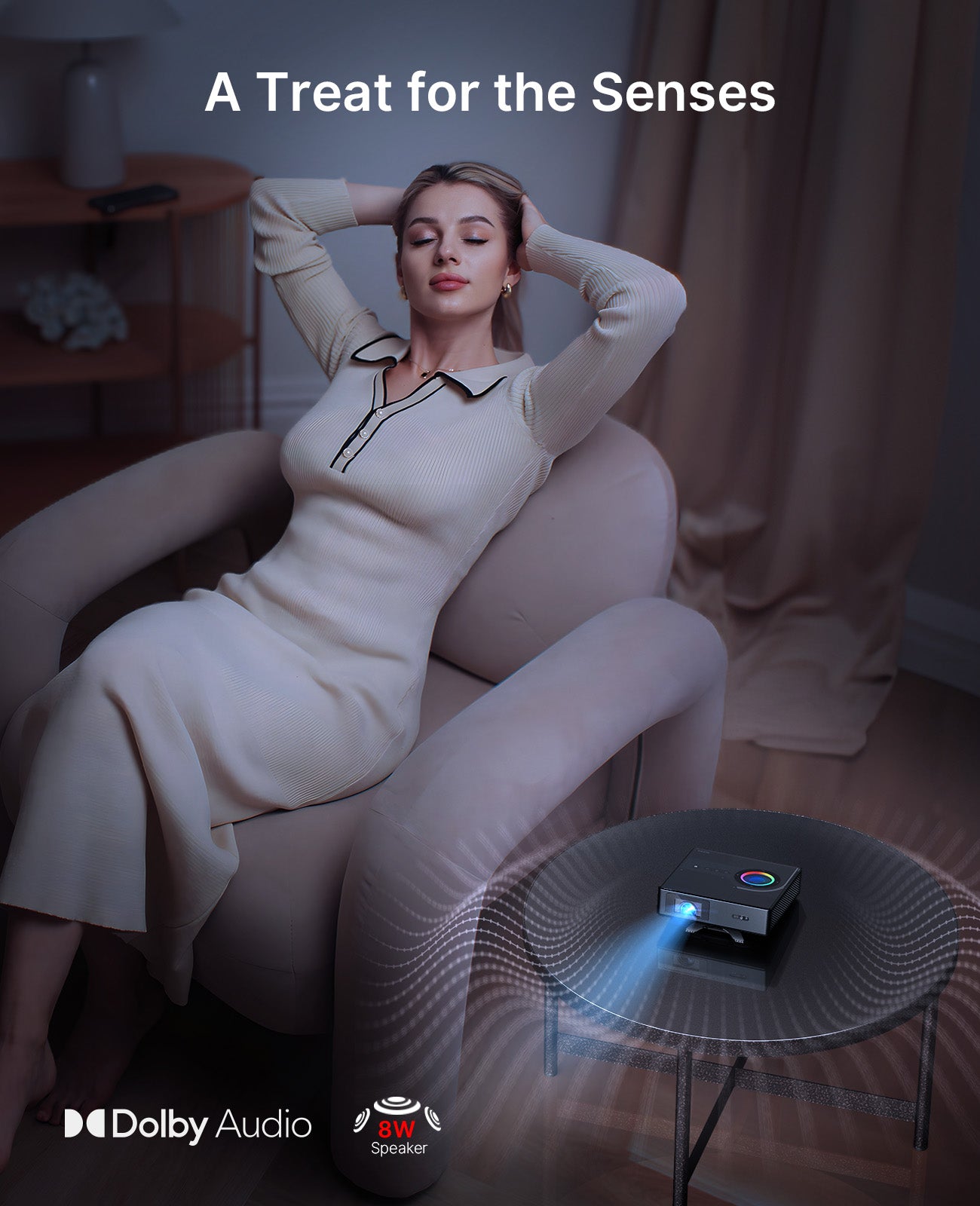
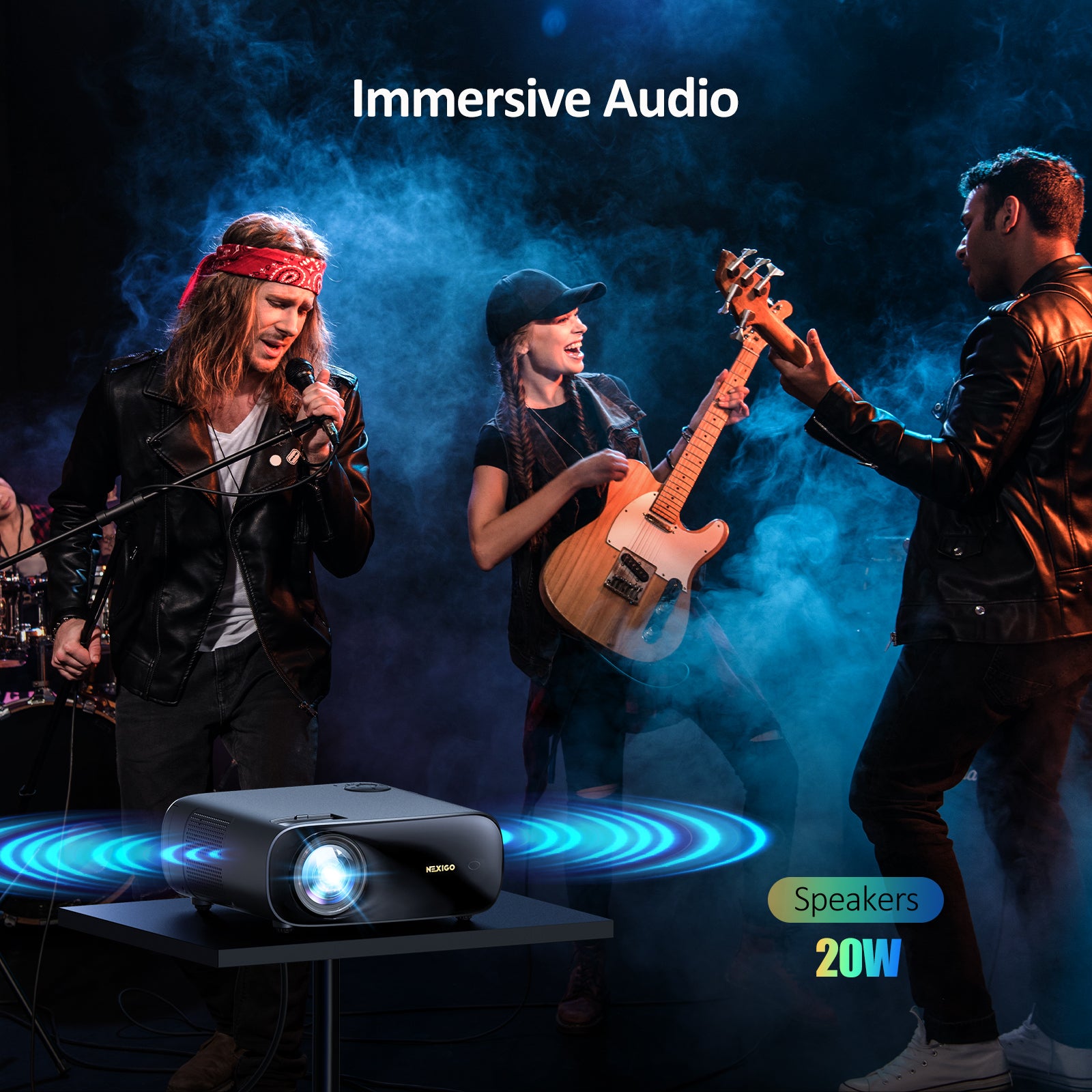
Powerful 20W Speakers
Enjoy an enhanced auditory experience with built-in stereo speakers.
*Click to experience the sound
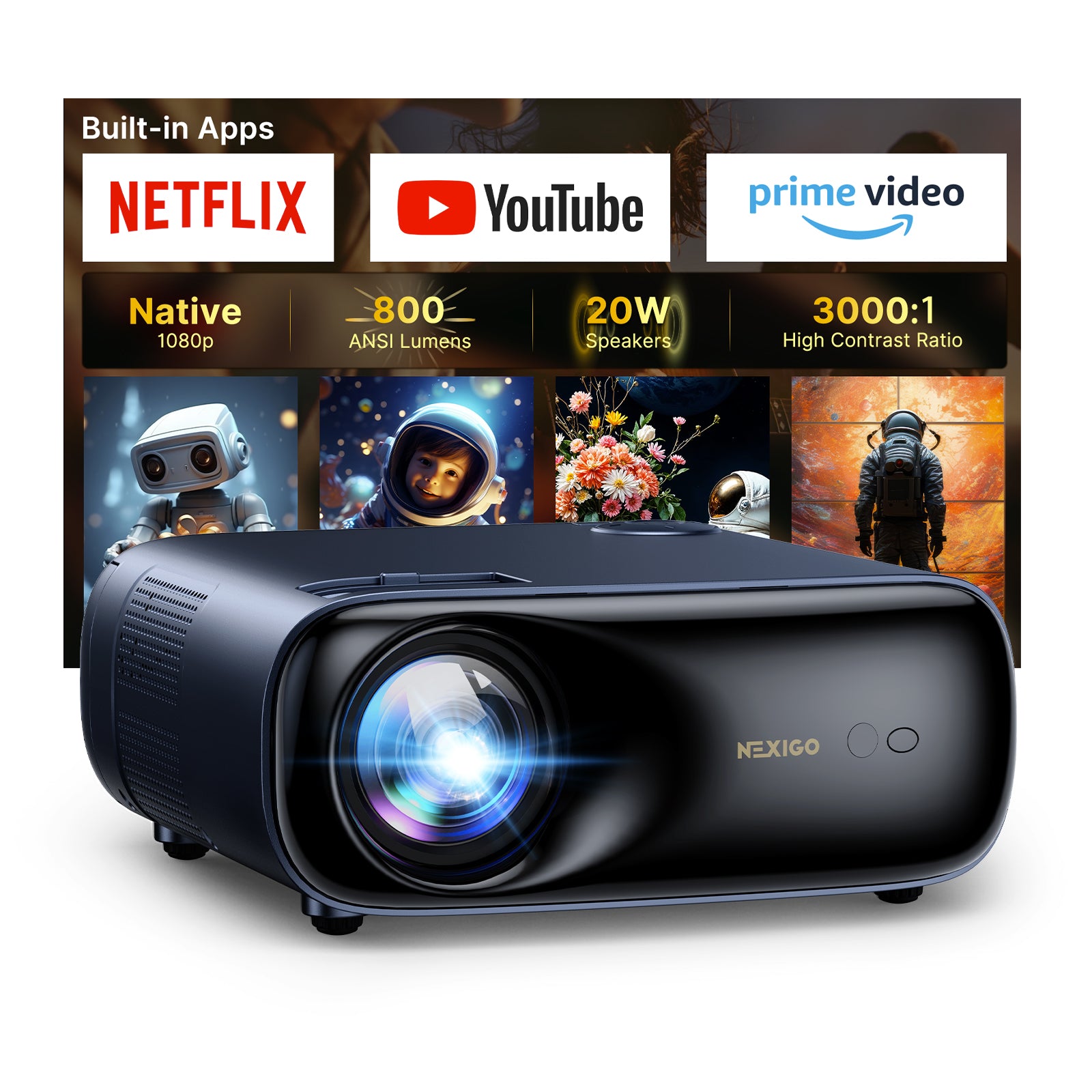
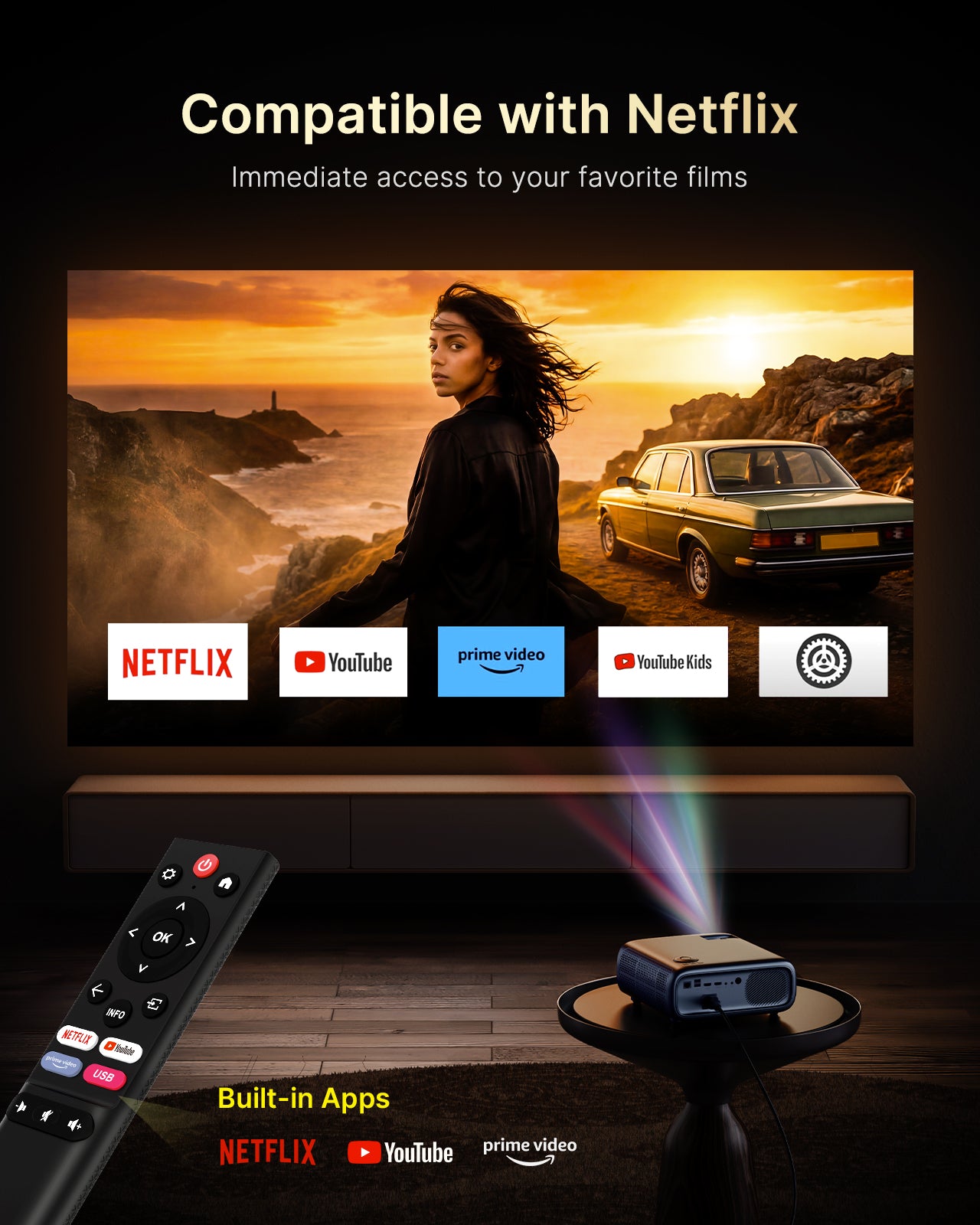
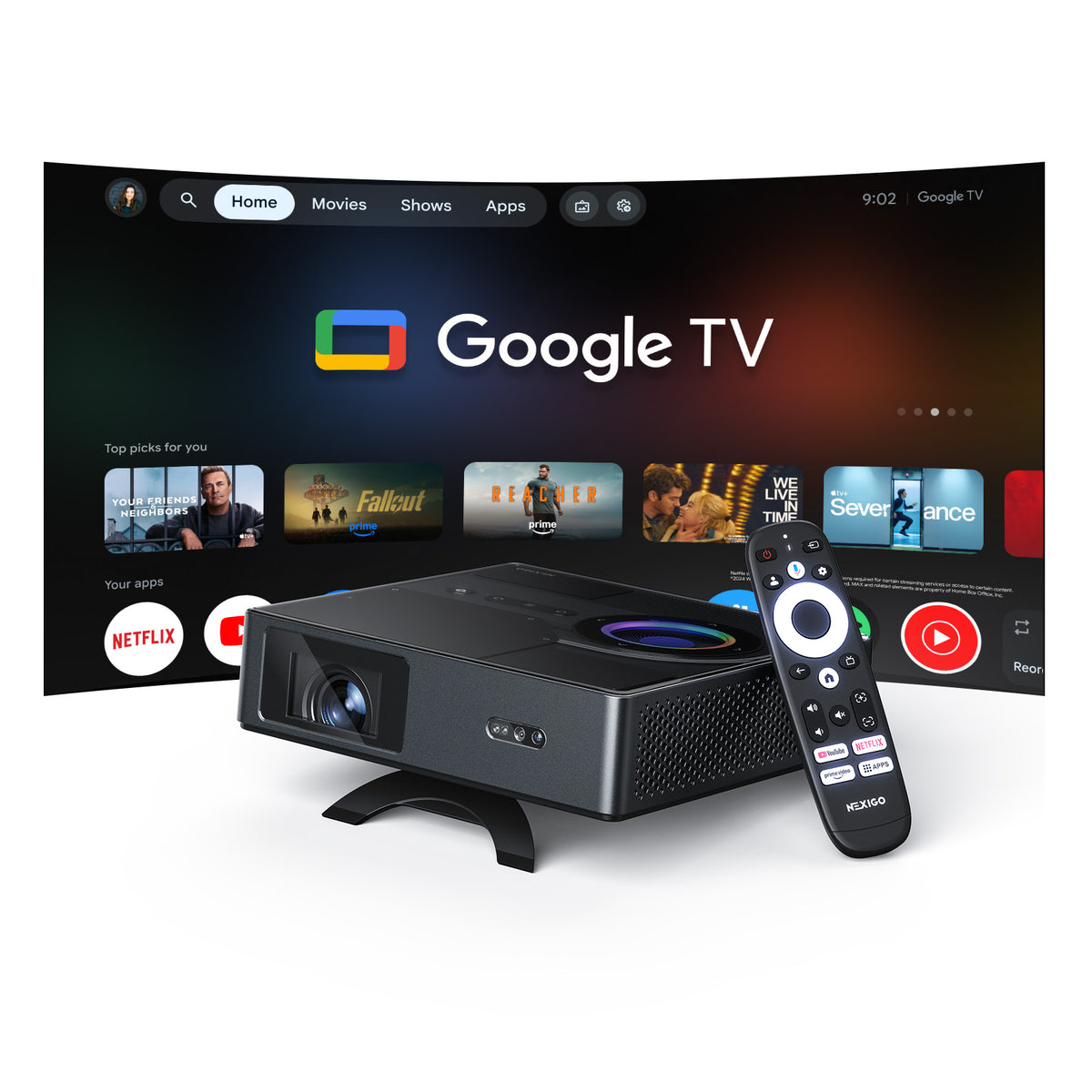
One Touch Play
Use the remote control or the onboard controls to launch your favorite streaming apps.
HDMI Consumer Electronics Control (CEC) enables users to control both the projector and an HDMI device using the same remote.
To enable HDMI CEC, plug in your HDMI device and go to Settings > System > EasyLink (CEC) and enable CEC Control.
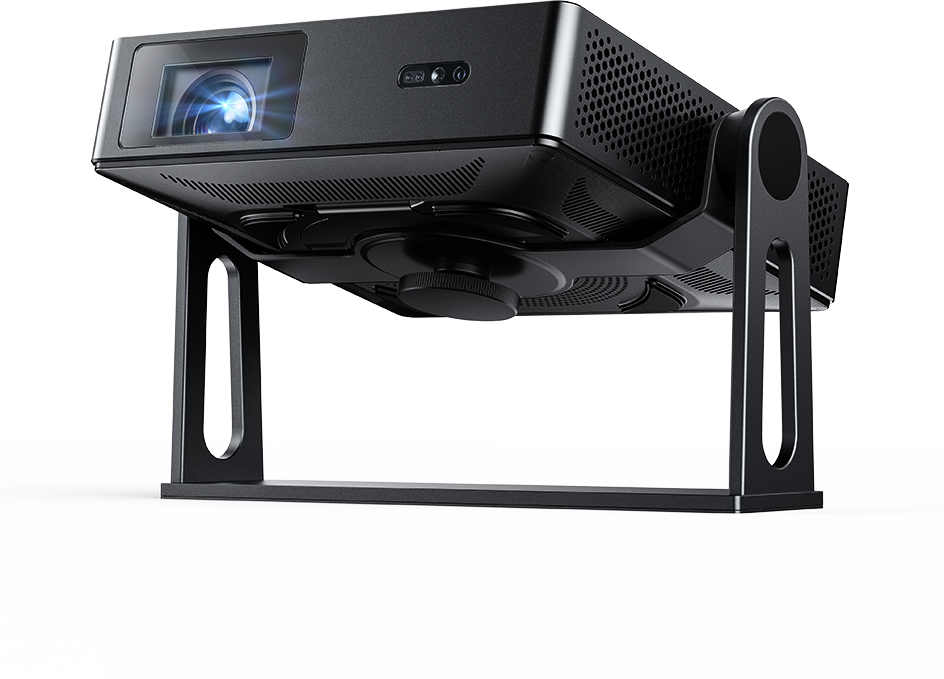
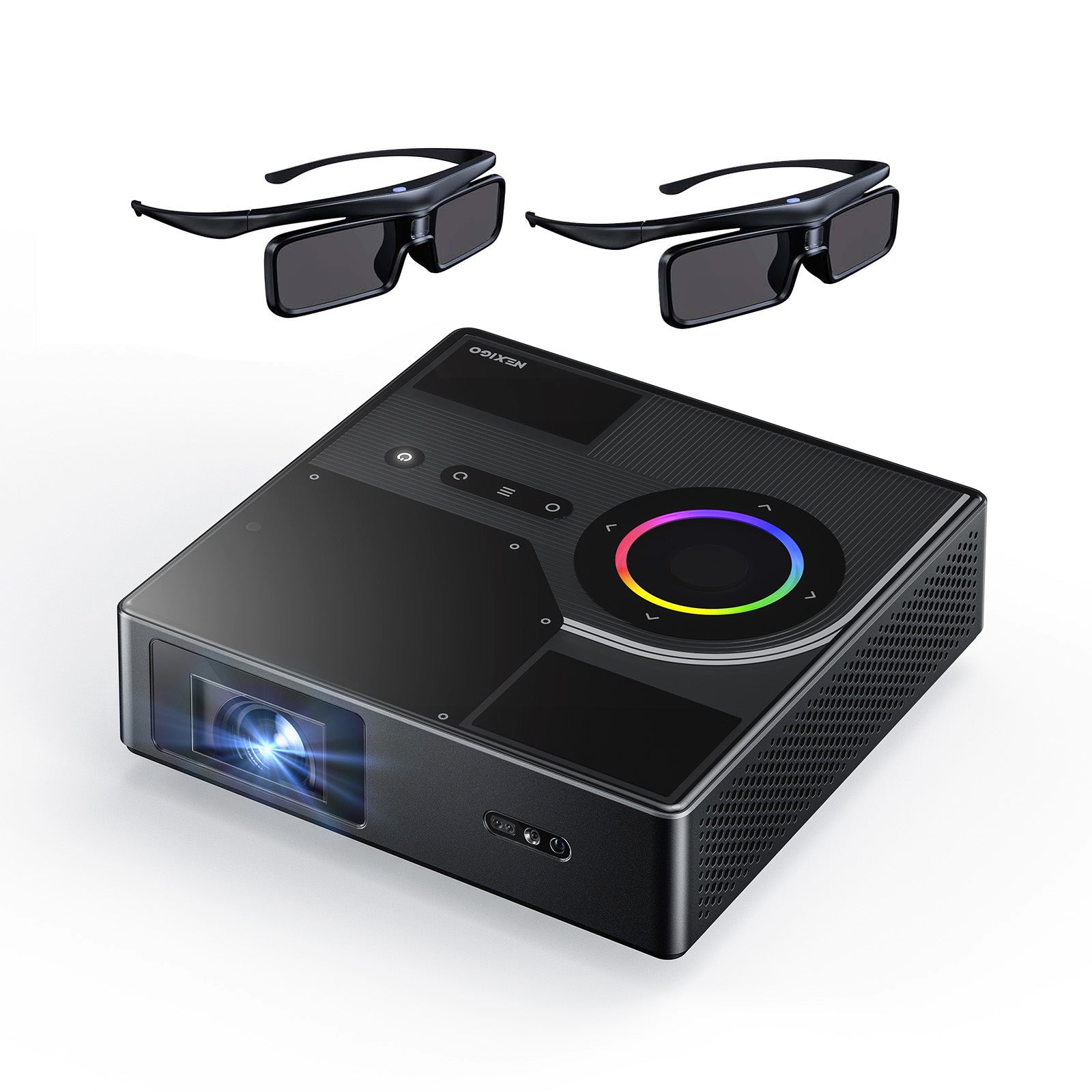
The Ultimate All-in-One Projector


Explore More Functions of the PJ40
How Aurora Pro Achieves True-to-Life Colors


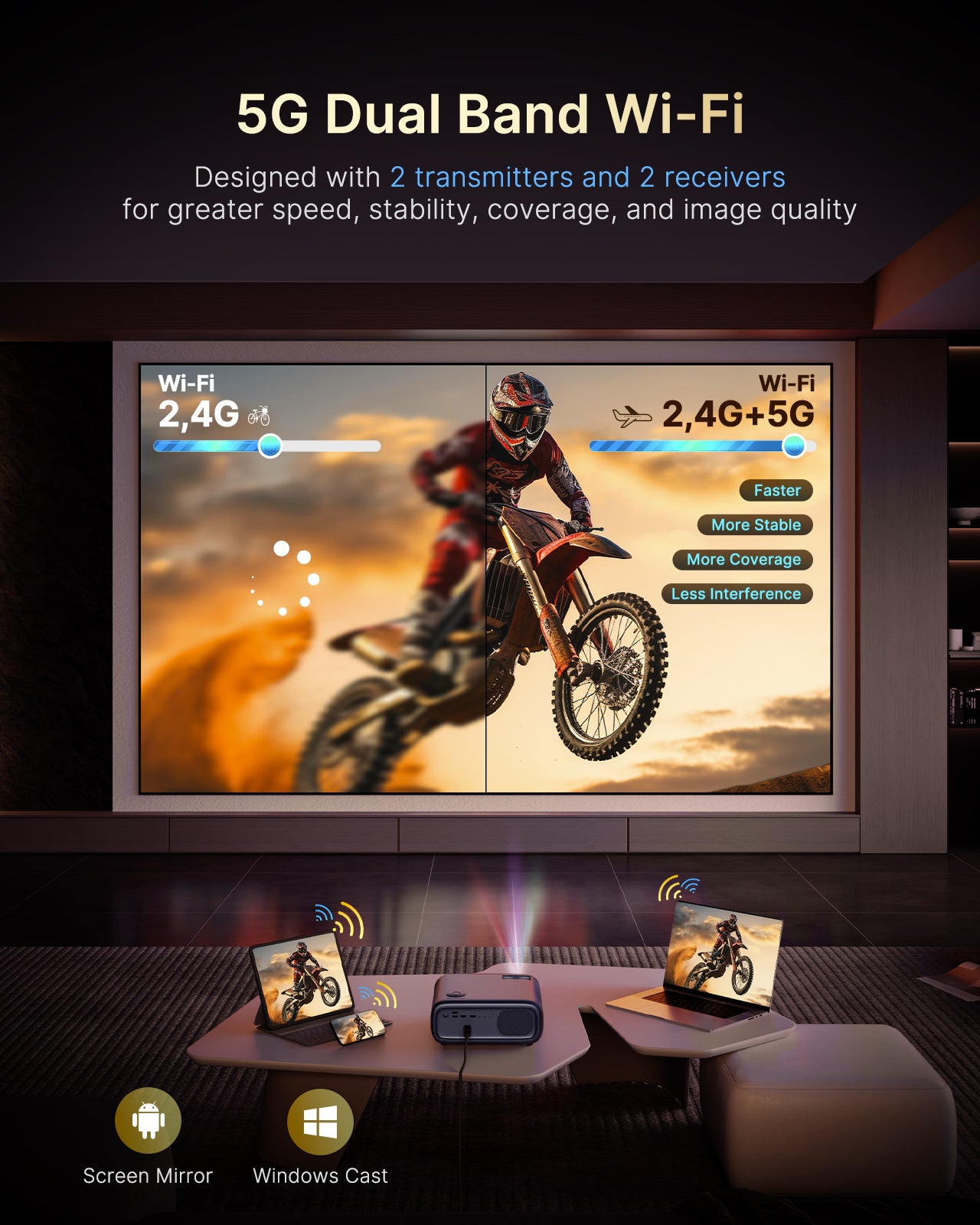
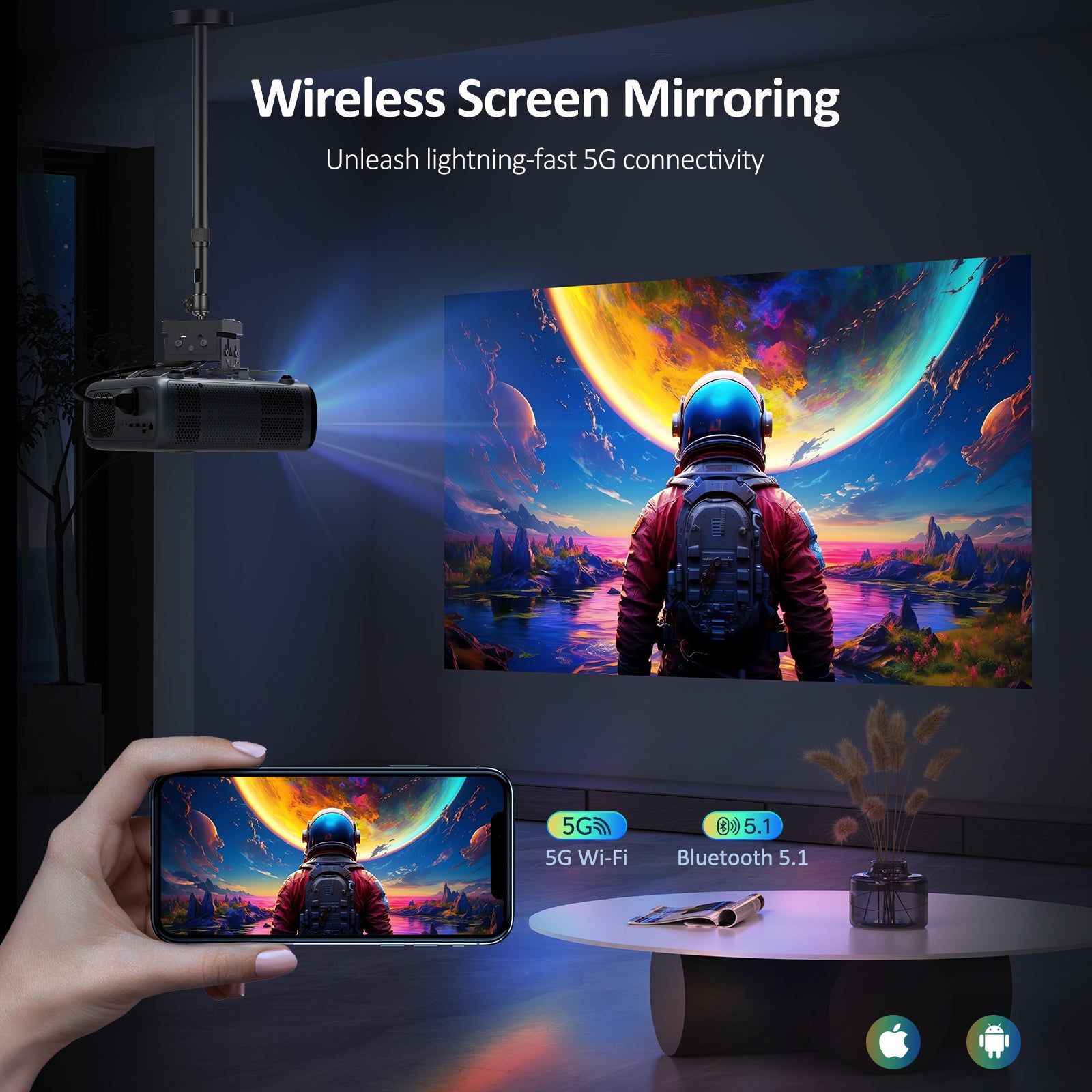
Compatible with Most Devices
A variety of ports enable you to connect almost any device, so you can watch content your way.
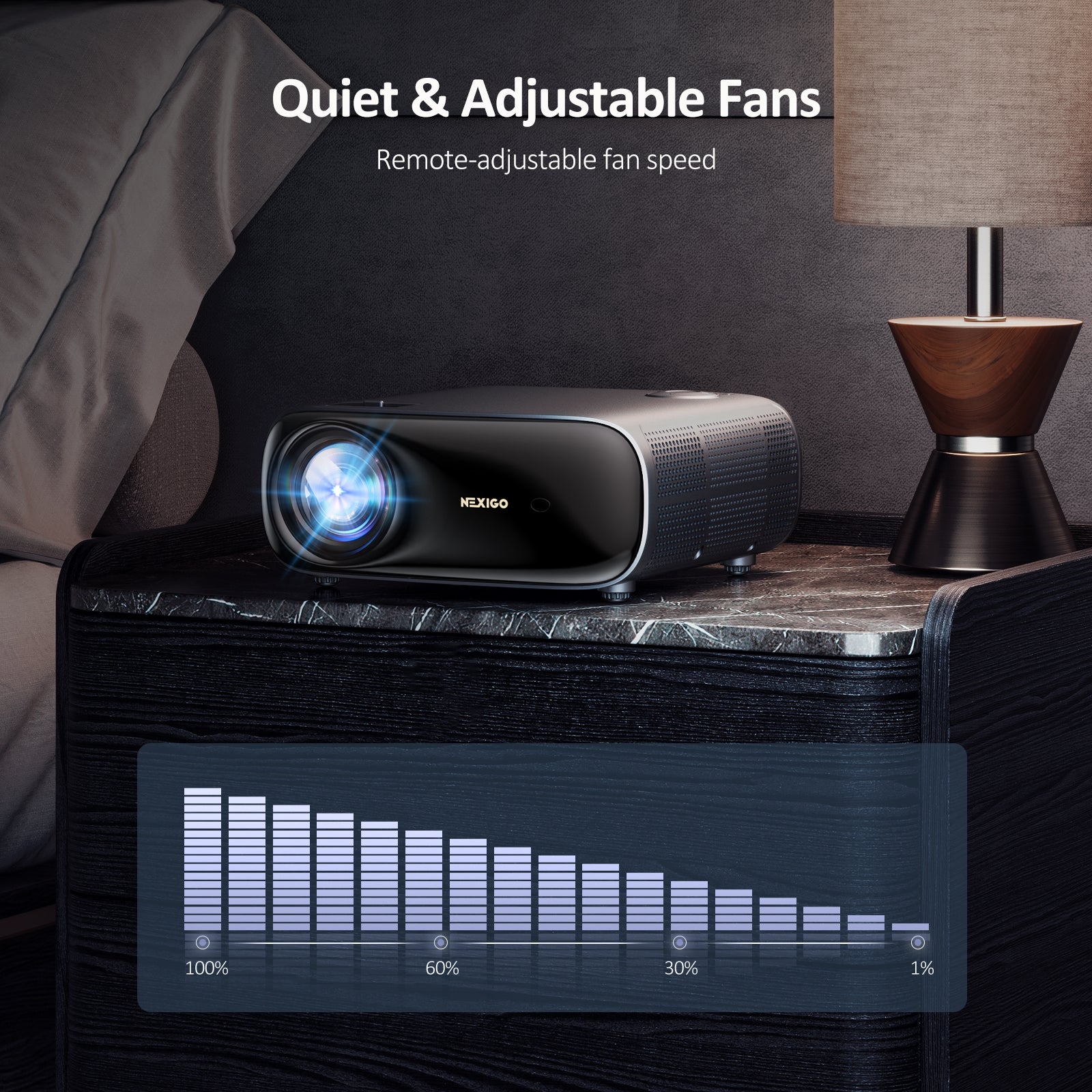
Adjustable Fan Speed
Adjustable fans can be set to levels 1 – 10, for a noise level ranging from 35 – 46 dB (tested at a distance of 1.5ft).
Live More, Waste Less
More durable devices are more useful and help reduce waste. The PJ40 uses an ultra-efficient LED light source, which provides perfectly crisp, clear images for its entire lifespan.
Endorsed by the Best


Specs:
| Specs: | Detail |
|---|---|
| Imaging Technology | LCD |
| Light Source | LED |
| Native Resolution | 1920 x 1080 |
| Max Supported Resolution | 4096 x 2176 (Local video playback) |
| Focusing Mode | Manual operation |
| Projection Distance | 4.72 - 30.18ft |
| Projection Size | 50 - 300 in |
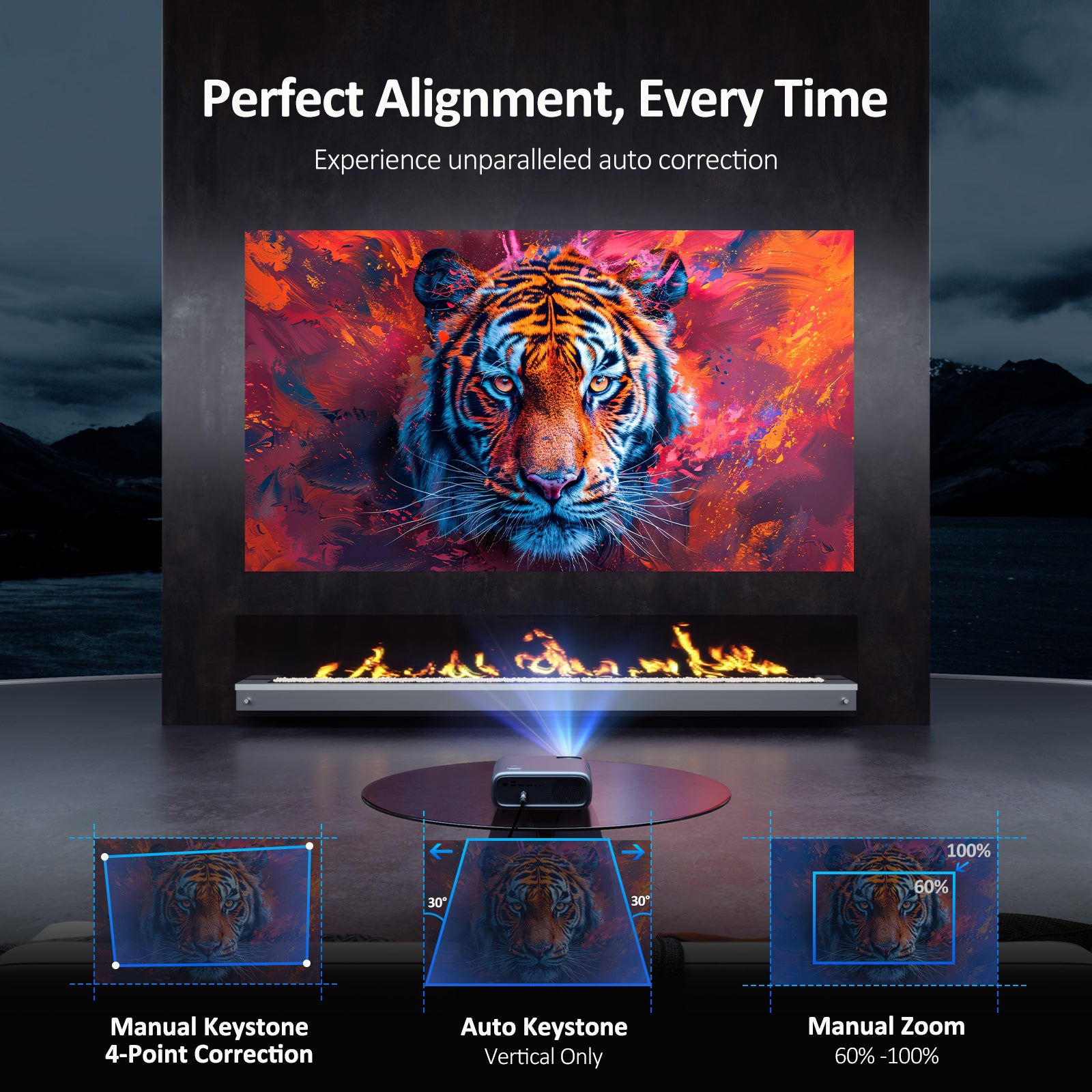
| Keystone Correction | ±30° Auto vertical; ±20° Manual horizontal |
| Specs: | Detail |
|---|---|
| Aspect Ratio | 16:9 / 4:3 |
| Power Input | AC 90-260V |
| Integrated Watt Use | 160W |
| Input Ports | HDMI 2.0 x 1, HDMI 2.0 (ARC) x 1, USB 2.0 x 2, AV x 1 |
| Output Port | 3.5mm audio jack x 1 |
| LAN Port | RJ45 x 1 |
| Speakers | 10W x 2 |