
Article Overview
What You Need to Stream Nintendo Switch 2?Why Webcams Matter So Much for Nintendo Switch 2 Content?Best Bedroom Projectors in 2026Common Mistakes to AvoidHow to Set Up Your Bedroom ProjectorHow to Stream Nintendo Switch 2 on Twitch or YouTube?How to Record Nintendo Switch 2 Gameplay for YouTube or TikTok?Why Many Beginner Streams Look “Flat”?Why 4K Webcams Make a Big Difference?What to Look for in a Webcam for Nintendo Streaming?Tips to Make Your Stream Look Better InstantlyStreaming vs Recording: Which Is Better for Beginners?Final ThoughtsButtonPrime Day Special
Ends at July 18

Aurora Pro MKII
Next-Level 4K Tri-Color Laser Projector
$2699 $3499
Nintendo Switch 2 Streaming Setup Guide: How to Stream, Record Gameplay & Look Better on Camera
NexiGo | Jun 7, 2026
And unlike competitive PC gaming, Nintendo content thrives on reactions. Mario Kart, Super Smash, and other popular Nintendo games are built for fun with friends, but gameplay itself can be repetitive. So if you’re streaming your gameplay, people probably don’t stick around because they’re interested in the gameplay. They’re there to see the person behind the controller.
Thankfully, the new Nintendo Switch 2 makes it easier to capture your reactions for streaming and content creation.
This is mostly thanks to improved performance and modern connectivity features. Between smoother online play, improved performance, GameChat features, and a growing library of multiplayer games, more players are turning their gaming sessions into Twitch streams, YouTube videos, TikToks, and Shorts.
In this guide, we'll walk through everything you need to stream or record Nintendo Switch 2 gameplay, including the setup tips that can make your content look dramatically more polished and professional.
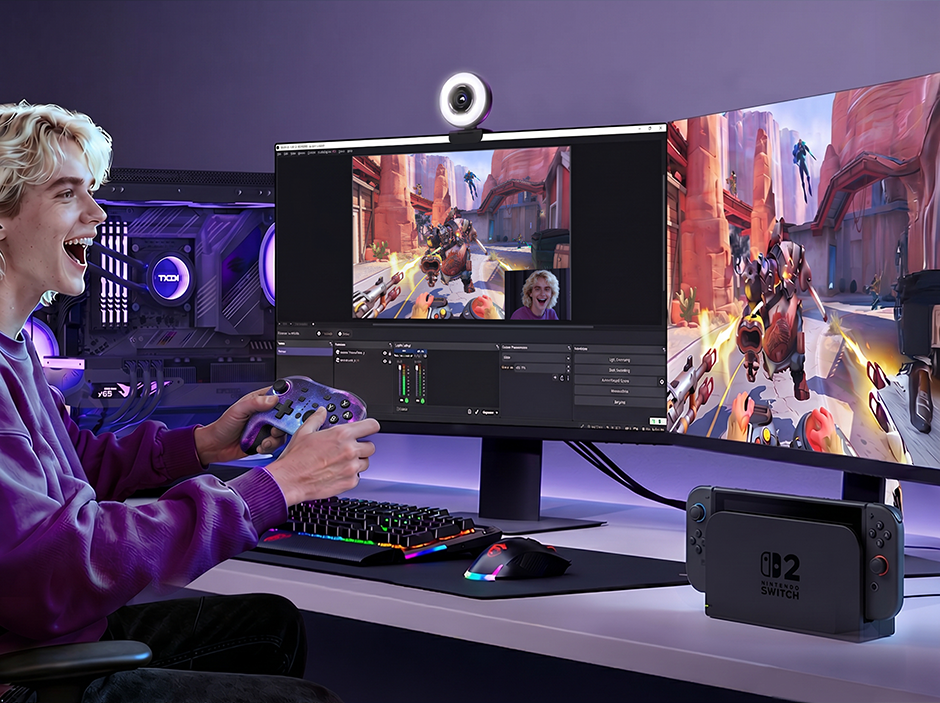
What You Need to Stream Nintendo Switch 2
You only need six things to get started (and you probably have most of them already!). You’ll need the following:
- Nintendo Switch 2
- Capture Card
- Streaming PC or Laptop
- Internet
- Microphone
- Webcam
Streaming Nintendo Switch 2 gameplay is surprisingly simple once you have the right setup.
Nintendo Switch 2
Nintendo Switch 2 supports higher resolutions and smoother frame rates than the original Nintendo Switch, with some games supporting up to 4K output in docked mode.
Capture Card
A capture card transfers gameplay footage from your Nintendo Switch 2 to your PC. Unlike PlayStation or Xbox consoles, Nintendo Switch 2 does not currently support native Twitch or YouTube livestreaming directly from the console, which is why a capture card and PC setup are still required for professional streaming.
Popular options from brands like Elgato and AVerMedia are commonly used for Twitch and YouTube streaming setups.
If you're serious about recording gameplay in high quality, a capture card is essential. Before buying a capture card, make sure it supports the resolution and frame rate you plan to stream or record (most platforms support up to 1080p at 60 fps).
Streaming PC or Laptop
When streaming from Nintendo Switch 2, a computer is essential for handling:
- OBS Studio, Streamlabs, or similar streaming software
- overlays
- webcam feeds
- chat monitoring
- recording
- live broadcasting
You don’t necessarily need a high-end gaming PC to stream Nintendo Switch 2 content, but smoother performance always helps.
Internet
Stable upload speed is critical for livestreaming. A wired Ethernet connection is usually more reliable than Wi-Fi for long streams.
Microphone
Good audio matters more than most beginners realize. Even with amazing gameplay quality, poor microphone audio can instantly make streams feel unprofessional.
USB microphones are usually the easiest starting point for new streamers.
Webcam
This is where many first-time streamers underestimate the difference quality can make.
Nintendo games are heavily personality-driven. Viewers want reactions, excitement, frustration, laughter, and real interaction — especially during party games, multiplayer sessions, or live reactions.
A good webcam helps your audience feel connected to the stream rather than just watching gameplay footage.
Why Webcams Matter So Much for Nintendo Switch 2 Content
Not every gaming community behaves the same way. For highly competitive FPS games, viewers may focus primarily on gameplay performance.
Nintendo audiences are different. Nintendo Switch 2 content tends to revolve around:
- reactions
- co-op moments
- party gameplay
- social interaction
- funny fails
- live commentary
- creator personality
That’s why webcam quality plays such a huge role in Nintendo streaming culture. A clean, sharp webcam feed instantly makes streams feel more engaging and interactive. Even small creators will benefit from appearing more expressive and visually present on screen.
How to Stream Nintendo Switch 2 on Twitch or YouTube
Once your hardware is ready, the setup process is fairly straightforward.
Step 1: Dock Your Nintendo Switch 2
Place your Nintendo Switch 2 into the dock and power it on.
Step 2: Connect Your Capture Card
Now, connect your Nintendo Switch to a capture card. This is the only way to get your gameplay feed from your console onto your computer for streaming.
- Use an HDMI cable to connect the Nintendo Switch 2 dock to the HDMI IN port on the capture card.
- Use a second HDMI cable to connect your monitor or TV to the HDMI OUT port on the capture card.
- Use a USB cable to connect the capture card to your computer.
This way, your Nintendo Switch 2 sends video to both your screen and your computer at the same time.

Step 3: Add Your Gameplay Feed
Next, you’ll need to link your gameplay feed to a dedicated streaming software. This necessary step helps you configure the video, audio, and layout of your stream before you go live. To link your gameplay feed:
- Open OBS Studio, Streamlabs, or similar streaming software and add a new Video Capture Device.
- Select your capture card from the device list.
- You should now see your Nintendo Switch 2 gameplay appear inside OBS.
Step 4: Configure Audio
Make sure OBS is capturing:
- game audio
- microphone audio
- optional voice chat audio (depending on your capture setup)
You can check the “Audio Mixer” tab to make sure it’s capturing all audio sources. If something is missing, you can add it under “Sources” by clicking the + and then selecting “Audio Input”.
Balancing audio levels is extremely important. Make sure to test your audio before you go live. Many beginner streams either have game audio that’s too loud or microphones that sound distant and unclear.
Step 5: Add a Webcam Overlay
Now add your webcam as another Video Capture Device in OBS. A webcam instantly makes streams feel more alive and interactive. For Nintendo games specifically, reaction visibility often matters just as much as gameplay visibility.
Most streamers place their webcam in:
- bottom left
- bottom right
- side panel layouts
Step 6: Recommended OBS Settings for Beginners
For best results, set your OBS canvas settings like below.
1. Resolution and Frame Rate:
- 1080p, 60 fps → Stable and smooth, suitable for most viewers
- 1440p, 60 fps → Clearer, but requires higher bandwidth.
- 4K, 60 fps → Supported by Nintendo Switch 2, but requires a high-speed network and a powerful PC for streaming.
2. Bitrate Settings: Recommended 6000–8000 kbps (Twitch maximum 6000 kbps, YouTube can be higher)
3. Audio Settings: Use a dedicated microphone, set the sampling rate to 48 kHz to avoid latency
Step 7: Go Live
Once OBS is connected to your streaming platform, you’re ready to broadcast. Below is a table covering the setup for the most popular streaming platforms.
| Platform | Connection Method | Key Steps |
|---|---|---|
| Twitch | Stream Key or OAuth Login | 2. Select “Twitch” 3. Log in or paste your Stream Key 4. Click “Start Streaming” |
| YouTube Live | Google Account Authorization | 1. Open OBS → Settings → Stream 2. Choose “YouTube – RTMPS” 3. Sign in to your Google account 4. Create a live event in YouTube Studio |
| Kick | Stream Key Connection | 1. Open OBS → Settings → Stream 2. Select “Custom Streaming Server” 3. Enter Kick RTMP URL and Stream 4. Key Click “Start Streaming” |
| Facebook Live | Stream Key or Login Authorization | 1. Open OBS → Settings → Stream 2. Choose “Facebook Live” 3. Log in or paste your Stream Key 4. Click “Go Live” on Facebook |
| TikTok Live | RTMP Access Required | 1. Obtain TikTok RTMP URL and Stream Key
2. In OBS, select “Custom Streaming Server” 3. Enter URL and Key 4. Click “Start Streaming” TikTok Live streaming via OBS may require Live Studio or RTMP access eligibility depending on your region and account status |
💡 Pro Tips
- Run a test stream first to check audio, video, and latency.
- Use OBS Studio Mode to preview scene transitions smoothly.
- Enable Auto Reconnect to prevent interruptions during network drops.
How to Record Nintendo Switch 2 Gameplay for YouTube or TikTok
You don’t have to livestream to create great content. Many creators simply record gameplay and edit clips later for YouTube videos, Shorts, TikTok, and Instagram Reels. This is actually one of the fastest ways to grow as a gaming creator.
Recording locally also gives you more control over:
- video quality
- editing
- thumbnails
- reaction timing
- subtitles
- meme edits
Why Many Beginner Streams Look “Flat”
A lot of first-time creators focus entirely on gameplay quality, but viewers spend just as much time looking at the streamer. That’s why many beginner setups end up feeling visually dull even if the gameplay itself looks good.
Common problems include:
- blurry webcams
- poor lighting
- noisy image quality
- washed-out colors
- laggy webcam motion
- weak framing
- low microphone clarity
The difference between an amateur-looking stream and a polished one is often presentation quality rather than gaming skill.
Why 4K Webcams Make a Big Difference
You don’t need a massive studio setup to improve stream quality. One of the easiest upgrades for modern creators is simply using a higher-quality webcam. There are many advantages of using a 4K webcam, even if your streaming platform doesn't support streaming in 4K.
Sharper Image Quality
Nintendo games are colorful, expressive, and reaction-heavy. A blurry webcam reduces facial detail and makes streams feel less immersive.
Higher-resolution webcams help maintain cleaner image quality during movement, reactions, and live commentary. Even in 1080p, the higher quality sensor makes video look sharper and more vibrant.
Better Low-Light Performance
Lighting conditions aren’t always ideal. Many players stream from:
- bedrooms
- dorm rooms
- living rooms
- gaming corners
A better webcam can produce cleaner images with less noise and grain, even without professional lighting equipment.
Better Cropping for Shorts and TikTok
This is one of the biggest advantages of recording in higher resolution. Modern creators rarely make content for just one platform anymore. A single Twitch stream may later become:
- YouTube Shorts
- TikTok clips
- Instagram Reels
- vertical reaction edits
Higher-resolution webcam footage gives creators much more flexibility when cropping or reframing content during editing. This is especially useful for reaction clips and meme-style edits.
More Professional Stream Presence
Even casual streamers benefit from a cleaner-looking webcam setup. Viewers subconsciously associate sharp video, smooth motion, and natural color temperatures with higher production quality and creator credibility.
What to Look for in a Webcam for Nintendo Streaming
When choosing a webcam for streaming or content creation, resolution is only part of the equation.
Features like fast autofocus, strong low-light performance, accurate color reproduction, built-in noise reduction, and flexible mounting options can make a noticeable difference during long streaming sessions.
For creators who want to upgrade beyond a basic 1080p webcam, models like the NexiGo N680E Pro 4K Webcam combine ultra-sharp 4K video, fast autofocus, dual noise-canceling microphones, and a built-in ring light in a compact setup designed for streaming, video calls, and content creation.
Whether you're going live on Twitch, recording gameplay for YouTube, or creating reaction clips for TikTok, a higher-quality webcam can help your content look more polished without requiring a complicated studio setup.
Tips to Make Your Stream Look Better Instantly
You don’t need expensive gear everywhere. A few simple adjustments can dramatically improve stream quality. Follow the tips below to get the most out of your streaming setup.
Position Your Webcam Slightly Above Eye Level
This creates a more natural and flattering angle. Avoid placing webcams too low under monitors.
Use Soft Front Lighting
Even a basic desk lamp placed behind your monitor can improve image quality significantly. Good lighting matters more than most people expect.
Clean Your Background
Simple backgrounds often work better than cluttered rooms. Your setup doesn’t need to look expensive; it just needs to look intentional.
Don’t Make the Webcam Too Large
Your reactions matter, but gameplay should still remain the main focus. Most creators keep their webcam overlay relatively compact.
Prioritize Audio Quality
Viewers tolerate average video far more than bad audio. Even a decent microphone upgrade can dramatically improve viewer retention.
Streaming vs Recording: Which Is Better for Beginners?
When recording gameplay on Nintendo Switch 2, you can either live stream or record and edit later before posting.
| Quality | Streaming | Recording |
|---|---|---|
| Top Priority | Live community engagement | Polished edits |
| Platform | Twitch, YouTube Live, Instagram Live, Twitch Live, Facebook Live | YouTube, TikTok |
| Content Preference | Spontaneous, unplanned content | Curated content without the pressure of being live on air |
Many successful creators actually combine both strategies. They livestream gameplay first, then repurpose the best moments into short-form content.
Final Thoughts
Viewers don’t just follow Nintendo creators for gameplay. They follow personalities, reactions, humor, and shared experiences. The more expressive and visually engaging your content feels, the easier it becomes to build a loyal audience over time.
That’s why modern streaming setups focus on more than just capture cards and resolution settings.
A strong webcam setup can instantly make content feel more engaging, immersive, and professional, whether you're livestreaming on Twitch or recording clips for TikTok and YouTube.
As Nintendo Switch 2 content continues growing across streaming platforms, creators who invest in presentation quality will stand out far more easily, even before they become big channels.
FAQ
Like what we do? Stay tuned for more.
Whether you work at home or in the office, NexiGo provides a wide range of quality and affordable technology to elevate your daily life. Our products encompass everything from webcams and portable monitors to projectors and gaming accessories.
Articles we think you'll love